
Ready to send your first email campaign? This guide walks you through the entire process — from choosing your audience to scheduling delivery. Make sure you have already set up your contact fields, contact lists, and added contacts before starting.
Want the short version with a screenshot for every click? See How to Create an Email Campaign (Quick Steps).
From the Eventify Admin Panel, click on Campaign in the left sidebar.

Make sure you are on the Campaign tab (Email Campaign section).

Click the Create Campaign button to start creating a new email campaign.
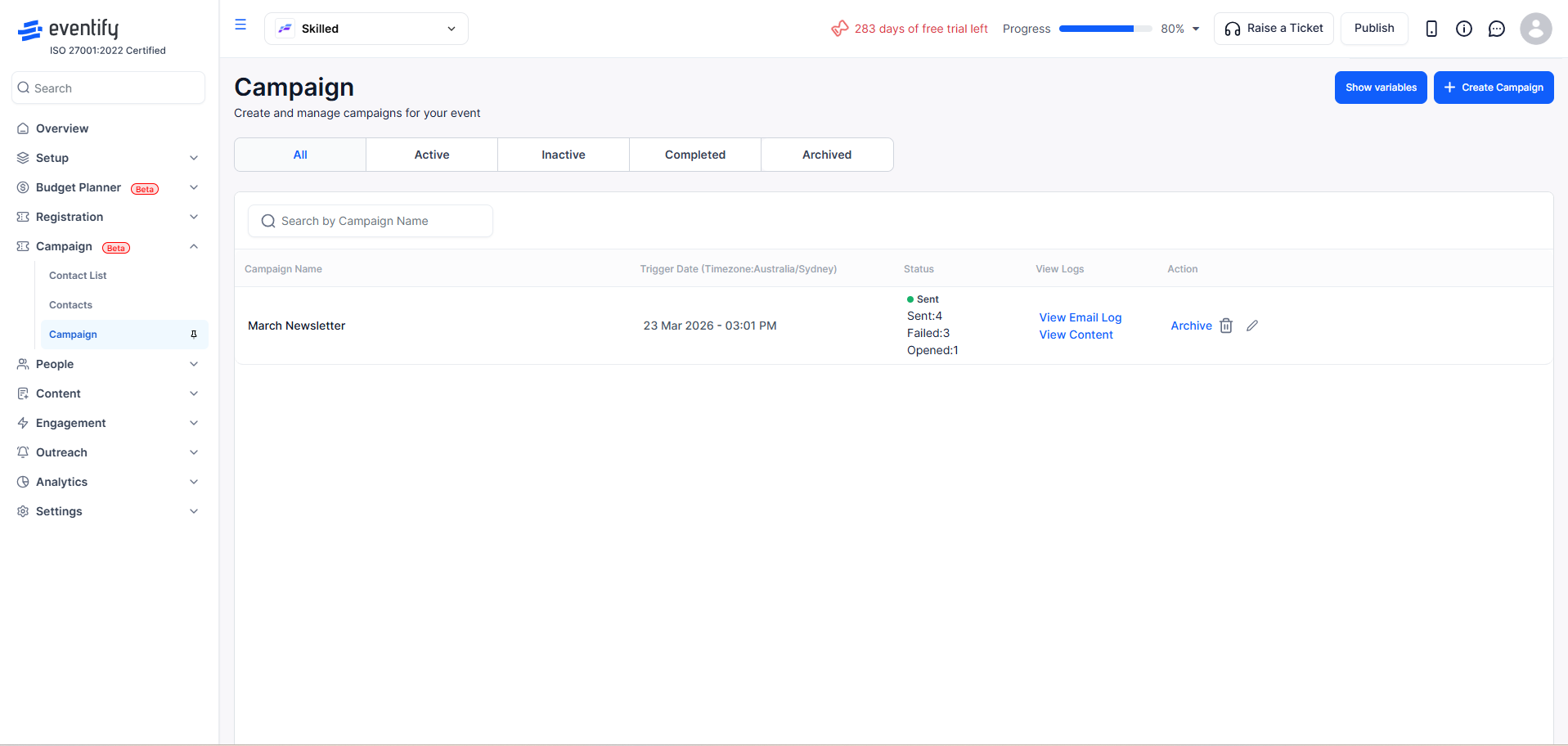
You will be asked to choose who this campaign is for:
Click the appropriate option. Most of the remaining steps are the same for both audience types; only the Target Audience step differs (contact lists for contacts, filters for attendees). For attendee filters, see How to Target Event Attendees with Audience Filters.
Note: This choice cannot be changed after the campaign is created. To switch audience type, create a new campaign.
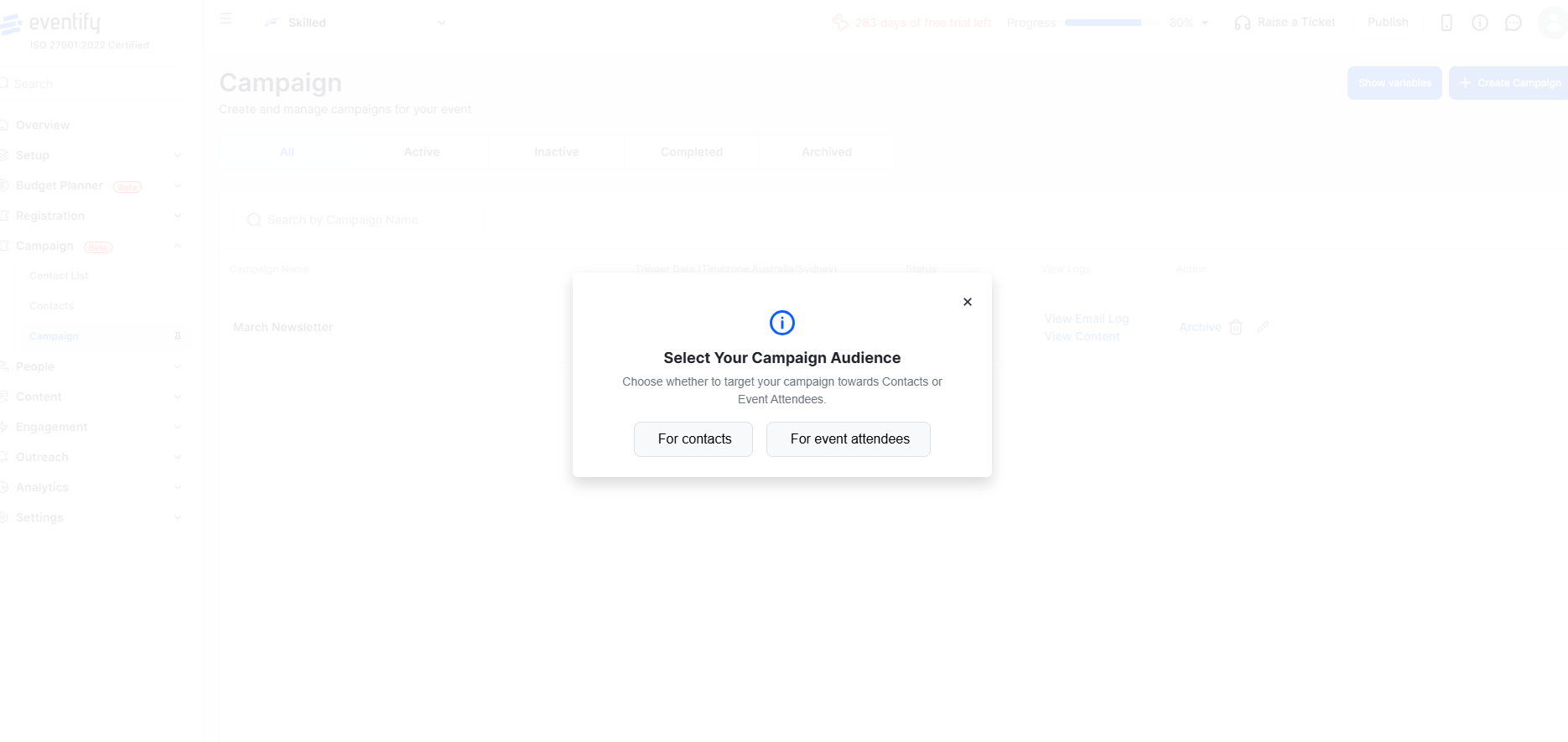
Give your campaign a descriptive name (e.g., "March Newsletter", "Event Reminder", "Thank You Email"). This is for your reference only — recipients will not see this.

Type the email subject line that recipients will see in their inbox. Keep it concise and compelling.

Where to find these fields: On the Campaign Info & Templates tab, tick Send Email Campaign and click Manage Details. The Email Campaign Settings window holds the Email Subject, From Name and template options. For event attendee campaigns you can also tick Send Push Notification to send a push notification alongside the email.
The From Name is what recipients see as the sender. By default this is your event/organization name, but you can change it (e.g., to a person's name for a more personal touch).
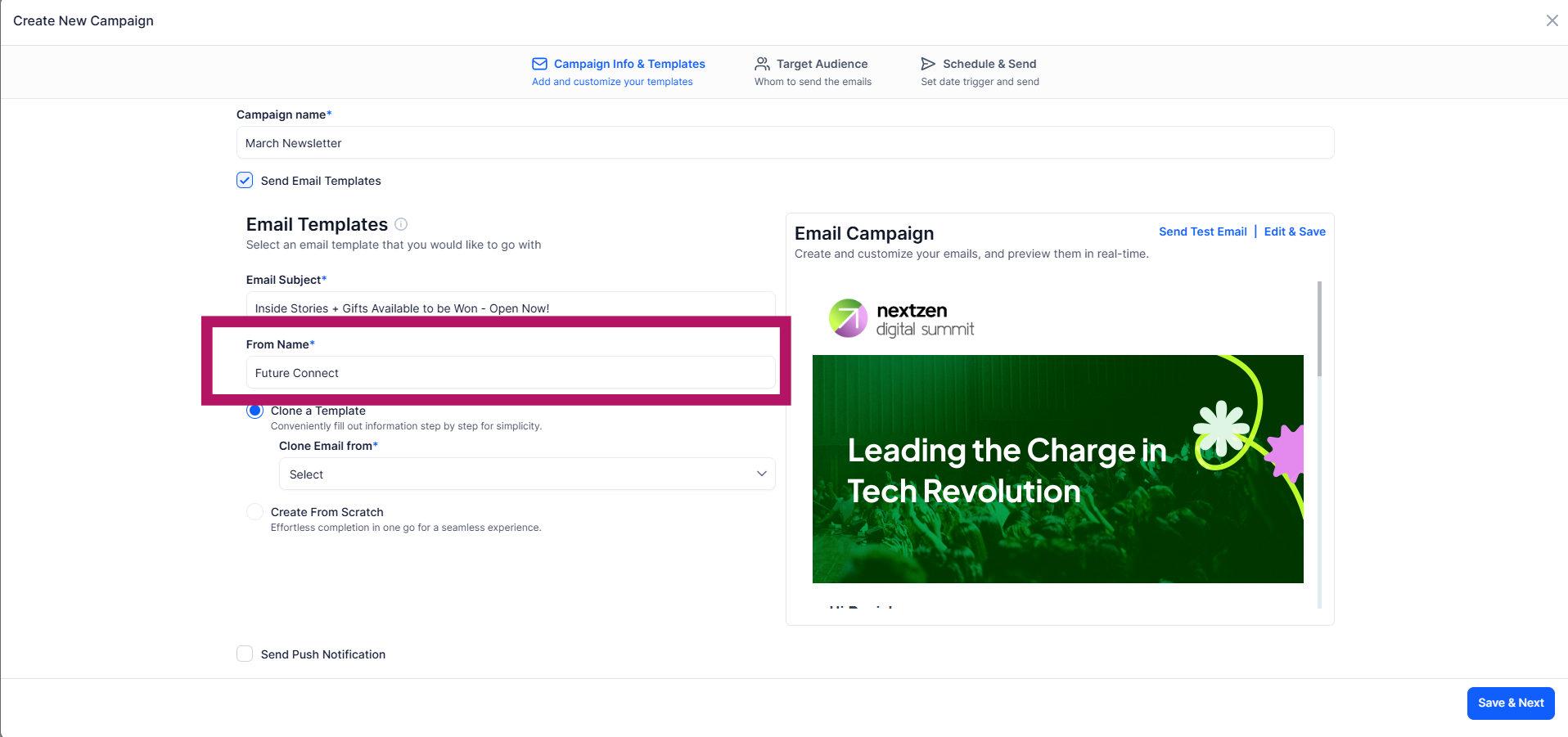
You have two options for your email content:
For detailed instructions on using the template builder, see the article "How To Use the Email Template Builder?"
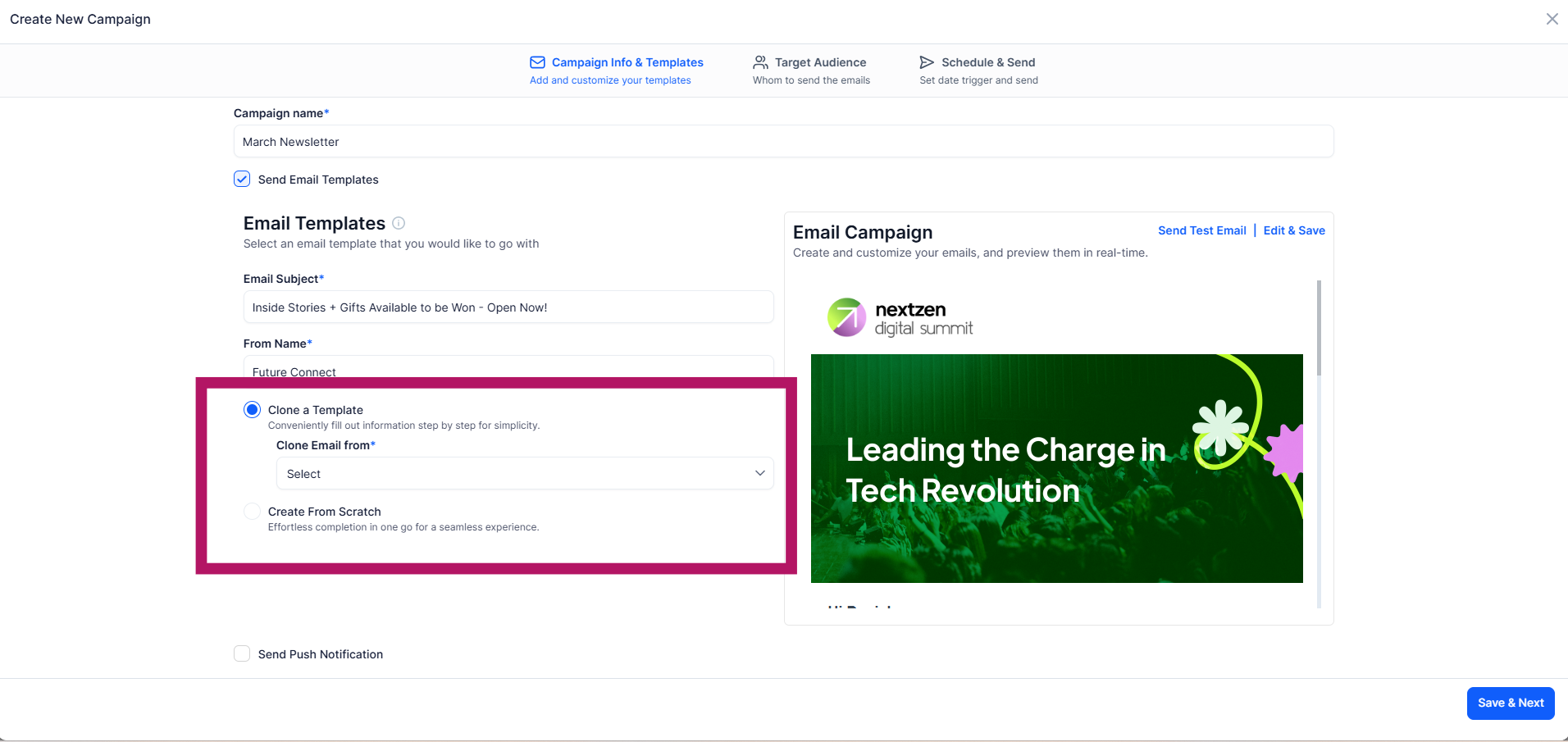
Use the visual editor to create your email. Add text, images, buttons, and personalization variables. Remember to save your template when done.

Save your email template, then click Save & Next to proceed to recipient selection.

Choose which Contact List/Group you want to send this campaign to. These are the lists you created in the Contact Lists section.

Click the Add Contacts button to open the contact selection modal. Here you can manually add contacts.
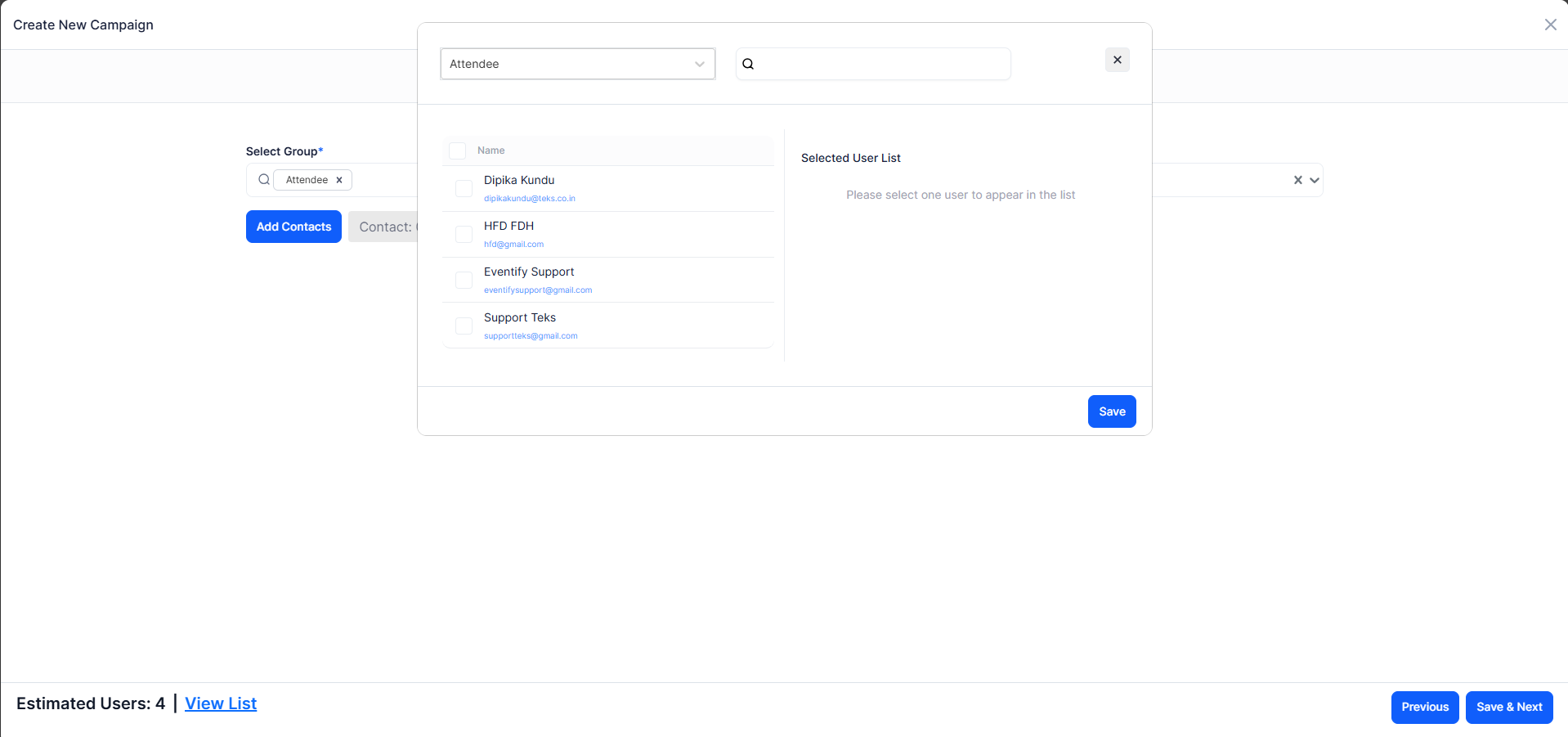
After selecting your recipients, click Save.

Click View List to see the estimated list of users who will receive this campaign. Review it to make sure the right contacts are included.
Skip sending to already registered users: For contact campaigns, this checkbox is ticked by default and leaves out contacts who are already registered for your event. Untick it if you want them to receive the email as well.

Click Save & Next to move to the scheduling step.

You have four scheduling options:
Choose Send Immediately to start the campaign as soon as it is saved as Active. Delivery takes approximately 2 to 30 minutes.
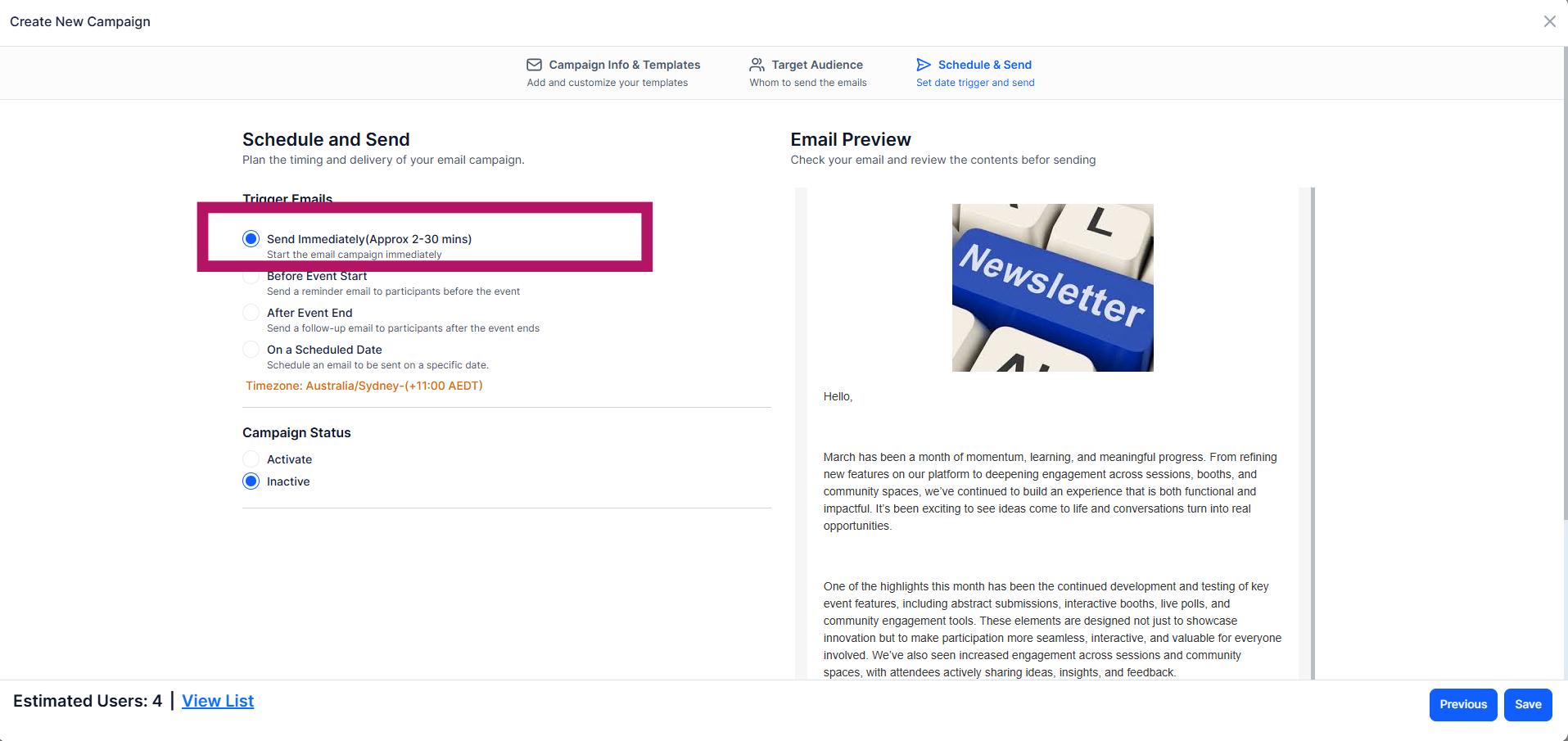
Choose Before Event Start to send a reminder email ahead of your event. Select:
The system will show the tentative send date based on your event date and the days-before setting.

Choose After Event End to send a follow-up email after your event. Select:
The system will show the tentative send date based on your event end date.

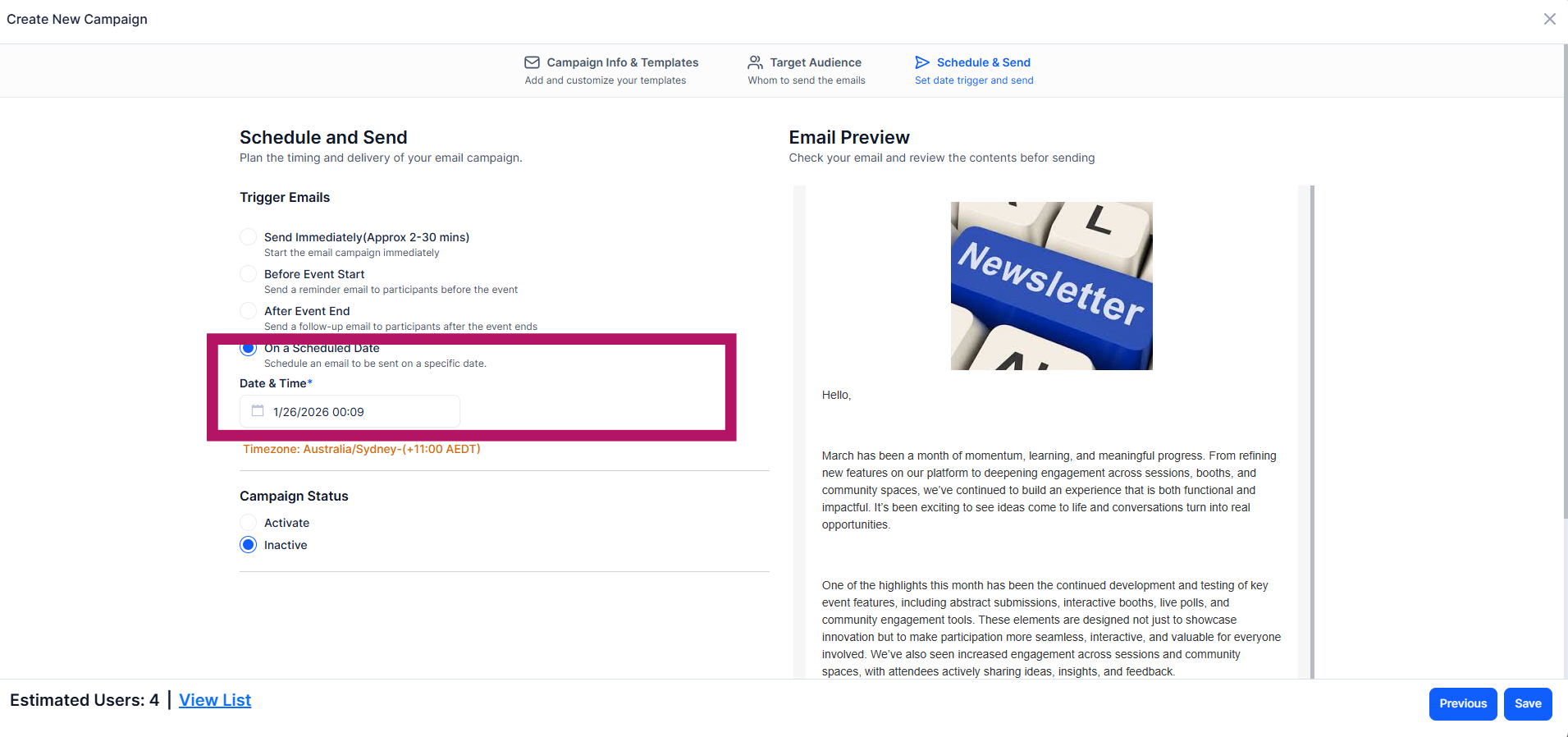
Choose On a Scheduled Date to set an exact date and time for delivery. Use the date and time picker to set your preferred schedule. You cannot pick a date earlier than today.
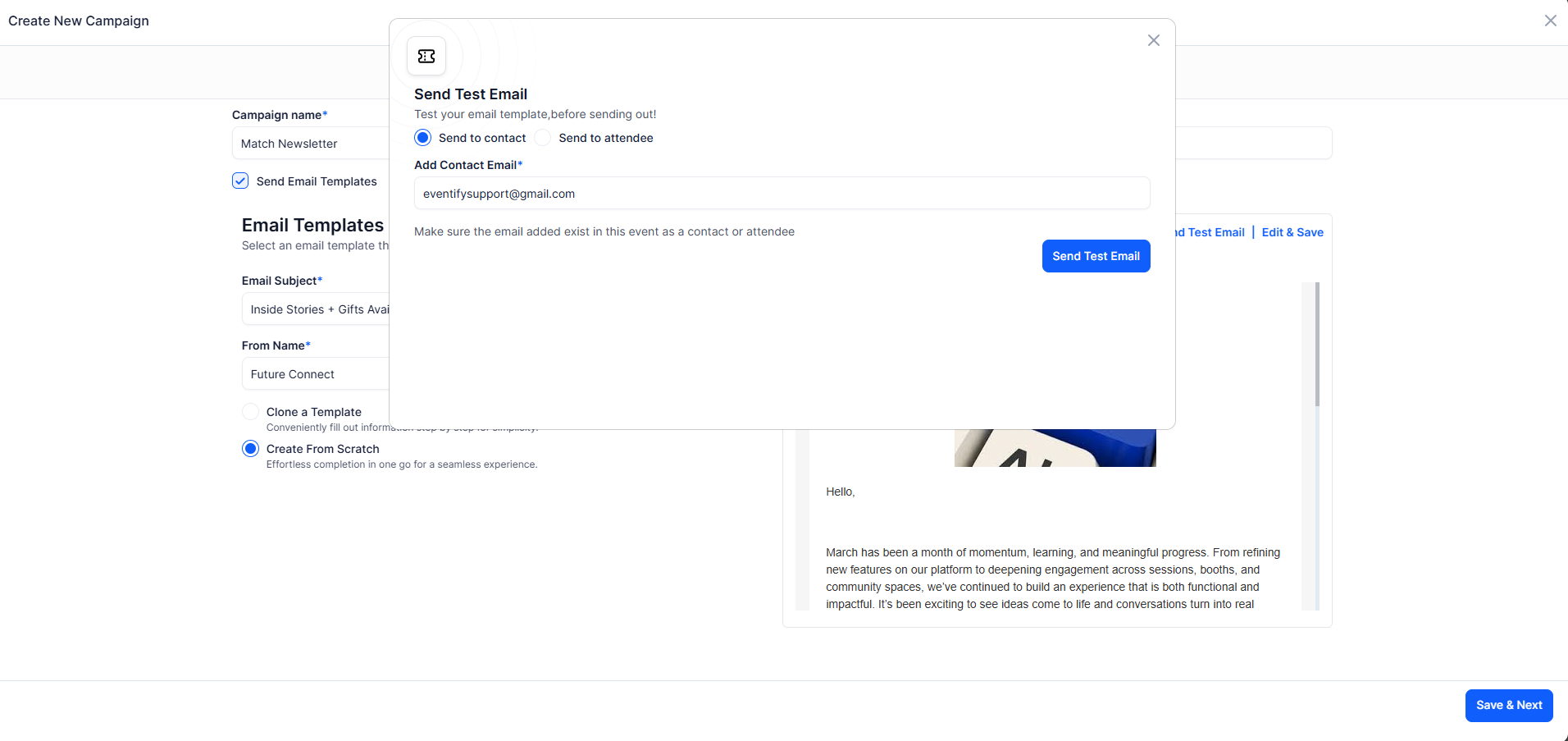
Before activating your campaign, it is highly recommended to send a test email to yourself or a colleague. This lets you verify how the email looks in an actual inbox, check that variables are working, and catch any formatting issues. Click Send Test Email in the Email Campaign Settings window, or Send test to me in the Campaign Summary on the Schedule & Send tab. The test address must belong to a contact or attendee of this event.
Under Campaign Status, select Active. If you set it to Inactive, the campaign will be saved as a draft and will not send until you activate it later.
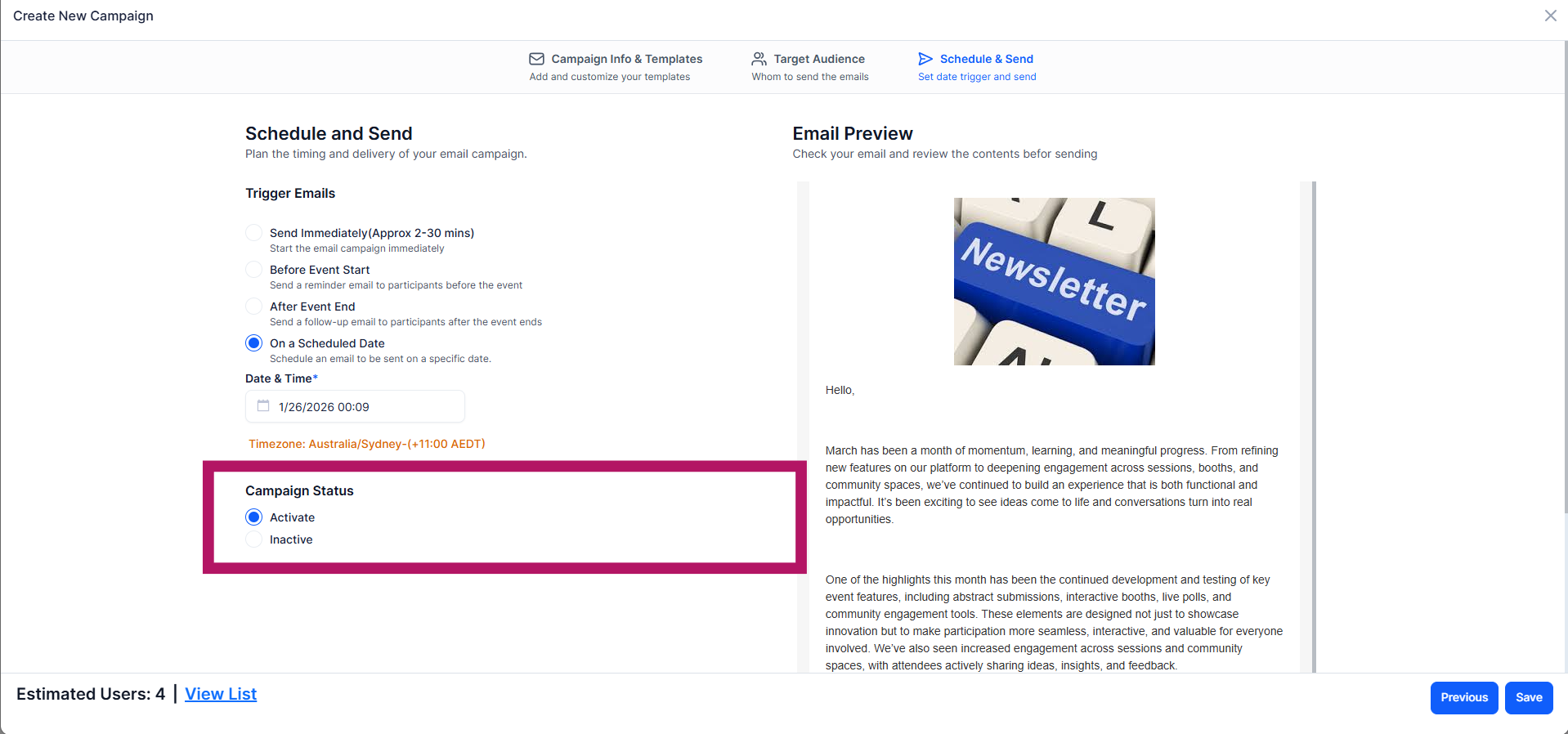
Click the Save button to finalize and create your campaign. If set to Active with an immediate schedule, emails will begin sending shortly. If scheduled for a future date, the campaign will send automatically at the scheduled time.
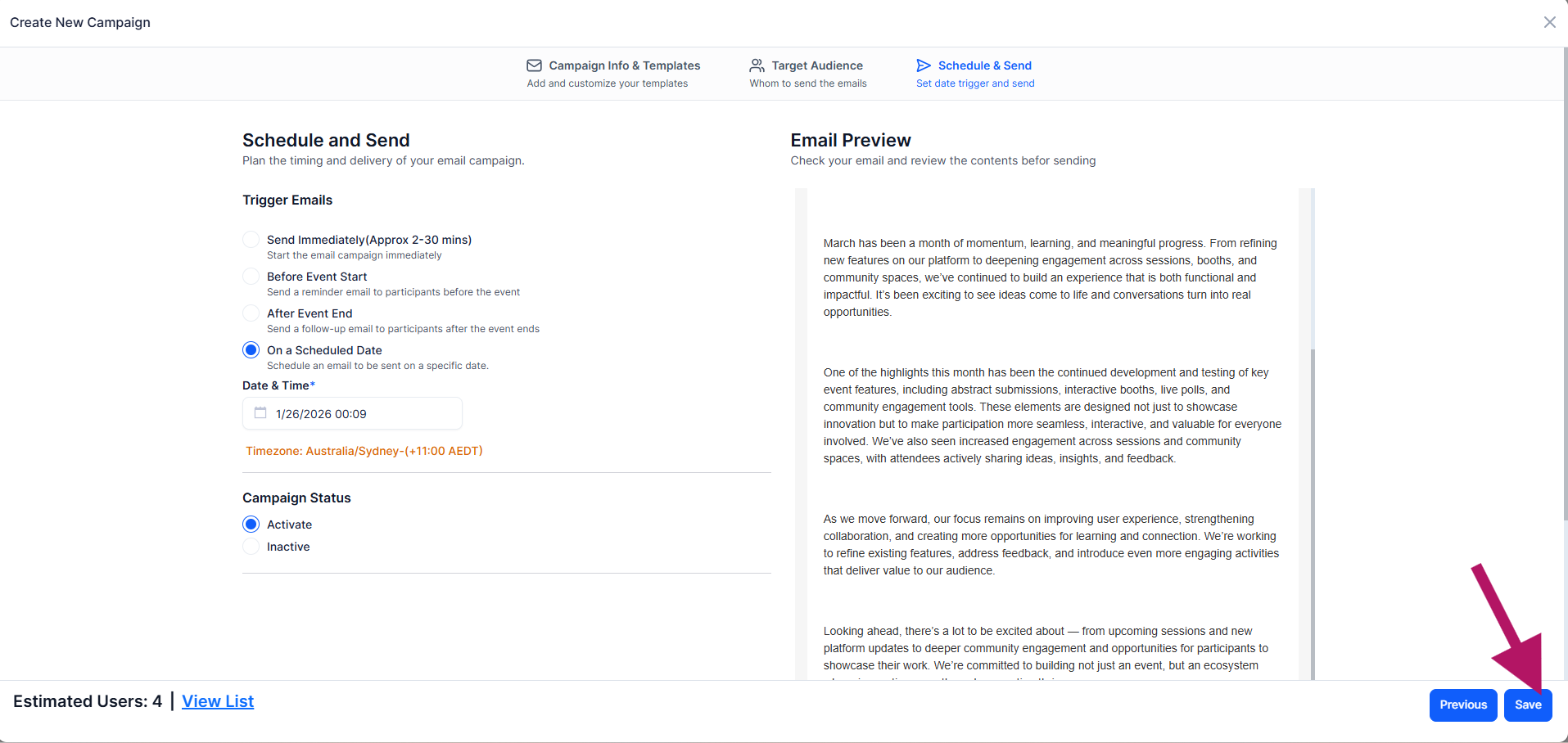
Before saving, check the Campaign Summary on the same tab. It shows the subject, sender, recipients, when the campaign sends and the event timezone, with an email preview.
For more, see How to Edit, Deactivate, Archive or Delete Email Campaigns.
Once your campaign is saved and active, here's what to expect:
A Send Immediately campaign is delivered in approximately 2 to 30 minutes after it is saved as Active.
Yes. Choose Before Event Start and the system shows the tentative send date based on your event date and the days-before setting.
It is saved as a draft and will not send until you activate it.
No. For contacts or For event attendees is fixed when the campaign is created. Create a new campaign to use the other audience type.
In contact campaigns it is ticked by default and removes contacts who are already registered for your event from the recipients. Untick it to include them.
Yes, if it is scheduled (Before Event Start, After Event End or On a Scheduled Date) and has not been sent yet. Send Immediately campaigns and sent campaigns open in view-only mode.
In the campaign list, turn off the toggle on the campaign (tooltip: Inactivate). You can turn it back on later to activate it again.
The number of days must be at least 1.
