Categories group related guides together. They appear as collapsible sections in both the admin panel and the attendee app. Clear category names help attendees find information quickly.
How to Create a Category
Method 1 — From the Add a Category button:
Go to Dashboard > Content > Event Guide.
Click Add New to open the Add Event Guide modal.
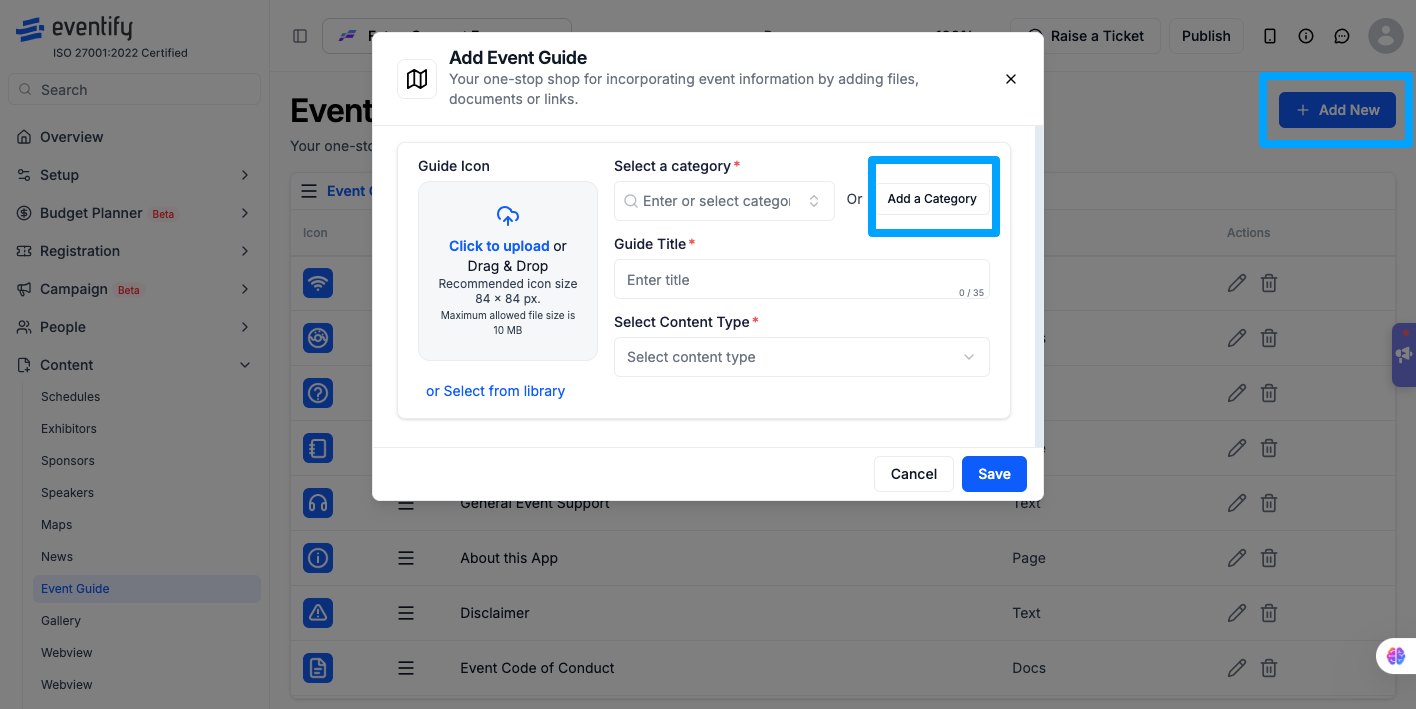
Next to the Category dropdown, click Add a Category.
A dedicated modal opens with a Category Name field.
Enter a short, descriptive name.
Click Save — the category is created and auto-selected in the dropdown.
Method 2 — Inline while creating a guide:
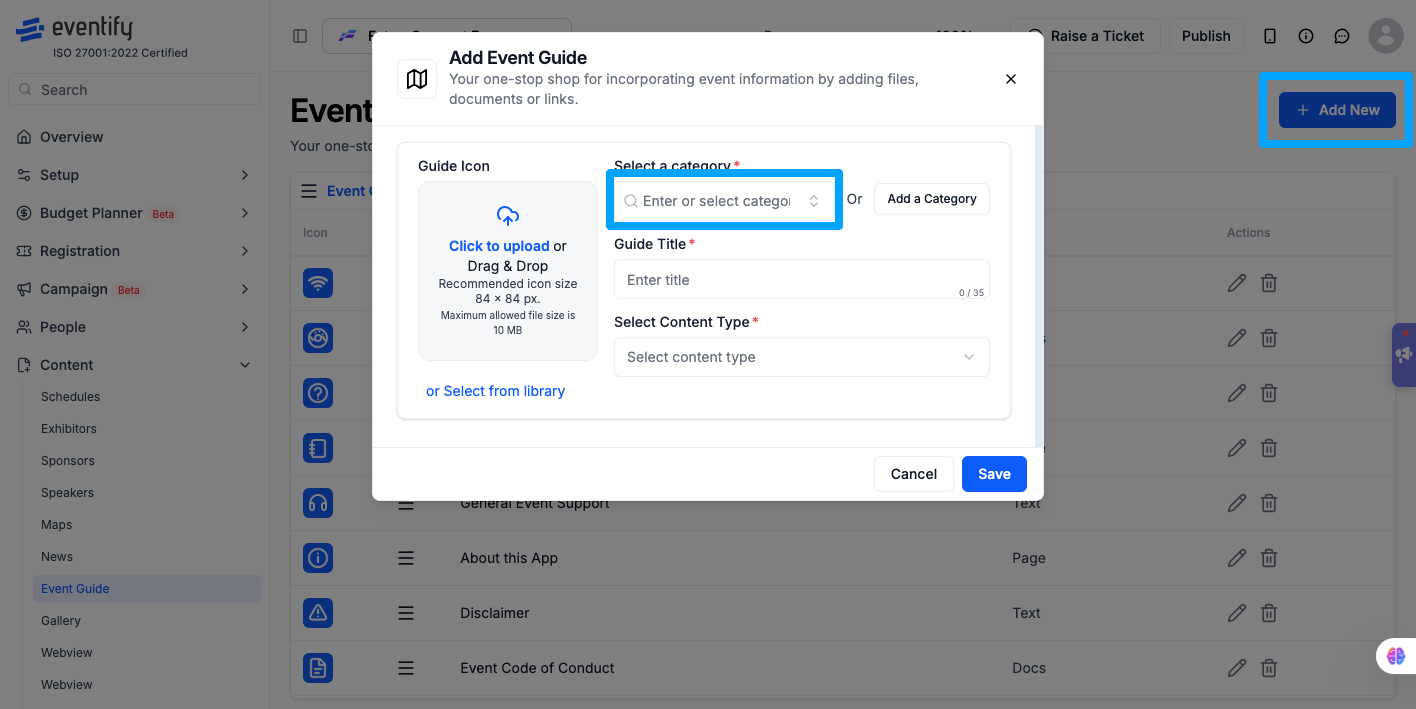
In the Add Event Guide modal, type a new name directly into the Category dropdown field.
The new category is created automatically when you save the guide.
How to Reorder Categories
Go to Dashboard > Content > Event Guide.
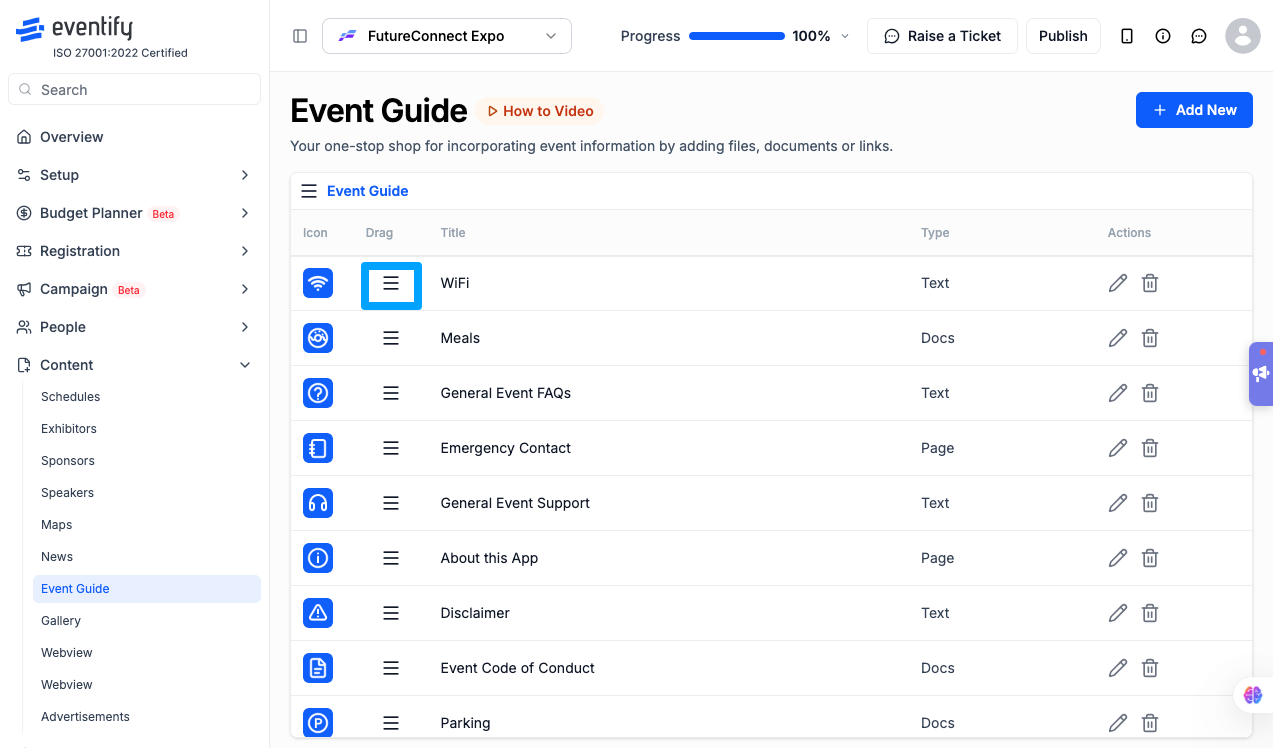
Click and hold the drag handle (=) on a category row.
Drag it to the desired position.
Release — the new order saves automatically.
The order in the admin panel is exactly how categories appear to attendees in the app.
Frequently Asked Questions
Q: Can I create a category without creating a guide at the same time?
A: Yes. Click Add New > Add a Category, save the category, then click Cancel on the guide modal. The category exists independently.
Q: Can I rename a category after creating it?
A: Categories are managed through the guides assigned to them. To effectively rename, update the category assignment on the guides within it.
Q: What happens if I reorder categories?
A: The new order is saved automatically and reflected immediately in the attendee app.