Each event guide requires a category, title, content type, and content. You also have the option to add a custom icon. Guides publish instantly on save.
Common Fields (All Content Types)
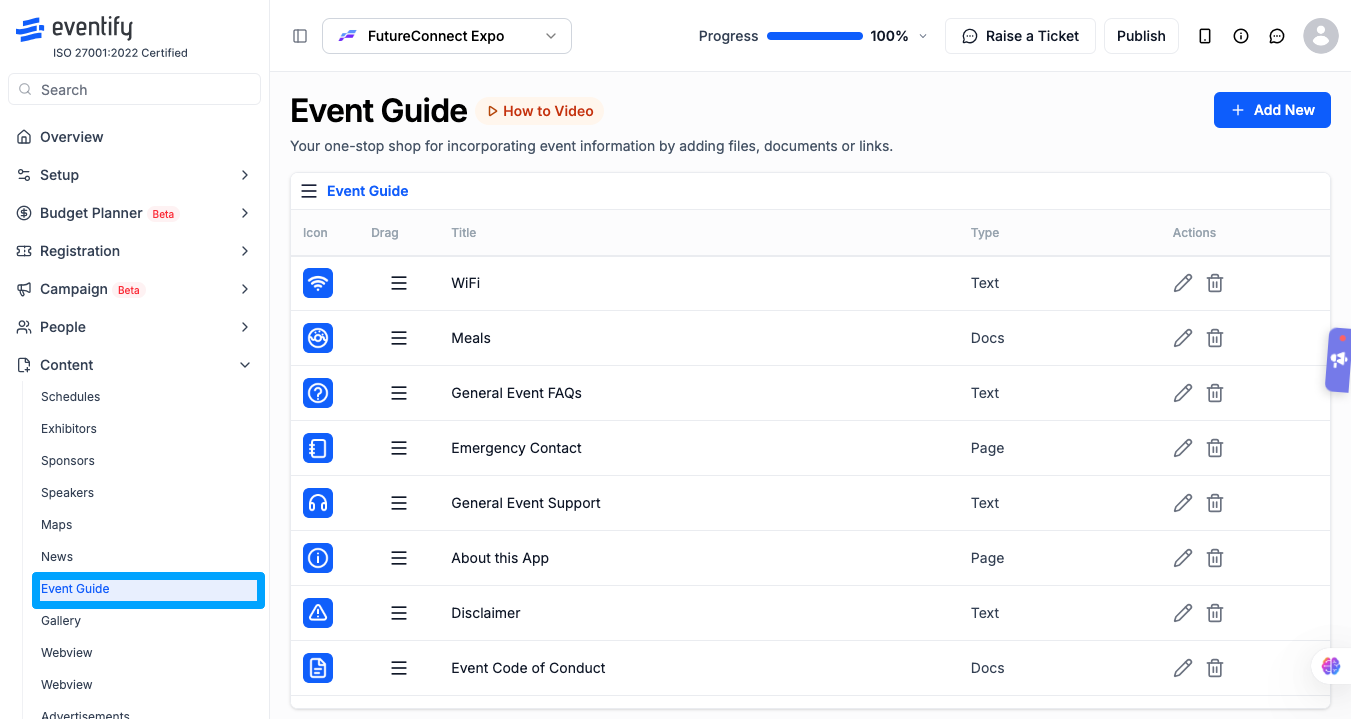
Go to Dashboard > Content > Event Guide.
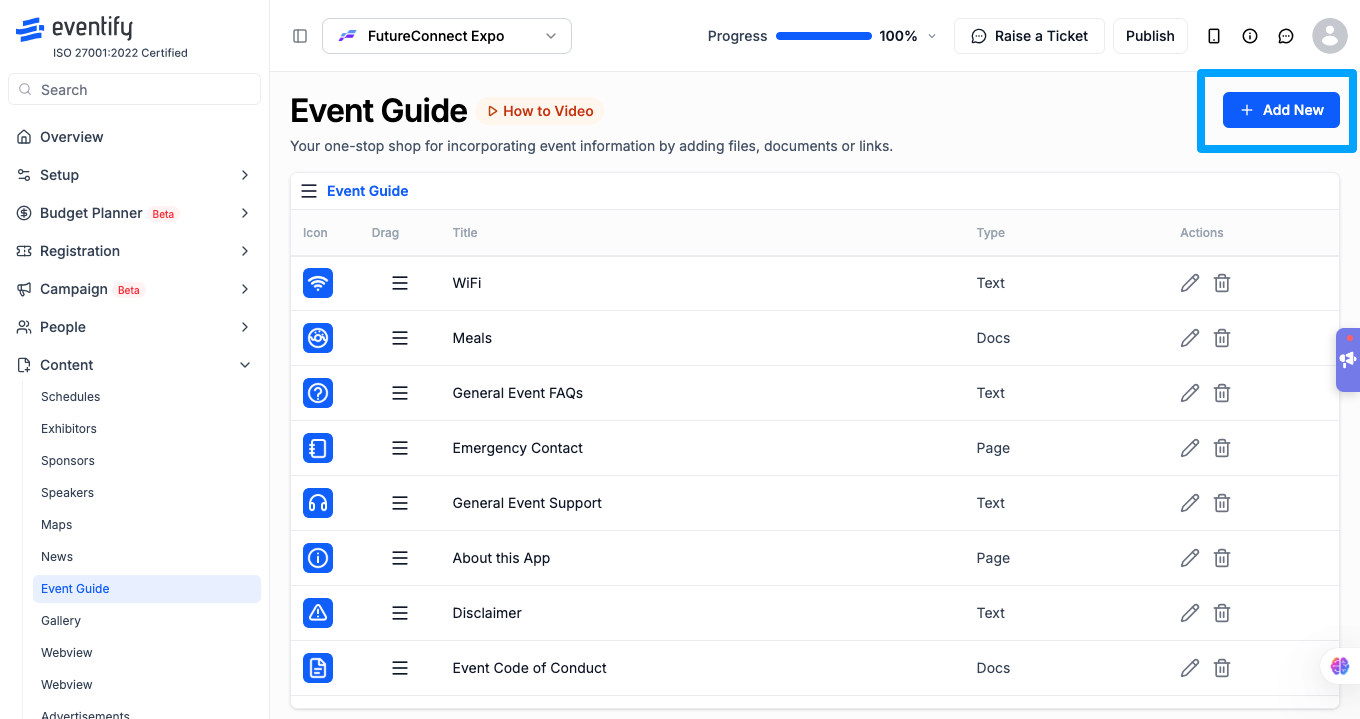
Click Add New. The Add Event Guide modal opens.
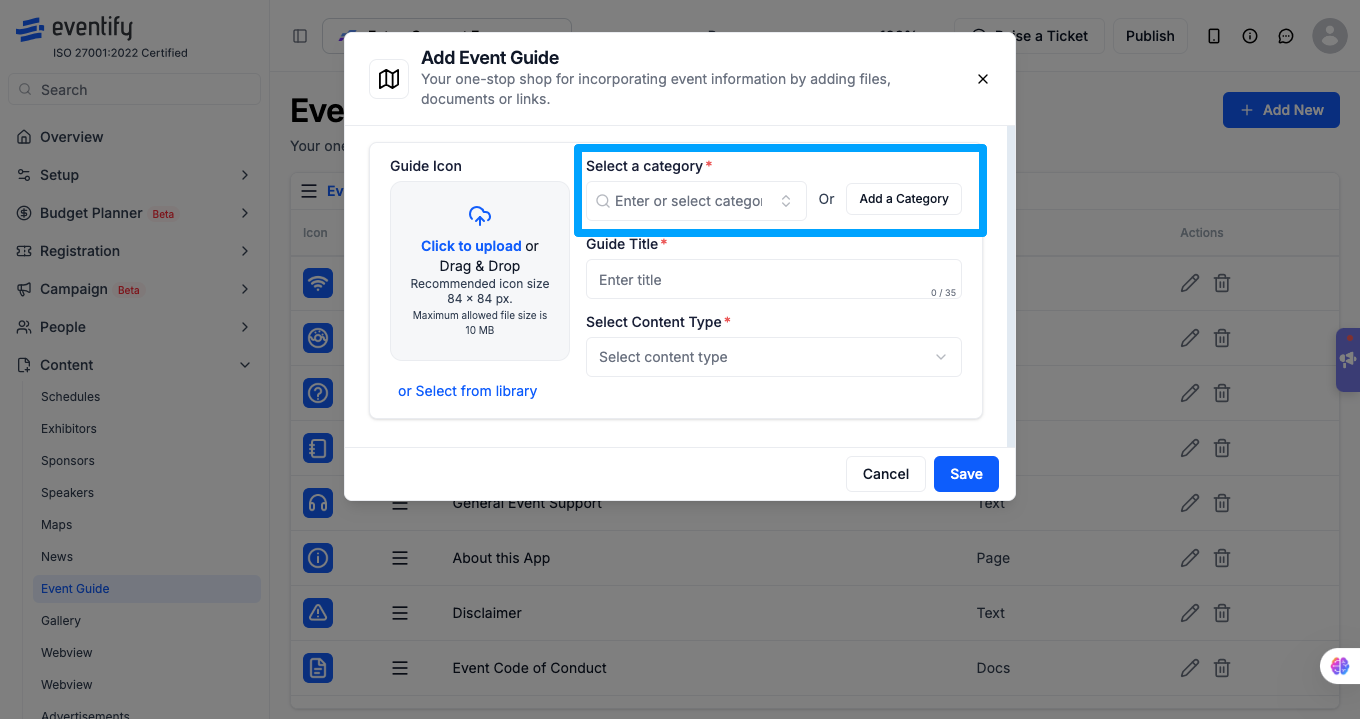
Select a Category (mandatory) — choose from the dropdown or click Add a Category to create a new one.
Enter a Guide Title (mandatory) — a clear, descriptive title. Character limit counter shown (max 35 characters visible in counter).
Select Content Type (mandatory) — choose one of:
Text — for rich text articles
Docs — for file uploads
Page — for web links
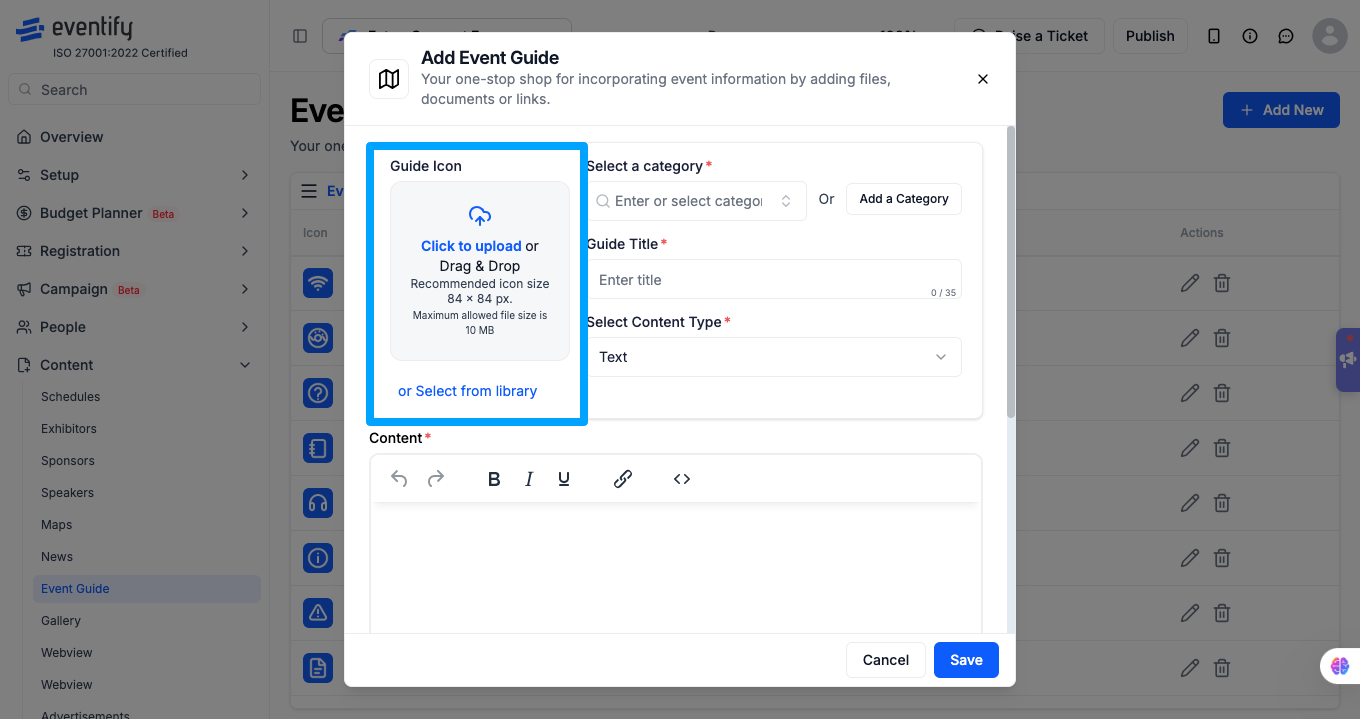
Add a Guide Icon (optional):
Upload an image — drag and drop or click to browse. JPEG only, max 5MB, minimum 84x84 pixels.
Or select from the Icon Library — click "Icon Picker" to browse Font Awesome icons.
Click Save.
Creating a Text Guide
Text guides display formatted articles directly in the app.
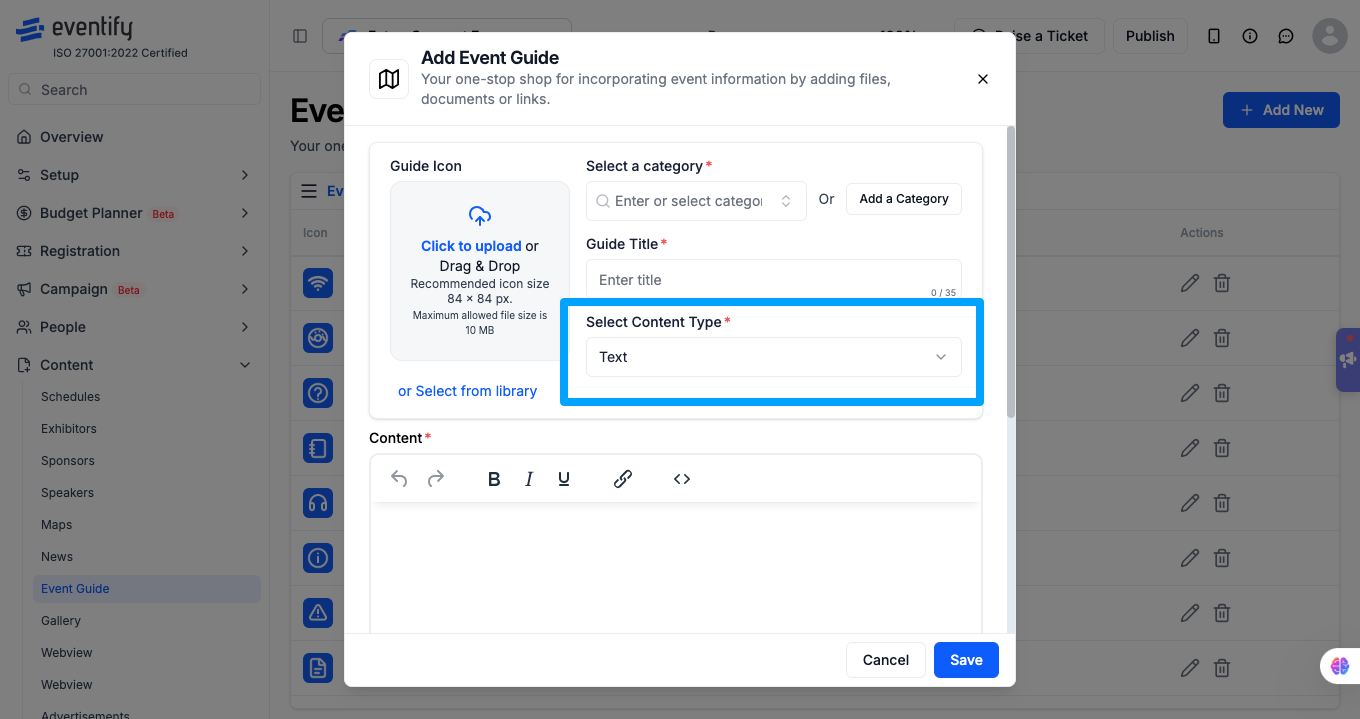
Select Text as the content type.
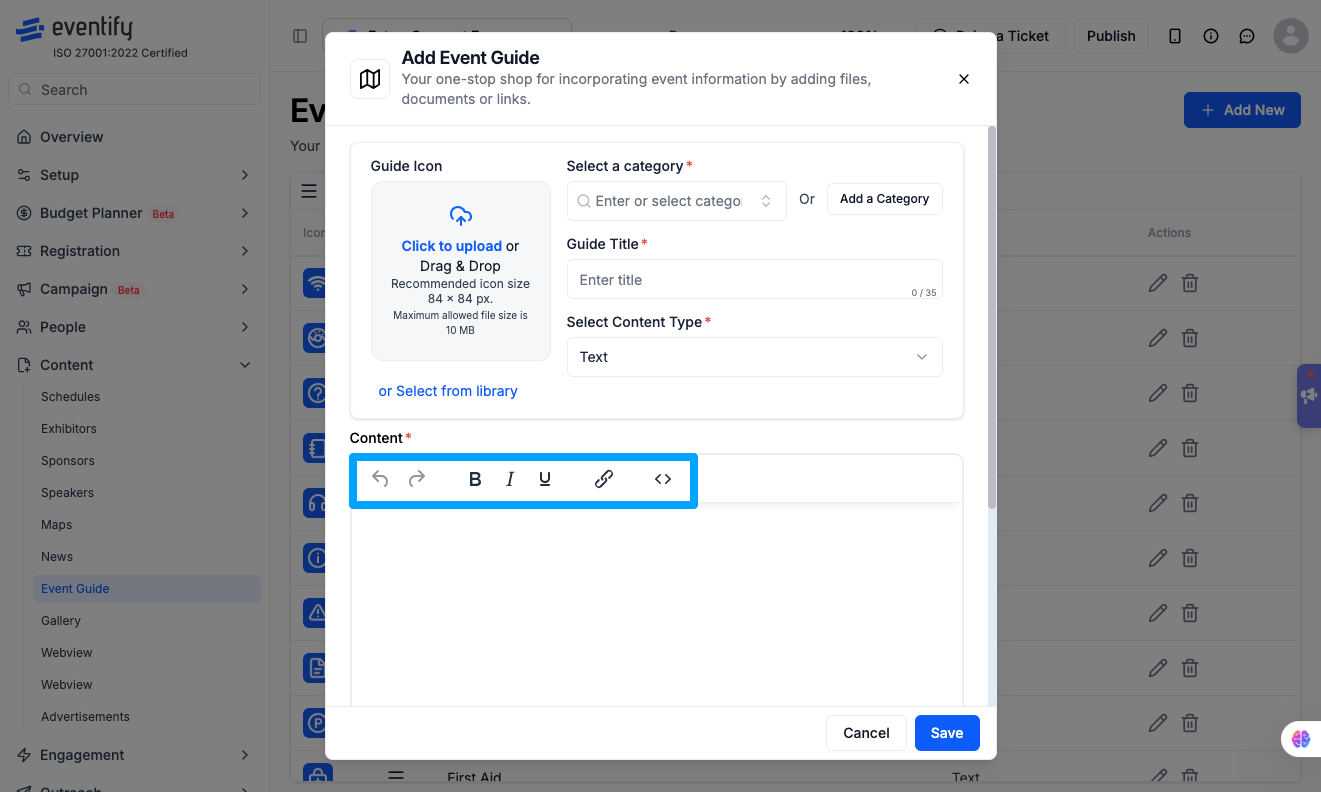
A rich text editor (TinyMCE) appears with toolbar options: Undo/Redo, Bold, Italic, Underline, Link insertion, HTML source code view (<> button).
Write and format your content in the editor.
Click Save.
Notes:
Character limits apply — a counter is shown.
Avoid pasting directly from Word — paste as plain text first to prevent hidden formatting issues.
The editor validates by stripping HTML tags and whitespace — your content must have actual text, not just empty formatting.
Creating a Document Guide (File Upload)
Document guides let you upload files for attendees to view or download.
Select Docs as the content type.
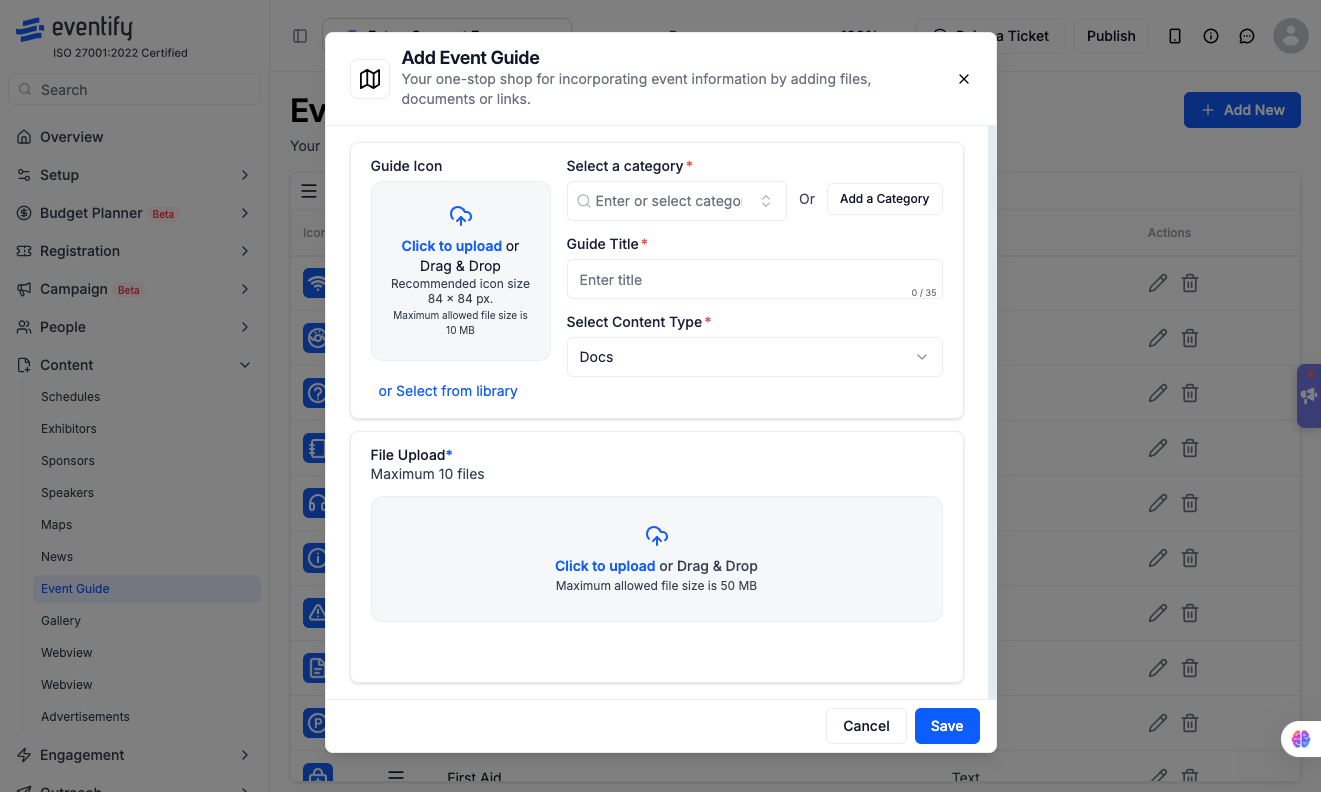
A file upload area appears — drag and drop files or click to browse.
Upload up to 10 files per guide. All file types are accepted.
Uploaded files appear in a list with their filename and a delete button to remove individual files.
At least 1 file is required before you can save.
Click Save.
Notes:
All file types are accepted — not just PDF.
Special characters in filenames are automatically replaced with underscores during upload.
To replace a file after publishing, edit the guide, delete the old file, and upload the new one.
Creating a Web Link Guide
Web link guides open an external URL when tapped.
Select Page as the content type.
A Web Link field appears.
Enter the full URL including https:// or http://.
The system validates the URL format — if invalid, an "Invalid URL" error message appears.
Click Save.
Important: If you change the content type dropdown (e.g., from Text to Docs), the content field is cleared. Make sure you have selected the correct type before entering content.
Frequently Asked Questions
Q: What content types are available for event guides?
A: Three types — Text (rich text articles), Docs (file uploads, up to 10 files), and Page (web links to external URLs).
Q: What file types can I upload for Document guides?
A: All file types are accepted. There is no restriction on file extensions.
Q: What icon formats are supported?
A: You can upload a JPEG image (max 5MB, minimum 84x84px) or select a Font Awesome icon from the built-in Icon Library.
Q: Is there a character limit on the Guide Title?
A: Yes. A character counter is shown next to the title field. The maximum length is configured per event.
Q: Can I add a guide in multiple languages?
A: Yes. Title, Category, and Content fields support multi-language input in English, French, German, Spanish, Portuguese, and Dutch.
Q: What happens if I switch the content type after entering content?
A: The content field is cleared. Select the correct content type before adding content.
How do I replace a file in a published Docs guide?
Edit the guide, delete the old file and upload the new one.
Can I paste guide content from Word?
Avoid pasting directly from Word. Paste as plain text first to prevent hidden formatting issues.

.png)
.png)
.png)
