
Want attendees to share their LinkedIn or Twitter when they register? You can add social link fields directly to your registration form, so that information flows into the attendee directory and helps people connect at your event.
Where to find it: Event Dashboard → Registration → Registration Form → Add Field → Social Links
Eventify includes built-in fields for the following networks:
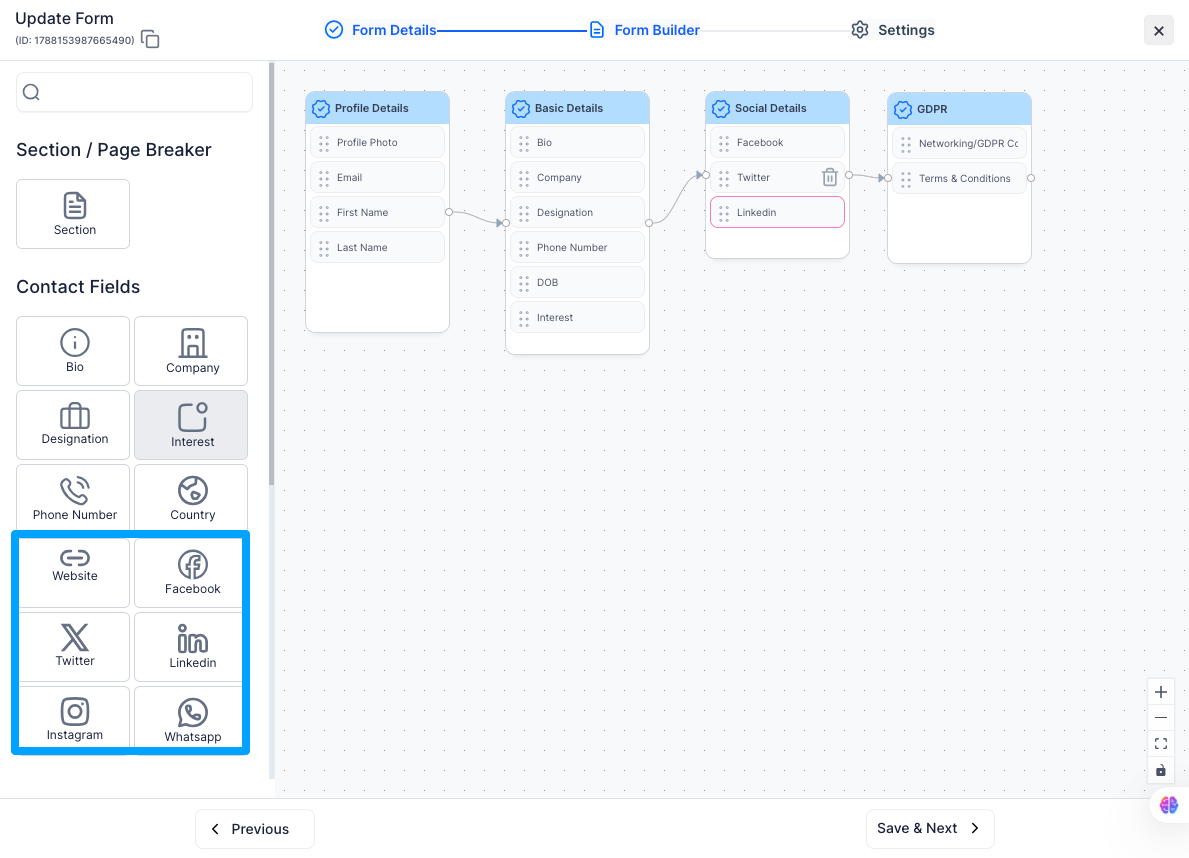
Once an attendee fills in their social links during registration, those links appear on their profile in the Eventify app. Other attendees can tap or click the links to visit their profiles — useful for networking before, during, and after the event.
Q: Are social link fields validated to ensure a real URL is entered?
A: Yes. The field checks that what's entered is a properly formatted URL starting with https://. If someone types something that isn't a valid URL, they'll see an error message before they can submit the form.
Q: Can I add a custom social network not in the built-in list?
A: You can use a Short Text or URL field and give it any label you like — for example, "Behance Profile" or "GitHub". It works the same way as a built-in field.
Q: Do social links sync to the attendee networking feature automatically?
A: Yes. If networking is turned on for your event, social links collected at registration appear automatically in the attendee directory. There's nothing extra to set up.
Q: Can I make a social link field required?
A: You can, though most organizers leave them optional since not every attendee will have (or want to share) every network. If a specific platform matters for your event — say, LinkedIn for a professional conference — marking just that one as required is a reasonable approach.
Q: Can I reorder social link fields on the form?
A: Yes. You can drag fields up or down in the Registration Form editor to arrange them in whatever order makes sense for your attendees.
