
Session Rating lets your attendees rate individual sessions directly from the event app — right after they attend. You can collect star ratings, emoji reactions, open-ended comments, dropdown responses, and more, all through a form you build yourself. Everything shows up in real time in your admin panel, and you can export the responses to Excel whenever you need.
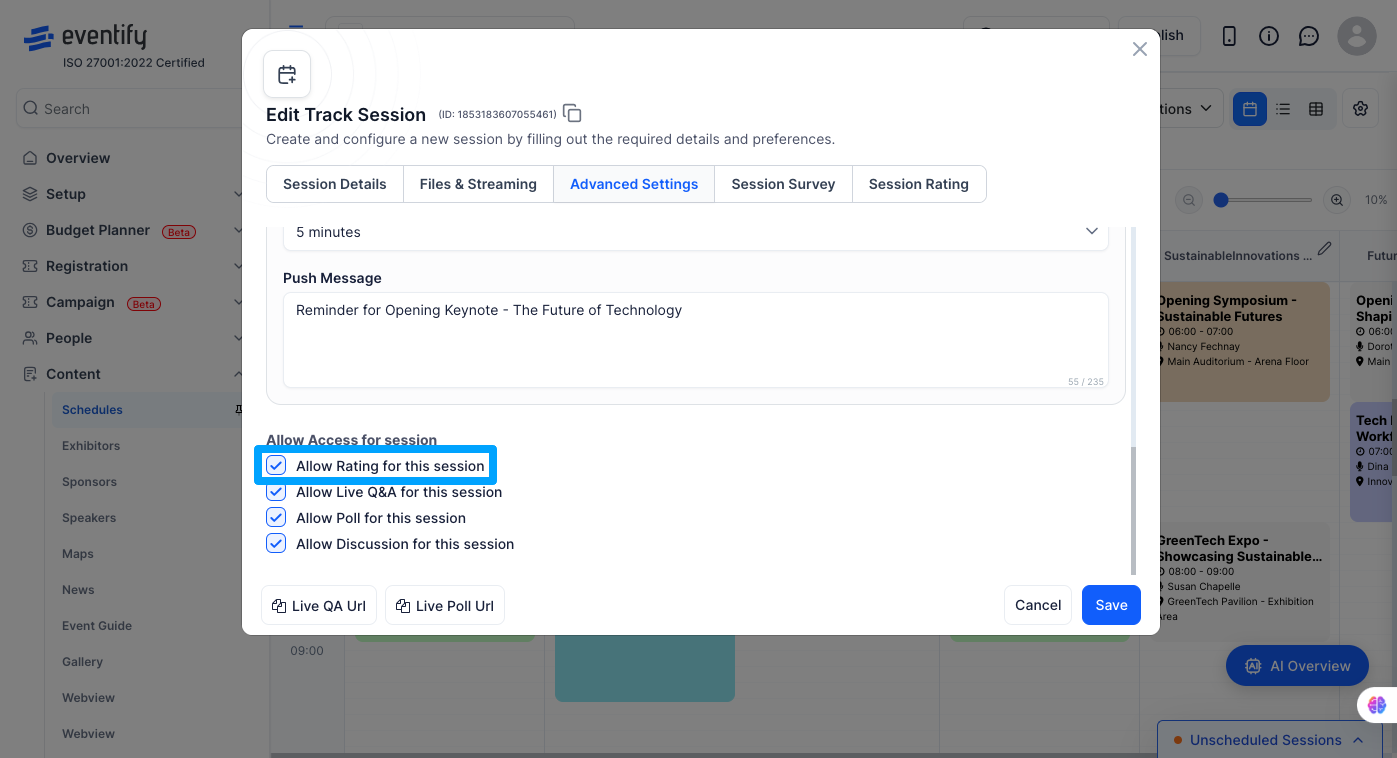
Session rating is on by default for all your sessions, so there's nothing you need to do to activate it. Before diving into the form setup, just make sure you're logged into the Eventify admin panel and that your event has at least one session created under the Schedule. If you ever want to turn off ratings for a specific session, head to Content → Schedule, open that session's edit page, and toggle off the Allow rating for this session option. To turn rating on or off for many sessions at once, use the Enable for sessions button on the Session Rating page (see Step 5).
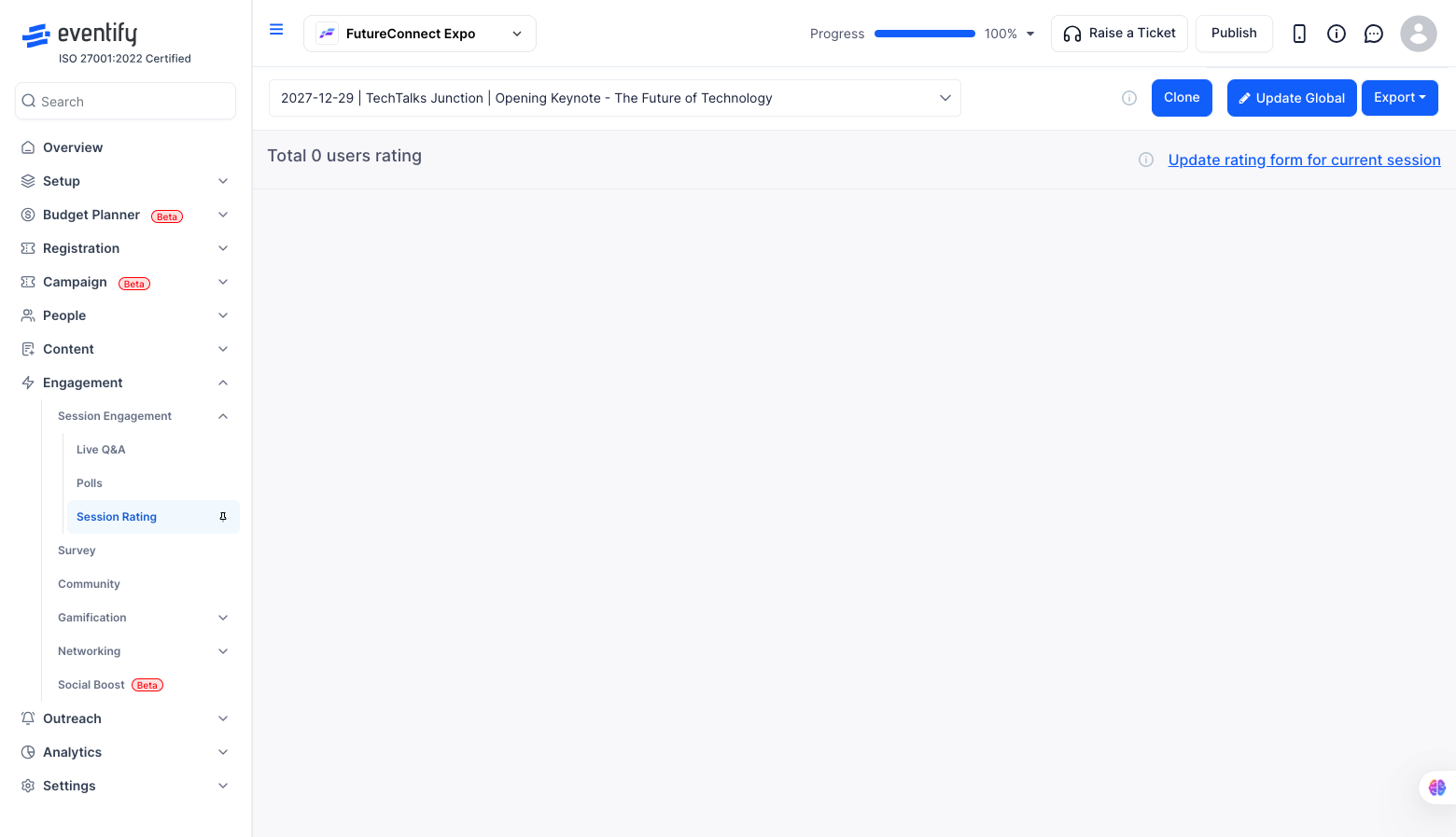
Head to Engagement > Session Engagement > Session Rating inside your event. This is your home base for everything rating-related — from here you can manage the global form as well as any session-specific forms you create.
There are two kinds of rating forms in Eventify. The Global Form is the default — it applies to every session in your event unless you override it. A Session-Specific Form is a custom form you build for one particular session; once set, it replaces the global form for that session only.
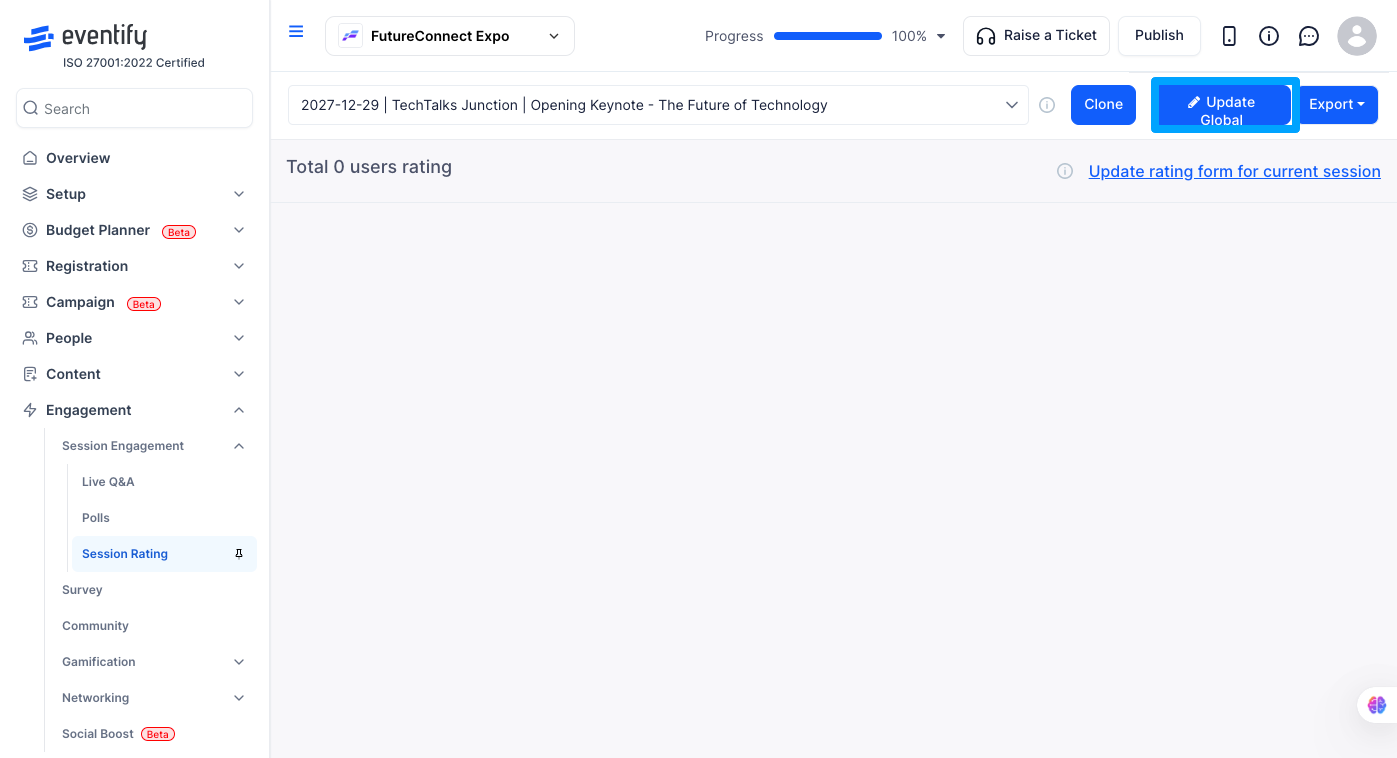
One thing to keep in mind: the Update Global button only appears in the top bar once a global form already exists. So if you're starting fresh, create the global form first before building any session-specific ones.
.png)
Click Update Global in the top action bar. The Form Builder will open, where you can add any combination of question types — star ratings, emoji ratings, text inputs, dropdowns, checkboxes, and more. Once you save, this form becomes the default for all your sessions automatically.
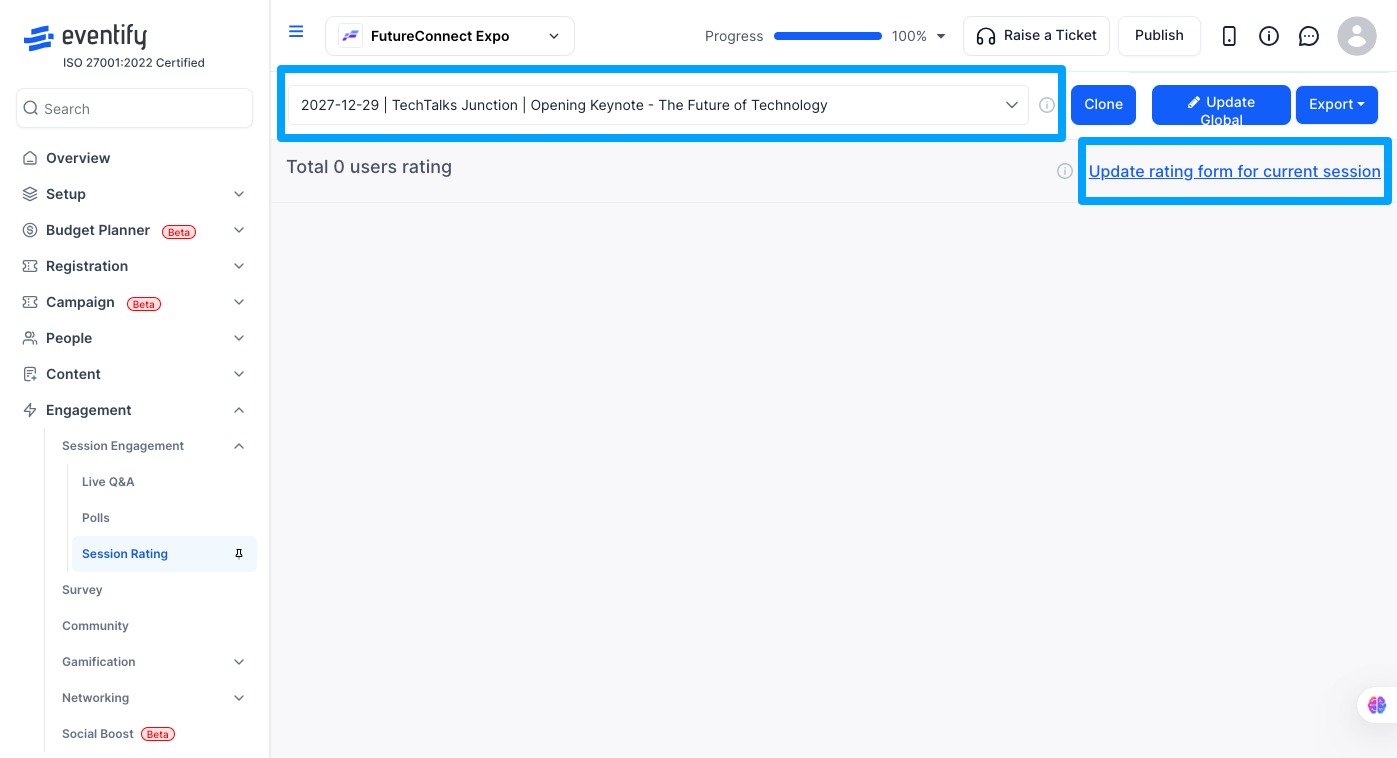
If you want a particular session to have its own unique rating form, pick that session from the dropdown at the top. You'll see either an Add rating form option (if no custom form exists yet) or an Update rating form link (if one's already been created). Build the form, save it, and that session will use its own form going forward instead of the global one.
On the Session Rating page, click the Enable for sessions button (the checklist icon next to the session dropdown). The Enable rating for sessions window lists every session with its track and a switch.
Attendees can rate only the sessions that have rating turned on. The same window is available for Polls and Live Q&A.
#image# Enable rating for sessions window with session switches, Enable all and Disable all
To remove test ratings or start over, pick a session in the dropdown and click Clear Ratings. The button appears once the session has ratings. Choose one of three options:
Deleted ratings cannot be recovered, so export the responses to Excel first if you may need them.
Q: What happens if I don't create a session-specific form?
Nothing breaks — the session just falls back to whatever you've set as the global form. It all works automatically.
Q: How do I know which sessions already have a custom form?
Any session with a custom form will show a Reset to default and Update rating form link directly below its name in the Session Rating view. If you don't see those links, it's using the global form.
Q: What types of questions can I add to a rating form?
You have a lot of flexibility here — star ratings, emoji ratings, text inputs, dropdowns, checkboxes, date pickers, radio buttons, and more. All of these are available through the Form Builder.
Q: Can I copy a form from one session to another?
Yes. Use the Clone button in the top action bar to duplicate a form and apply it to another session, saving you from building it from scratch each time.
Q: Can attendees see each other's ratings?
No. Rating responses are private and only visible to event admins in the admin panel. Attendees only see the form to submit their own response.
Q: Is session rating enabled for all sessions by default?
Yes, session rating is turned on for all sessions by default. If you'd like to disable it for a specific session, go to Content → Schedule, open the session you want to change, and toggle off the Allow rating for this session option on its edit page. To change many sessions at once, open Engagement > Session Engagement > Session Rating, click Enable for sessions, switch sessions on or off (or use Enable all or Disable all) and click Save Changes.
Q: How do I delete test ratings before my event?
On the Session Rating page, select the session and click Clear Ratings. You can remove selected ratings, clear all ratings of that session, or clear ratings for all sessions. Deleted ratings cannot be recovered.
Q: What is the difference between the global form and a session-specific form?
The global form applies to every session unless you override it. A session-specific form is built for one session and replaces the global form for that session only.
