
Social Boost lets you share a personalized, professionally designed event banner on your LinkedIn, Facebook, or X (Twitter) profile — with no design work required. The banner auto-fills with your name, photo, company, and event details.
How to access: Go to the Event App, navigate to the Overview page, and scroll down to the “Promote Yourself” banner.
The Social Boost section only appears if:
If you do not see the Promote Yourself Banner section, contact your event organizer.
After logging into the event portal, look for the “Promote Yourself” section on the home screen.
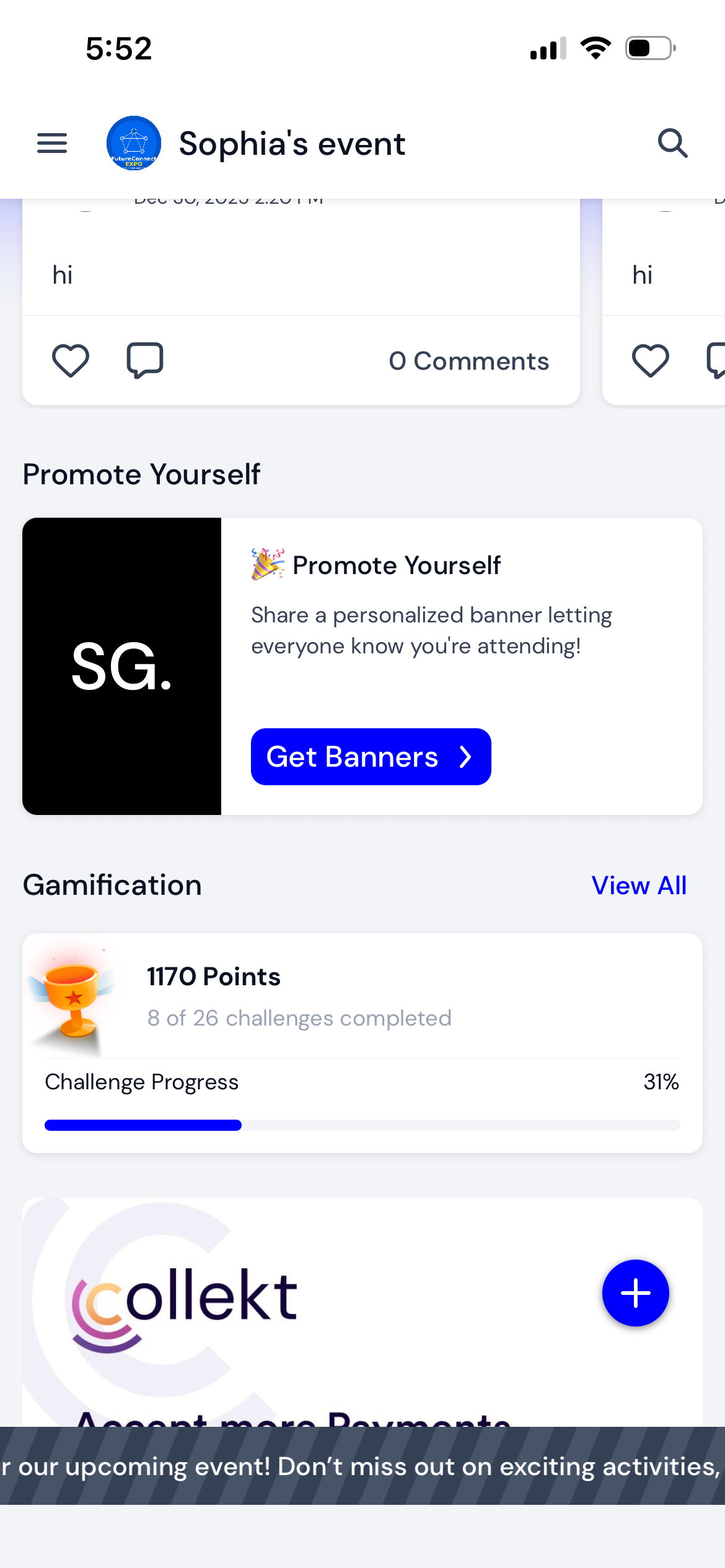
Connecting a social account lets Eventify auto-fill your profile picture, name, and email onto the banner automatically.
If you prefer not to connect a social account, click “No thanks! I will enter my details manually” and type your details instead.
Scroll horizontally through the available banner templates. Select the one that matches your role at the event — attendee, speaker, sponsor, or exhibitor.
A preview modal opens showing:
Edit the caption to add your own message if desired.
Click your platform: Post on LinkedIn, Post on Facebook, or Post on X.
Complete the share in the platform's popup or compose window.
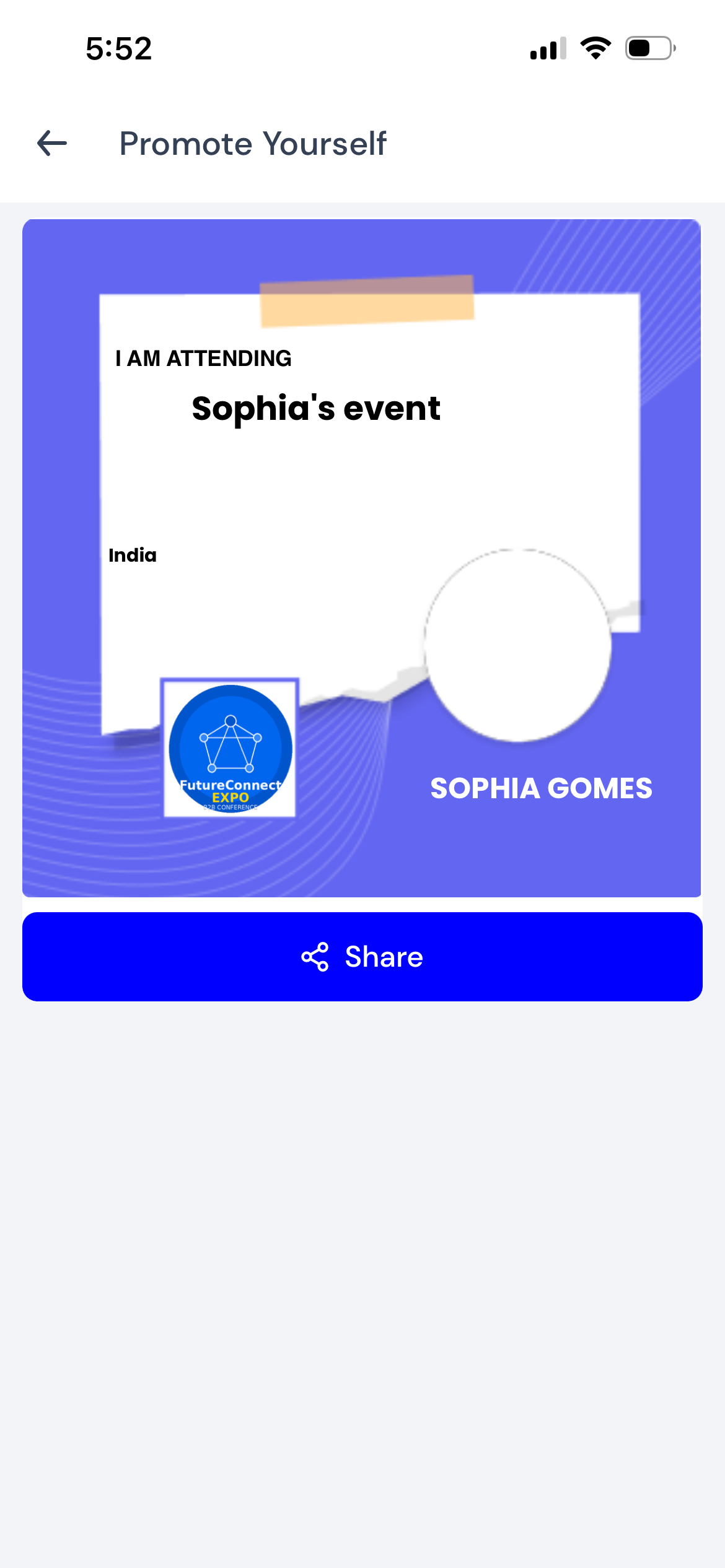
No. Click "No thanks! I will enter my details manually" and type your details instead.
