Use Campaign in the Eventify Admin Panel to create an email campaign for your contacts or event attendees, design the email, choose recipients and schedule delivery.
Discover how to create a campaign from scratch to engage your audience effectively.
This article is the quick click-by-click version. For explanations of each option, test emails and what happens after you save, see How to Create and Send Your First Email Campaign.
Step-by-step guide
1: Access the Eventify Admin Panel and navigate to Campaign
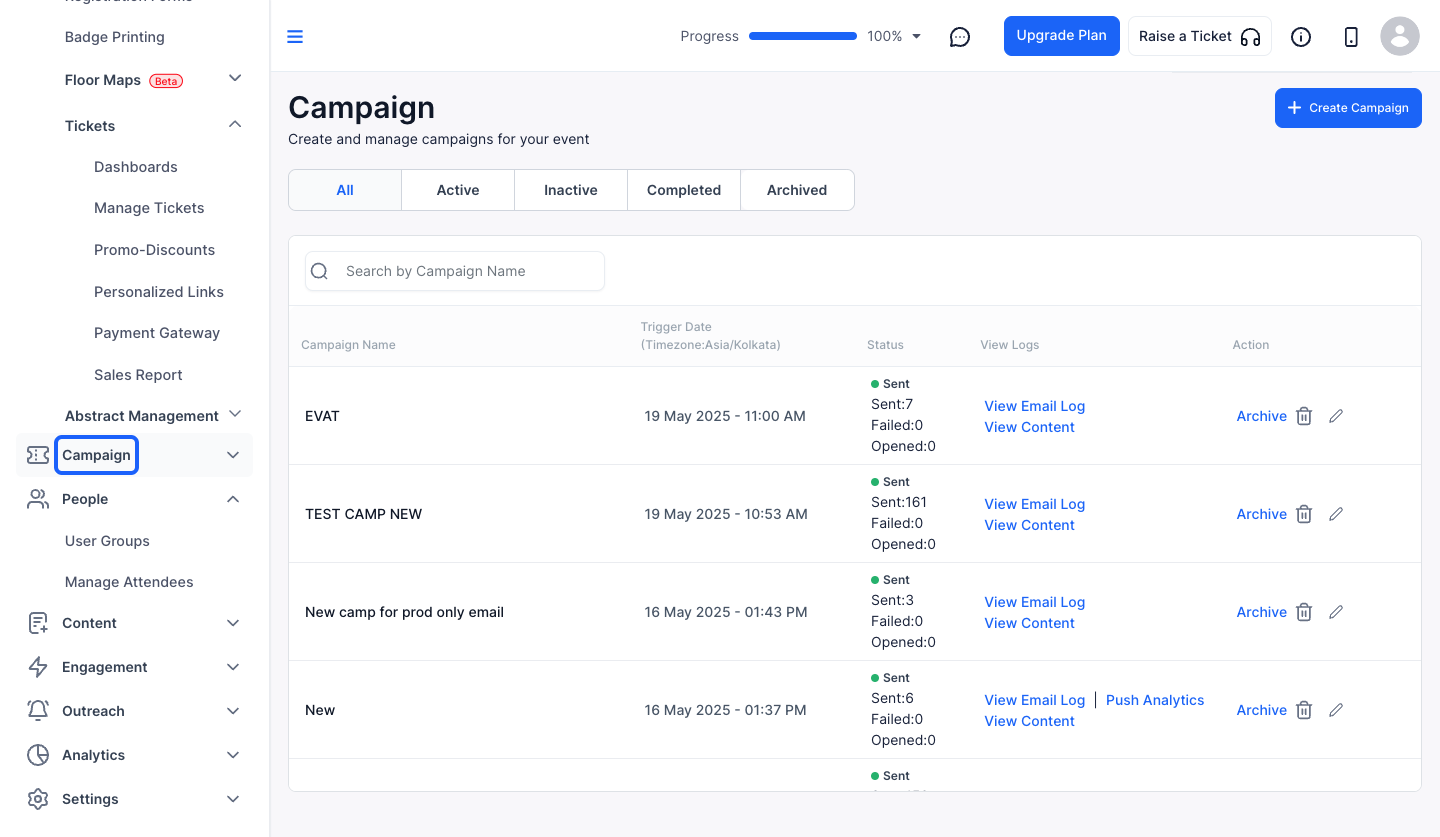
2: Click on Campaign
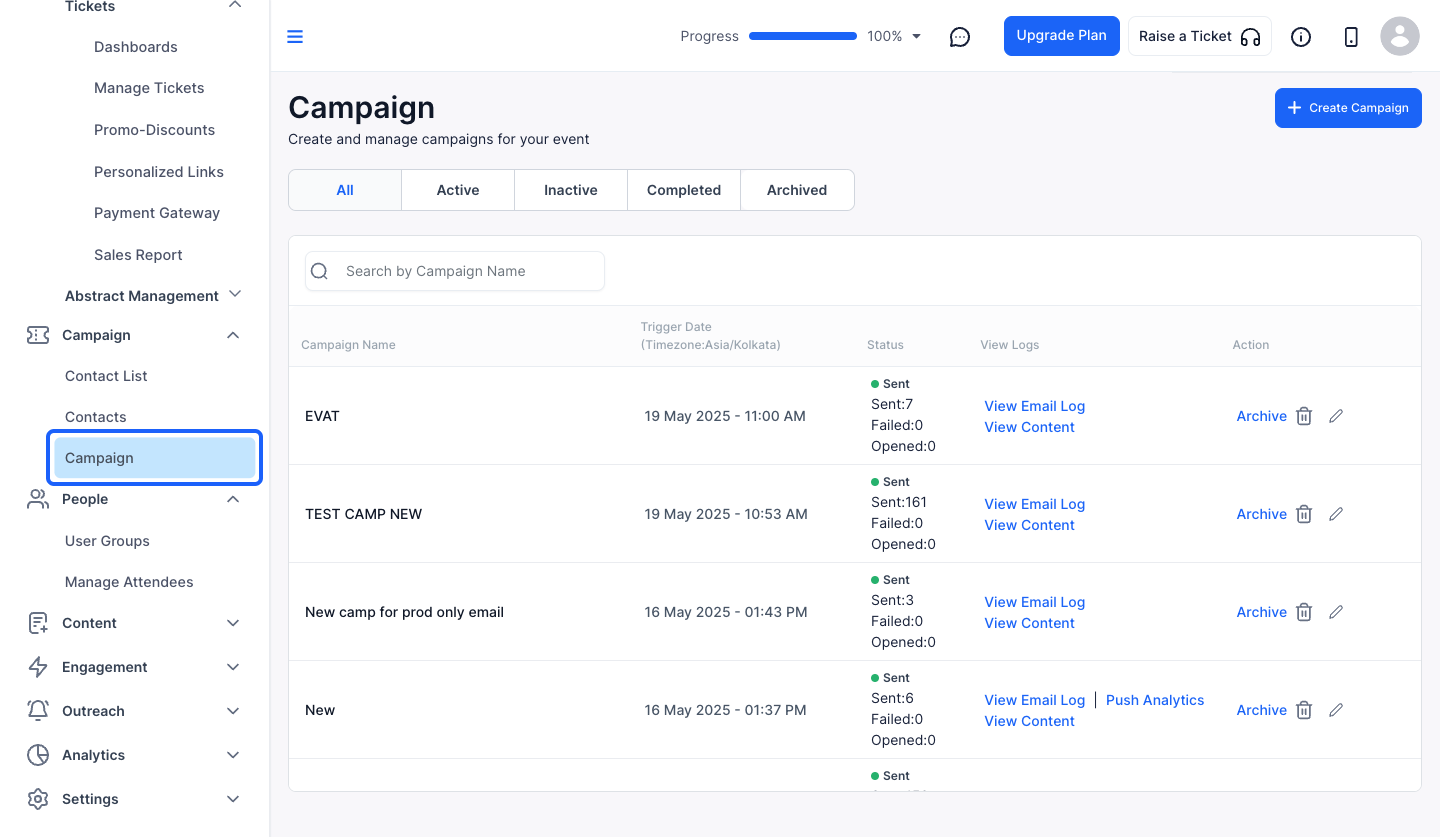
3: Click the "Create Campaign" button to create a new campaign
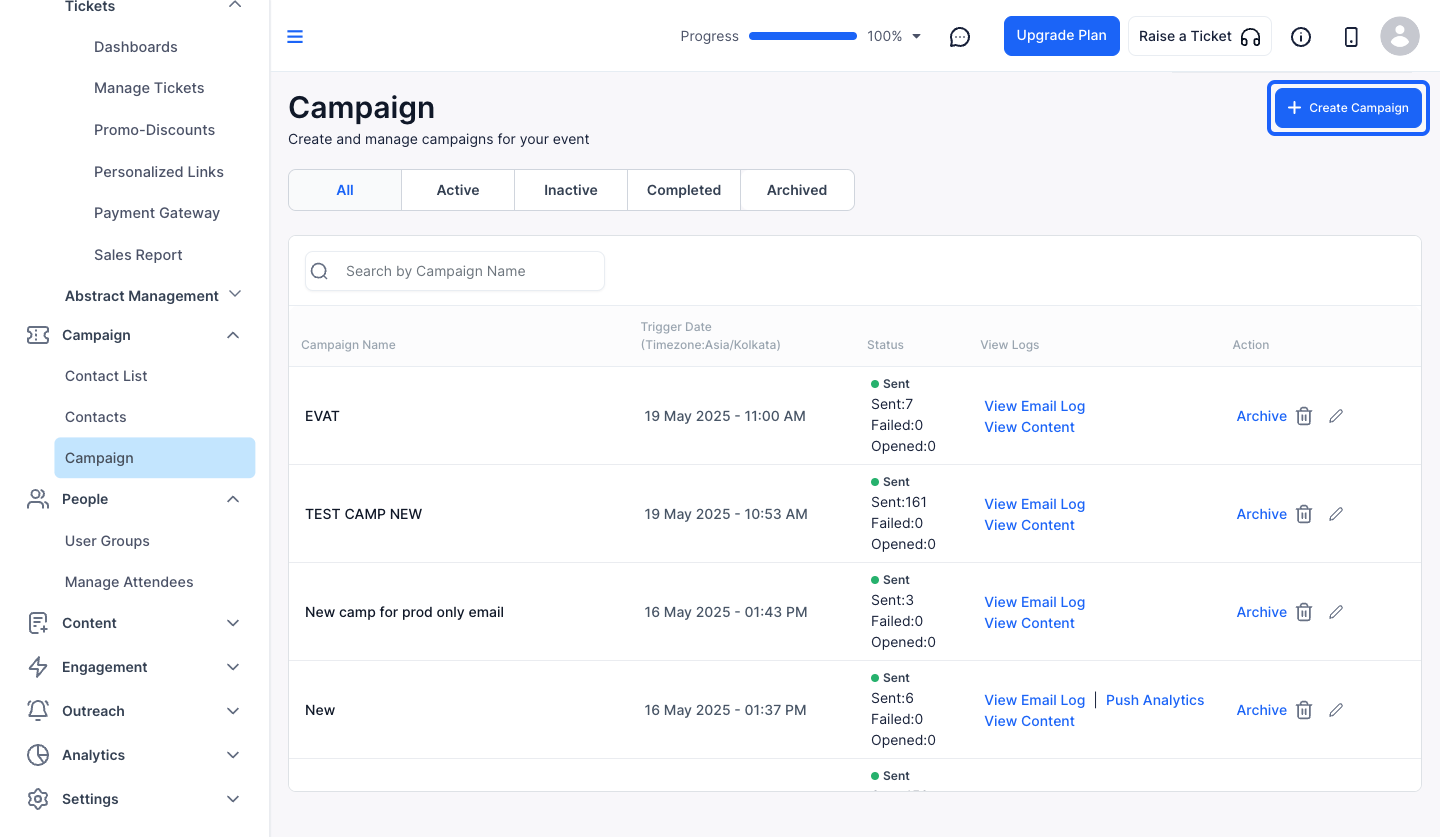
4: Choose your Campaign Audience
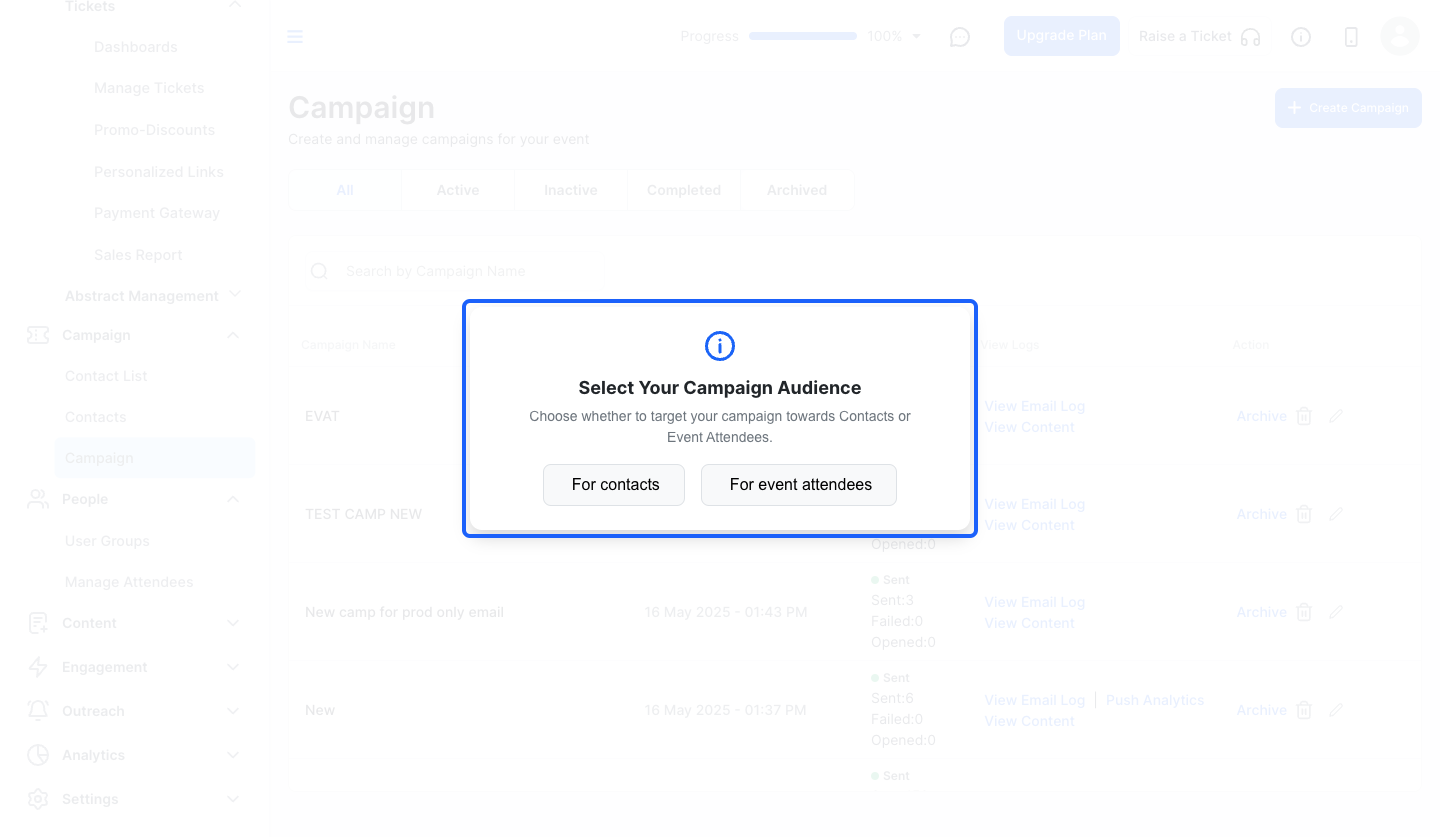
5: Click the “For contacts” button, if you want to target the campaign towards contacts
Note: For targeting your campaign towards Event Attendees, click on "Event Attendees" button and the next steps will be same for both
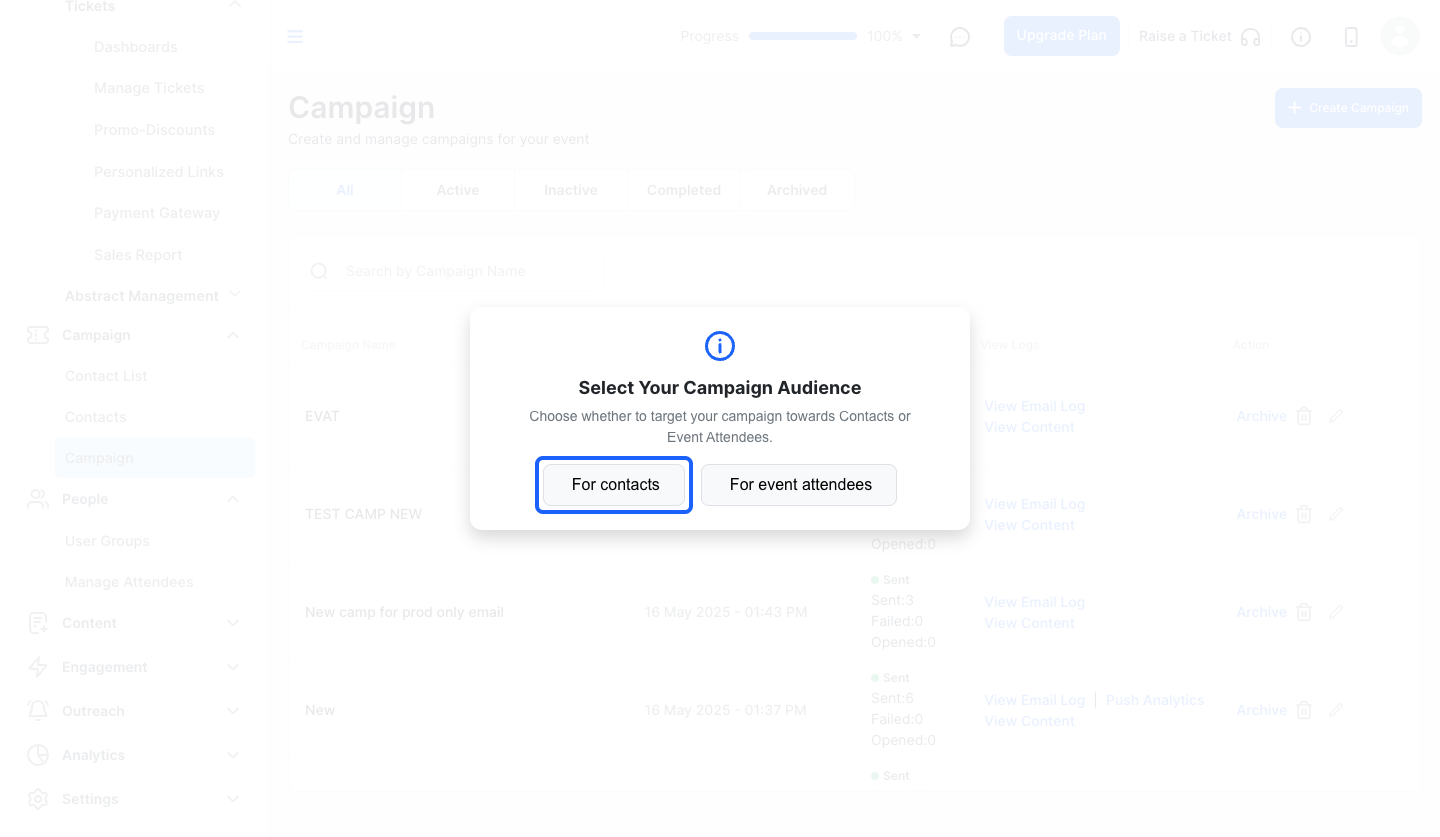
6: Give a Campaign Name
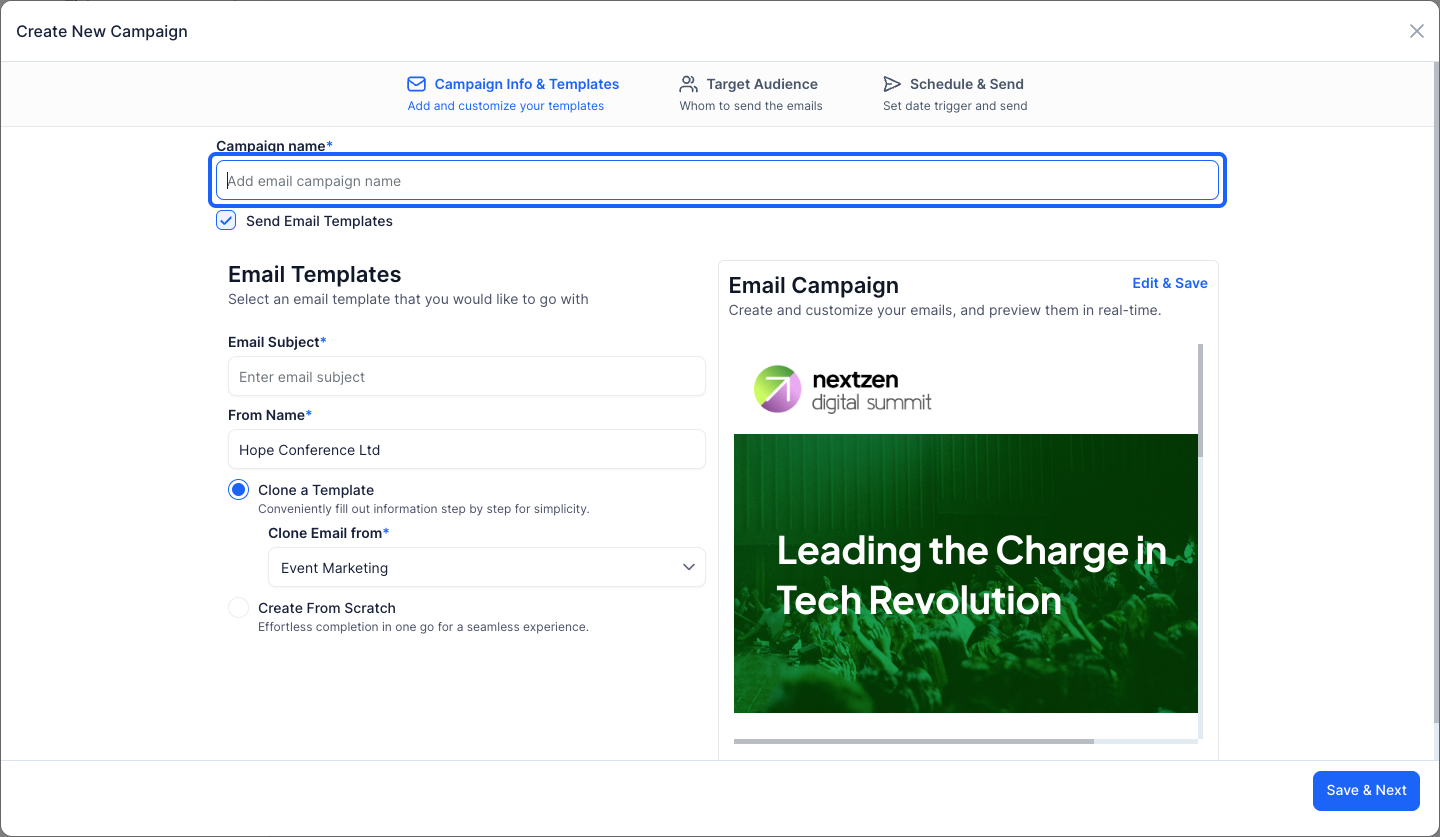
7: Type your Email subject here
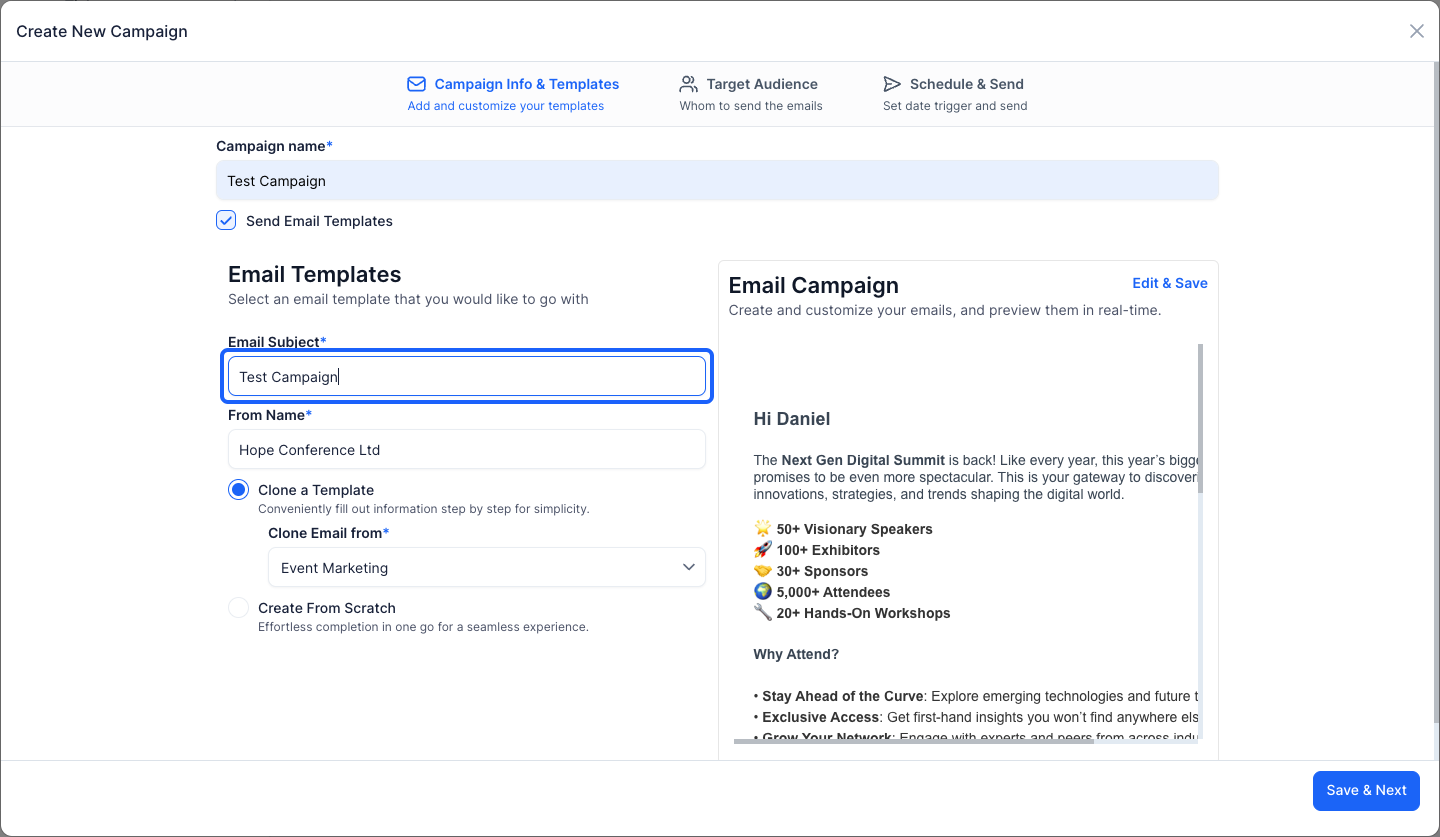
8: You can change the From Name too
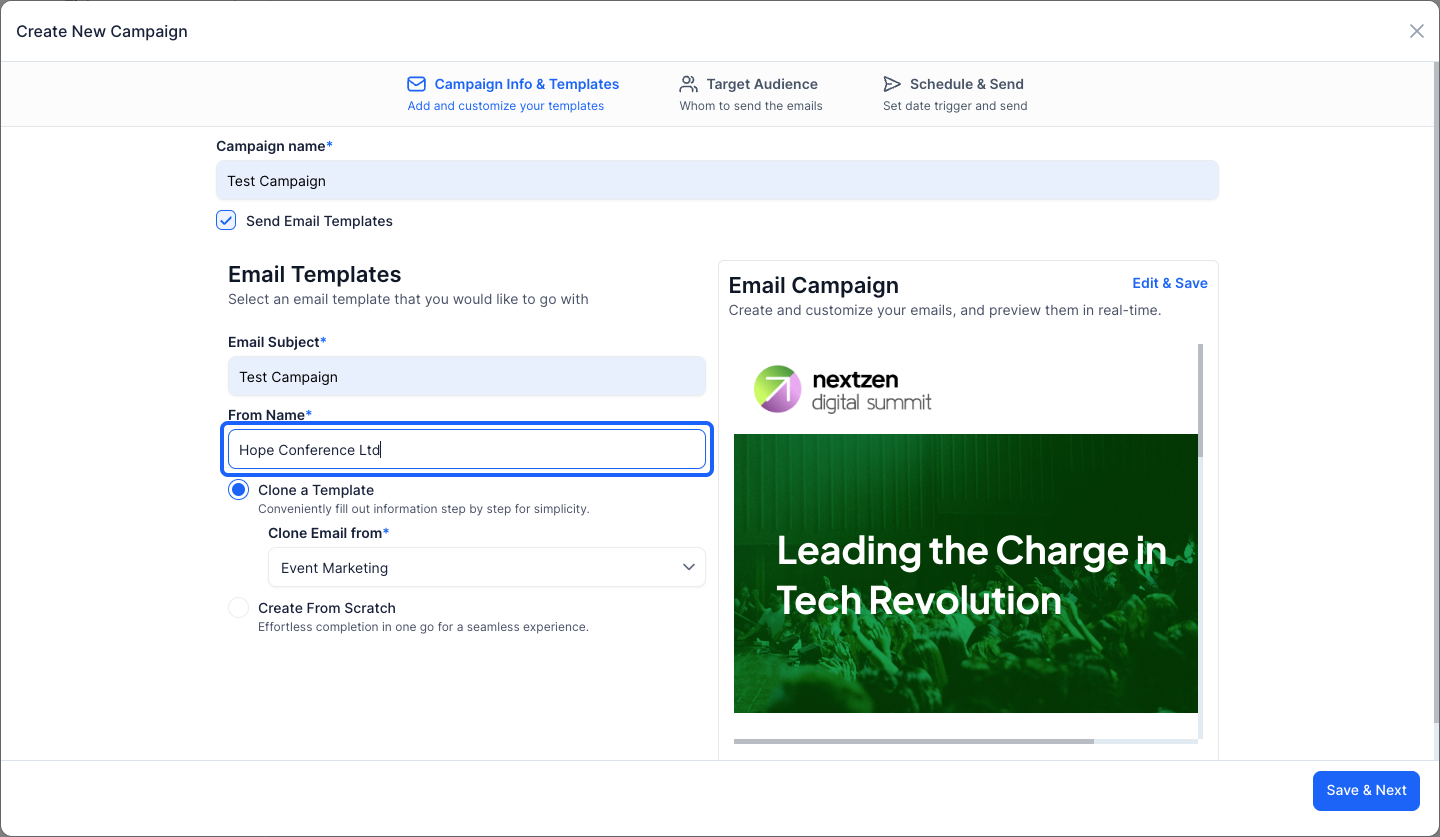
9: You can either clone a template
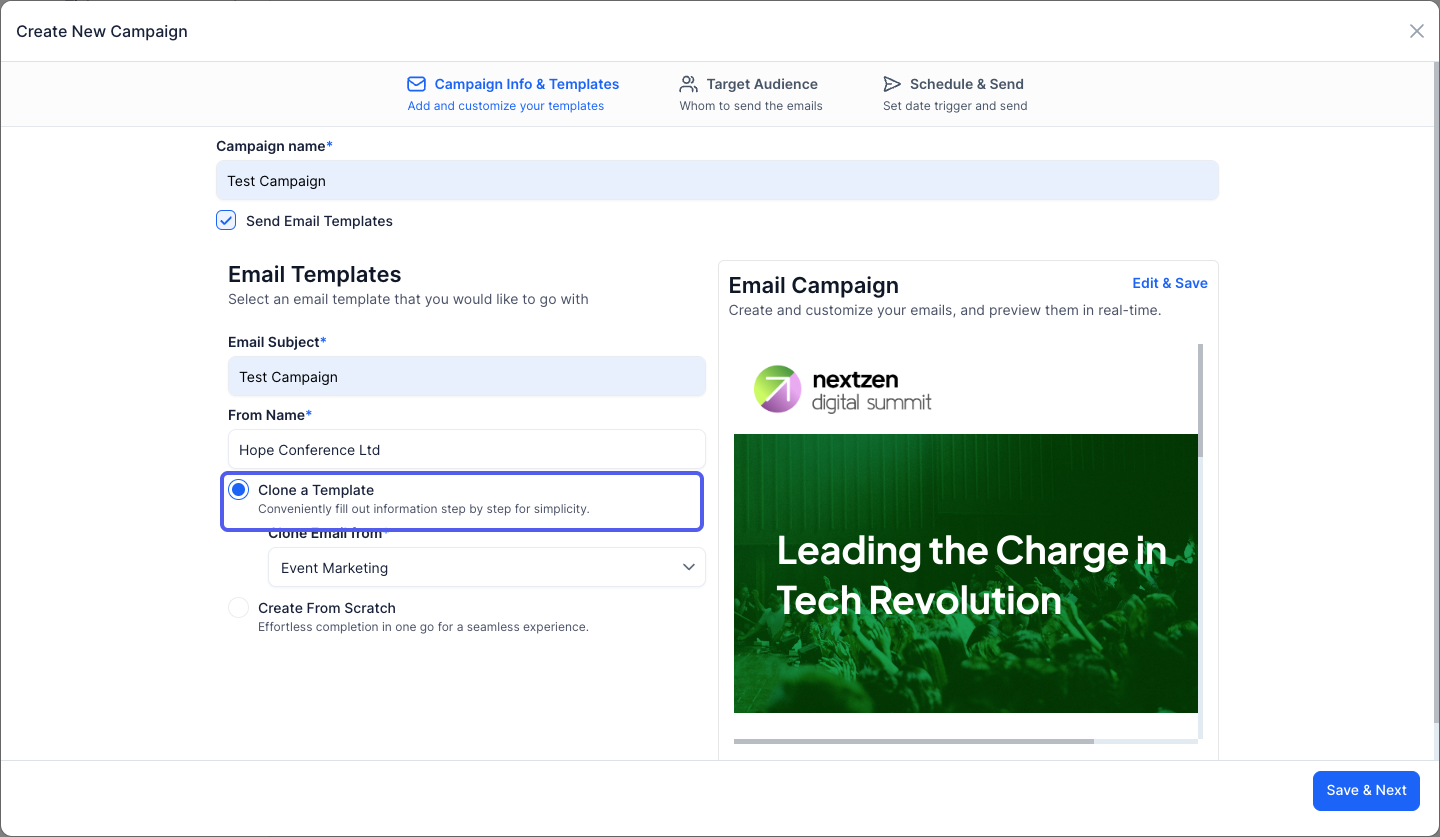
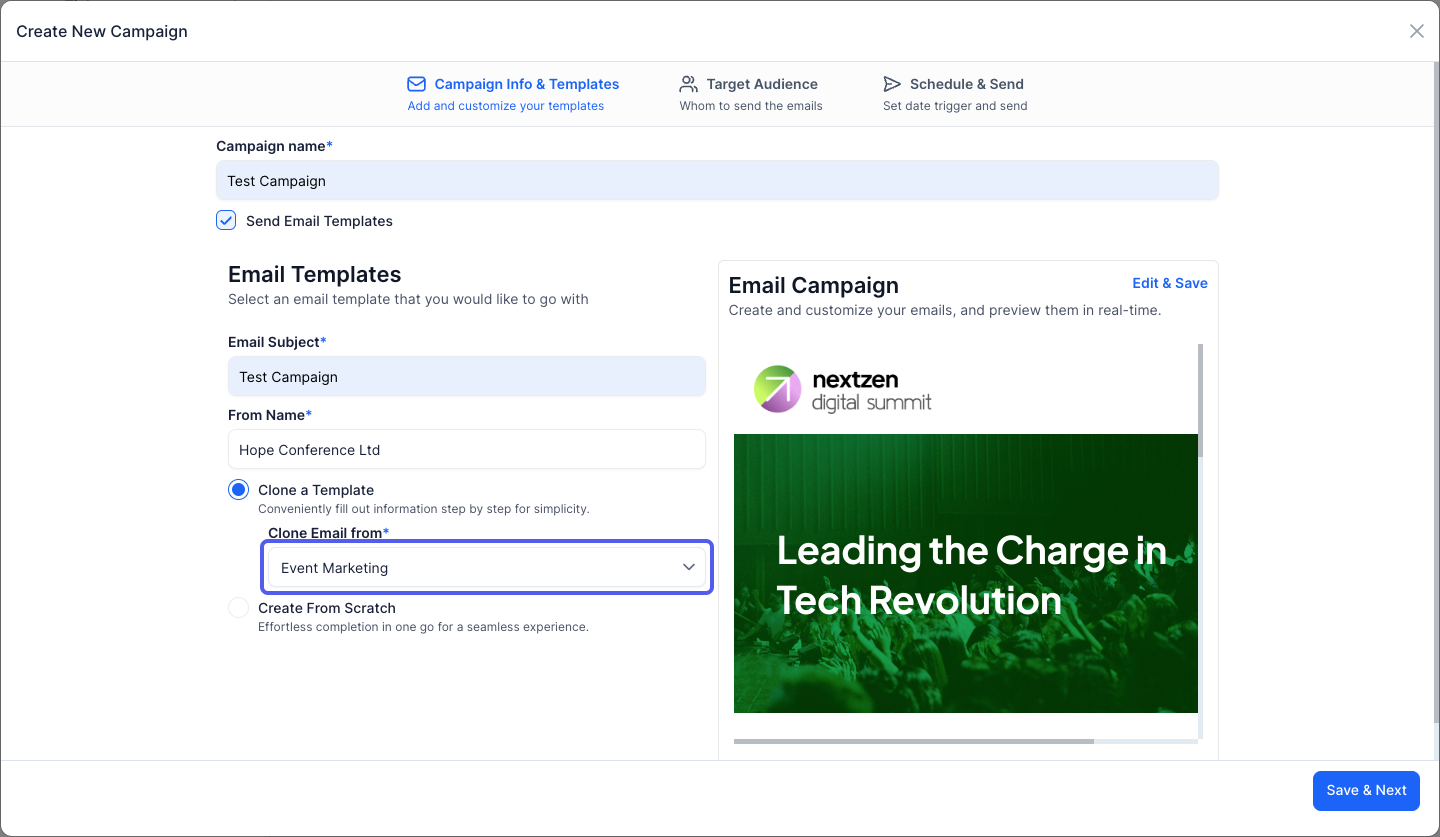
10: Choose from where you want to clone the email from the dropdown
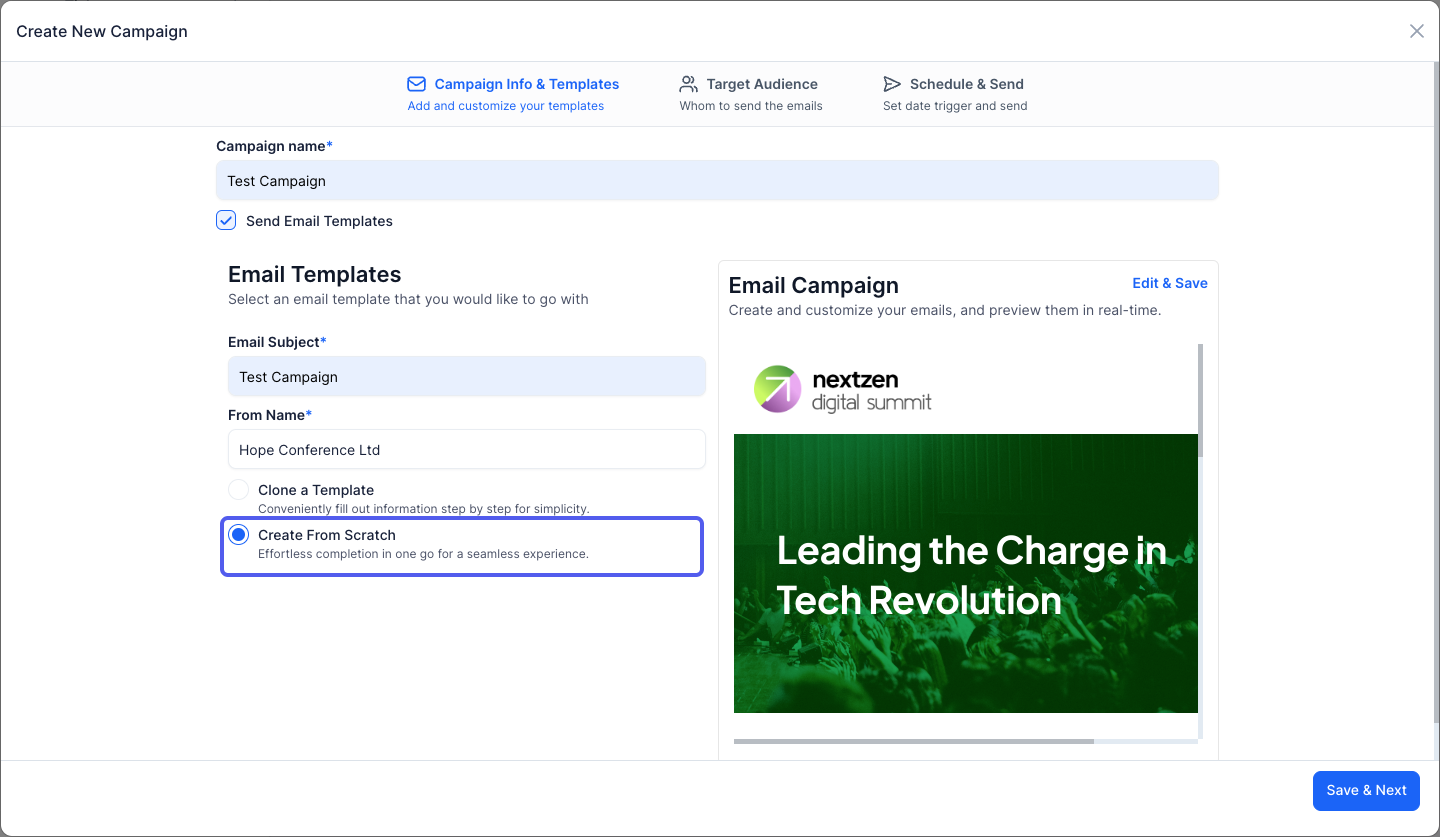
11: Or create one from scratch
12: Customize your email template as required
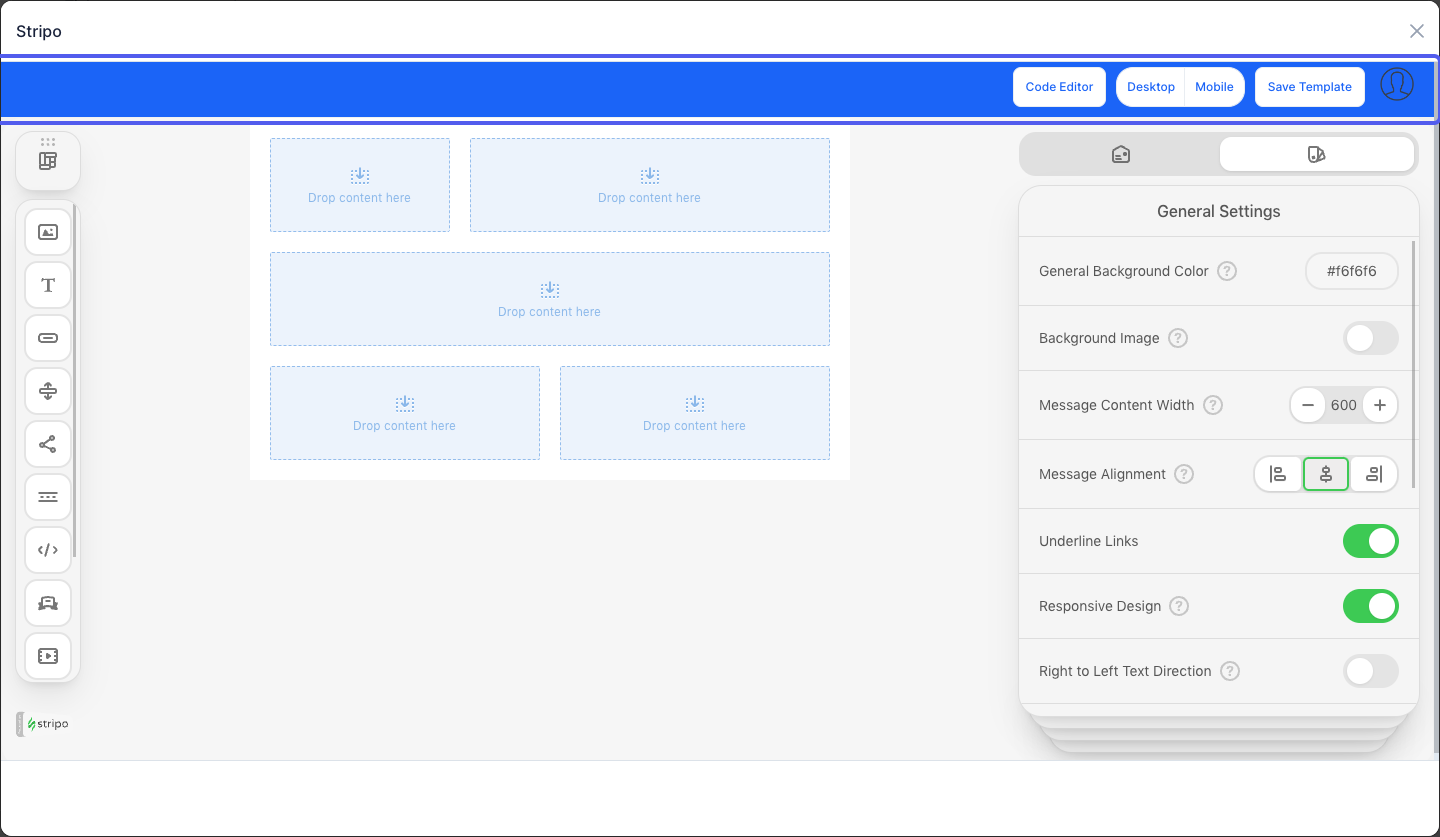
13: You can also edit the cloned template if needed
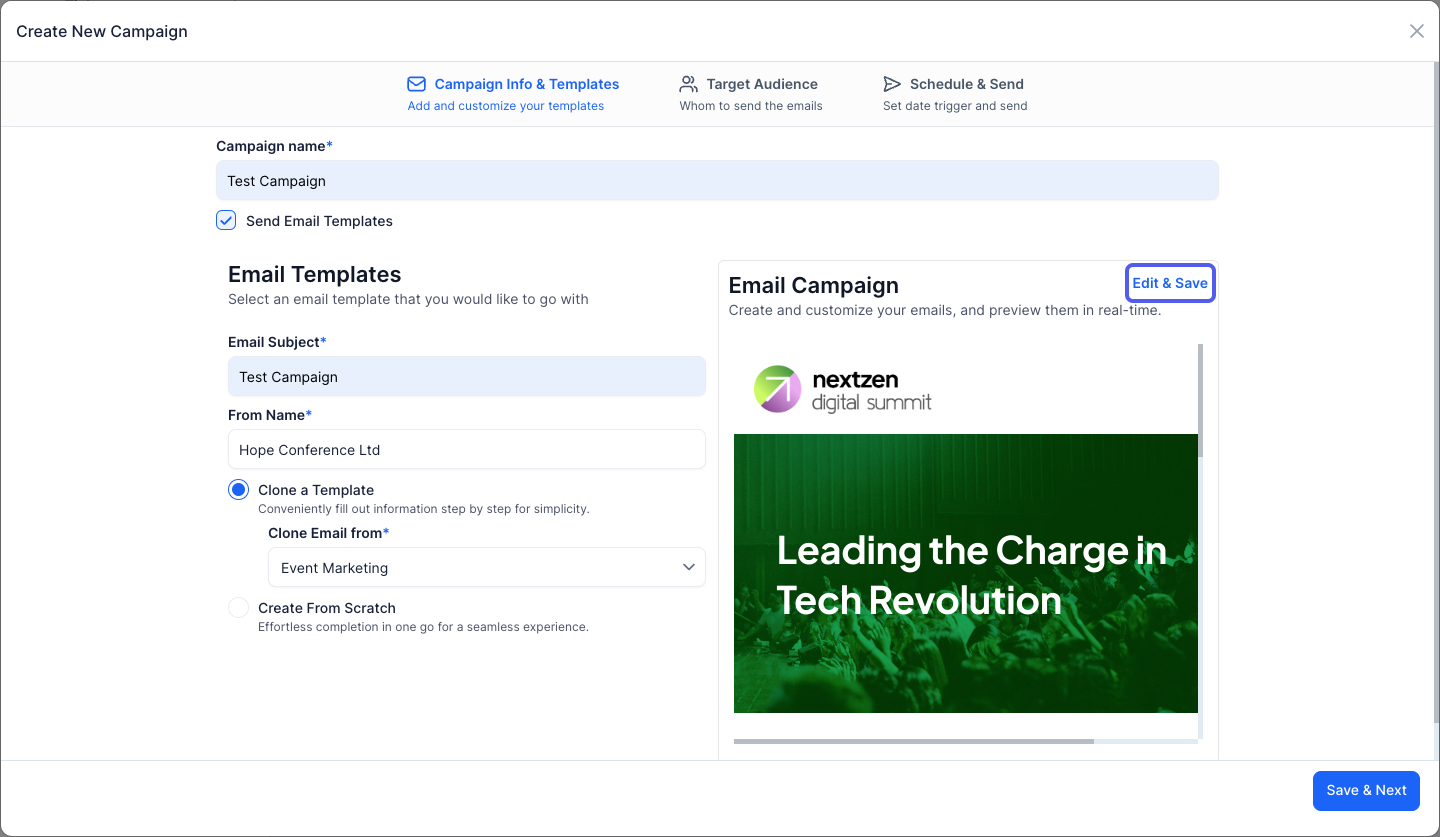
14: Make the necessary changes
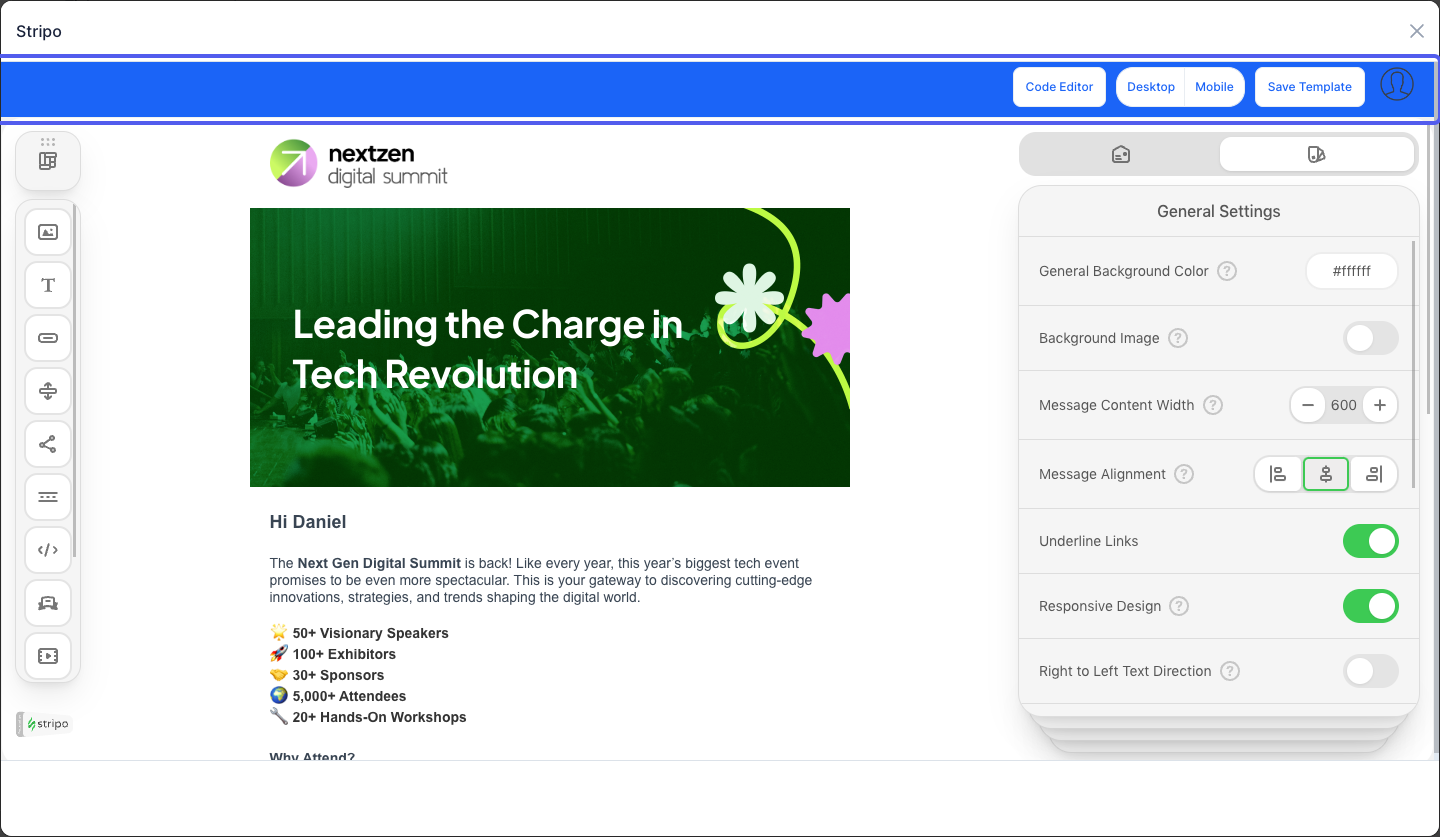
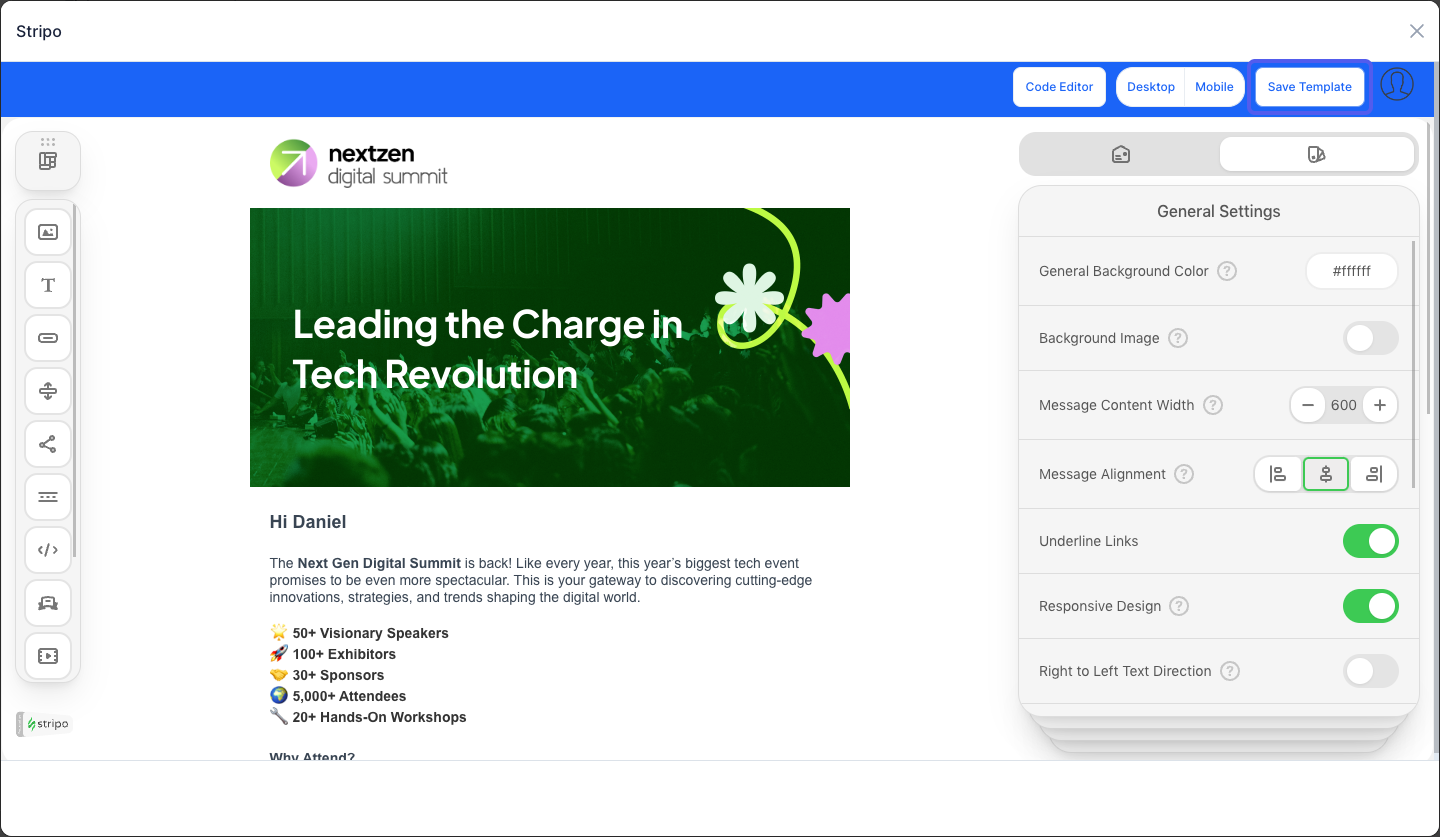
15: Click the “Save Template” button to save the email template
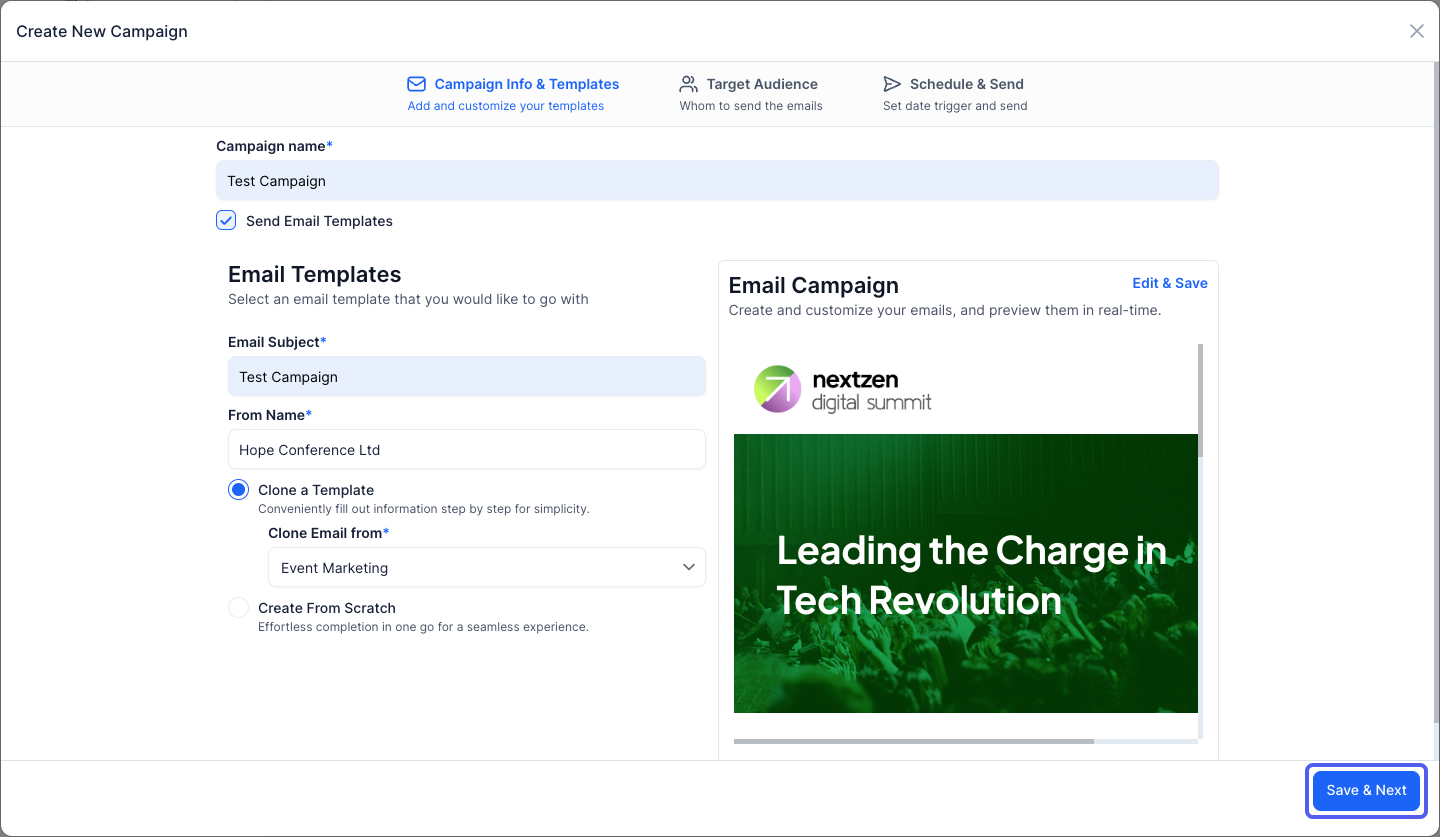
16: Click the “Save & Next” button to proceed to the next step
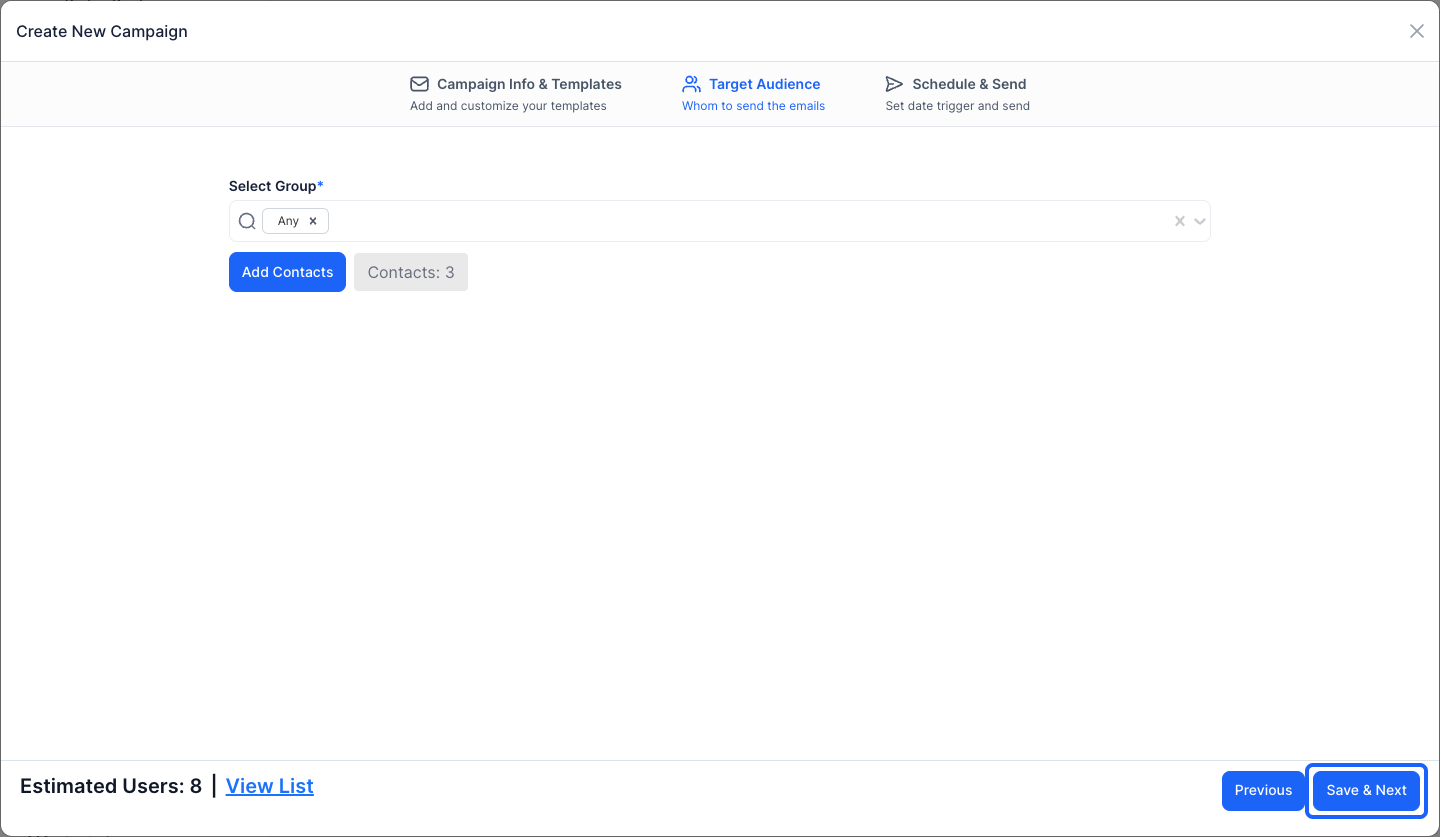
17: Select Group of the targeted audience to send the emails
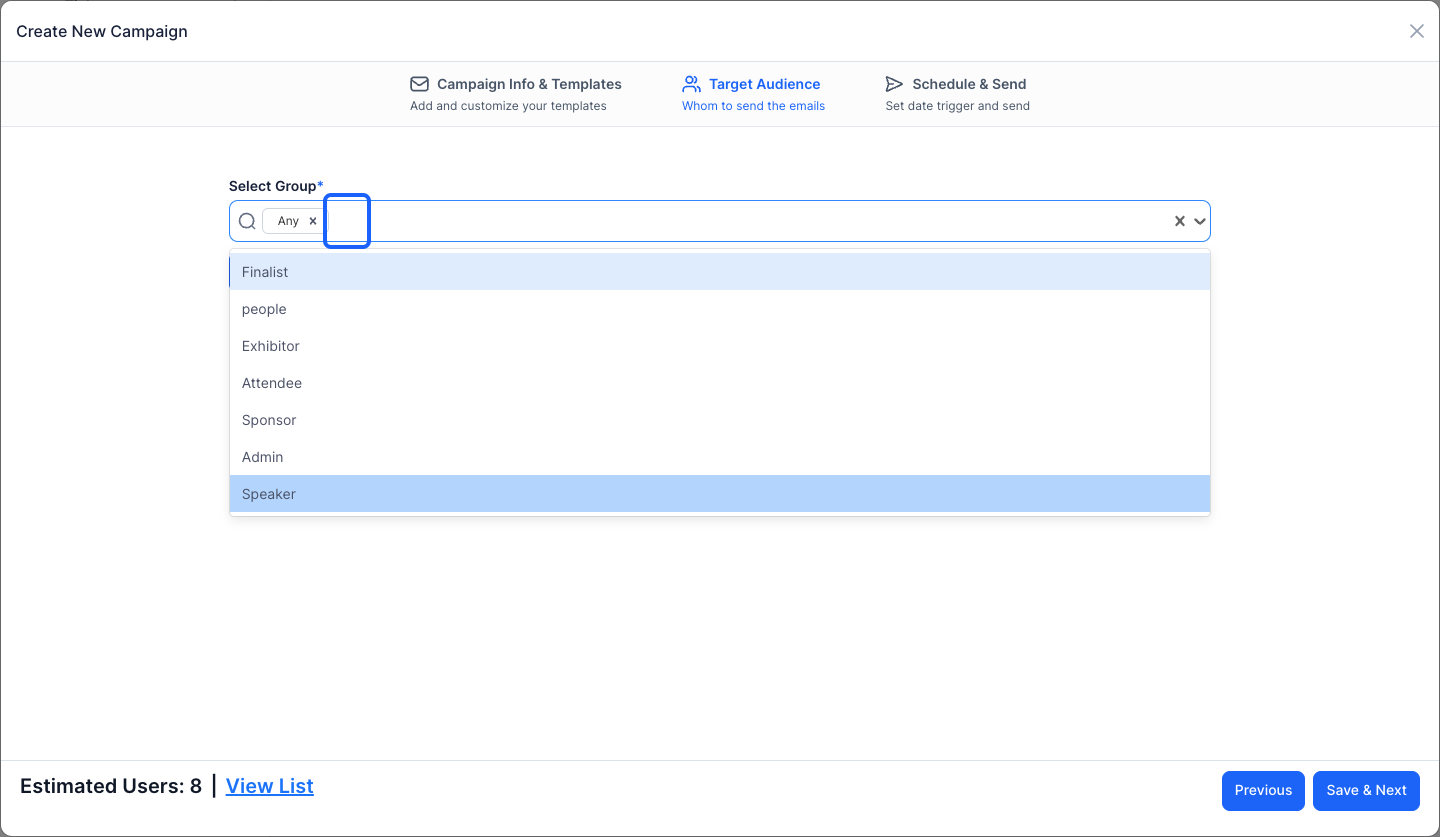
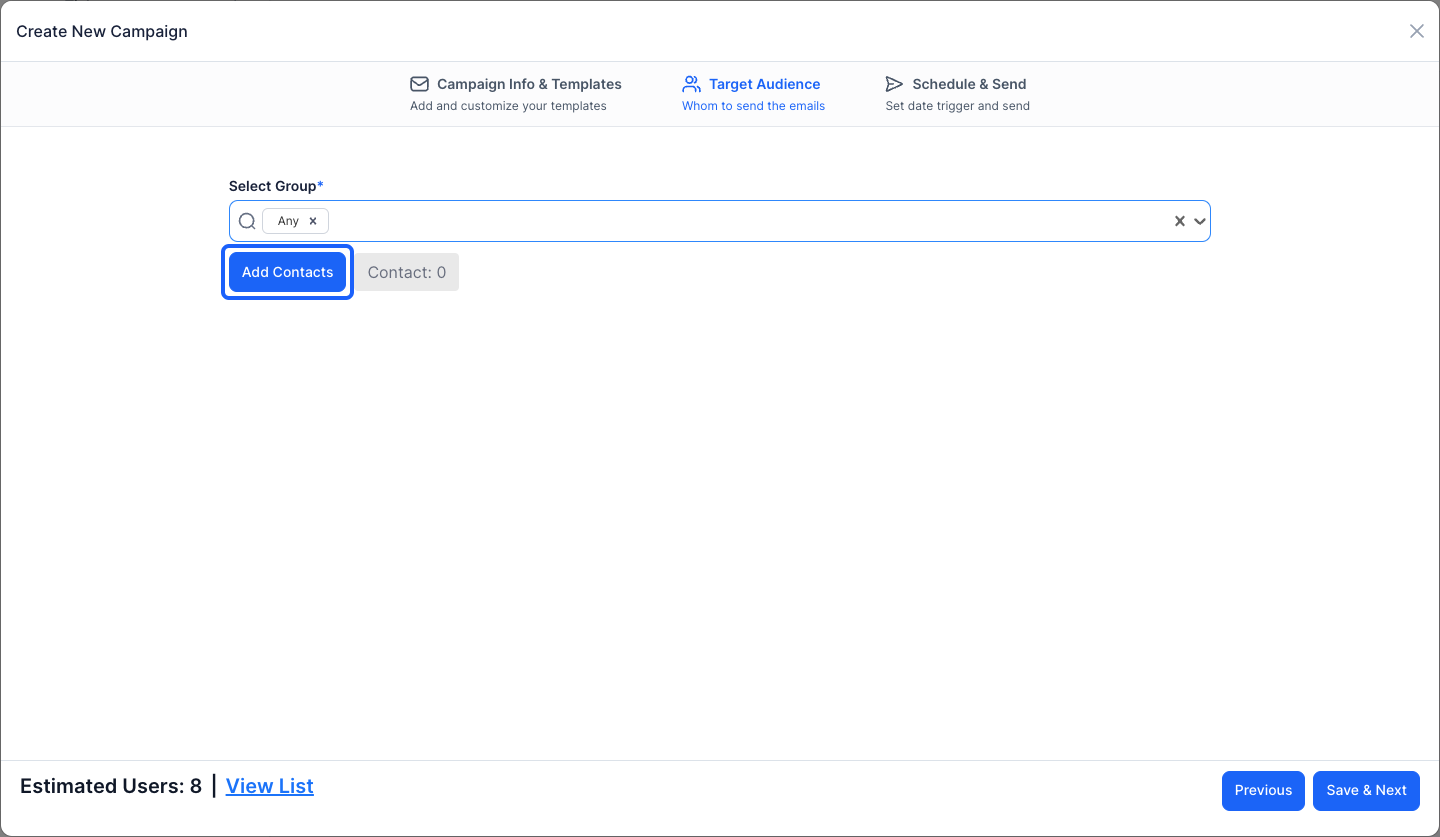
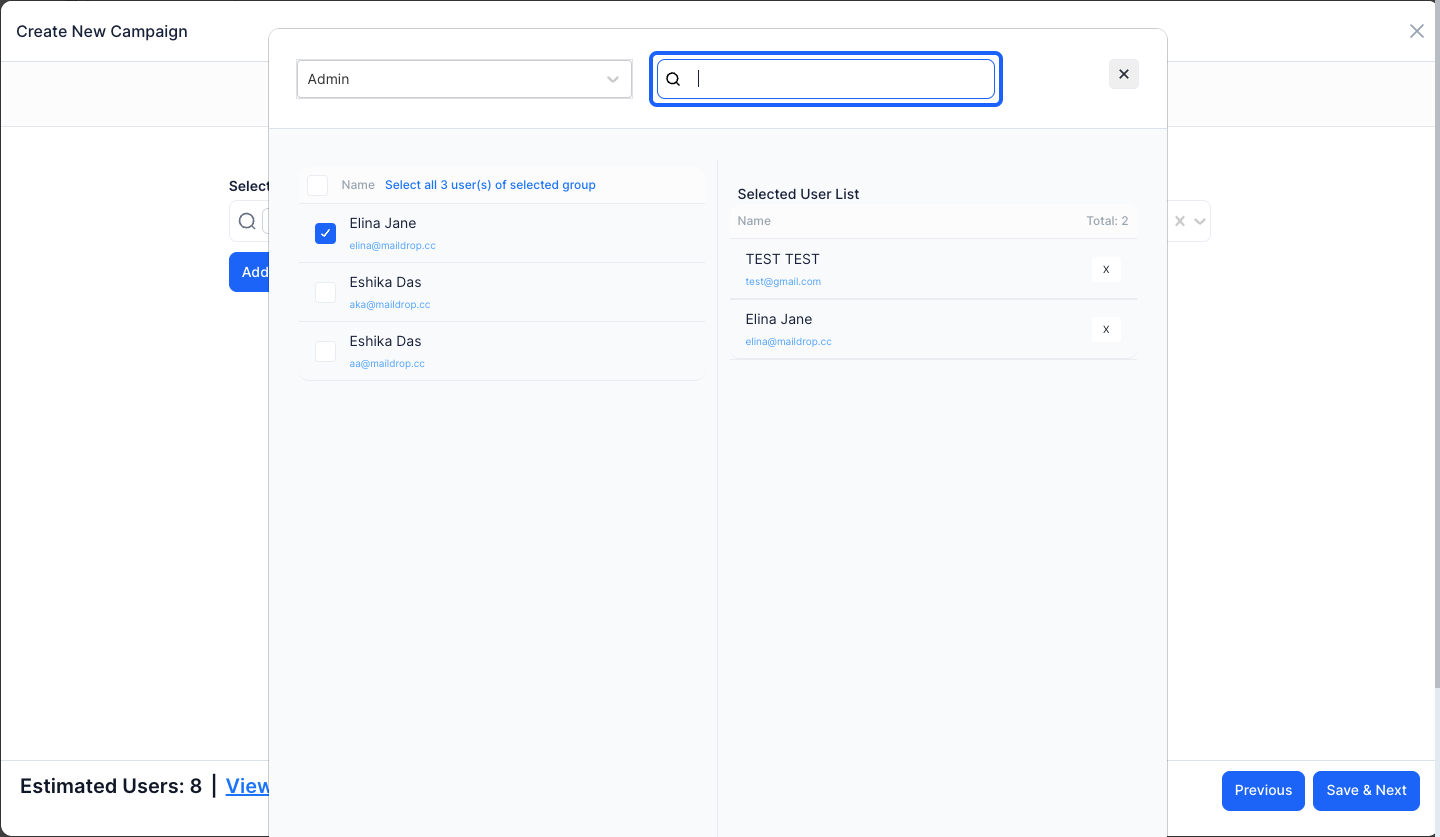
18: Click the “Add Contacts” button to add the contacts whom you want to send the email
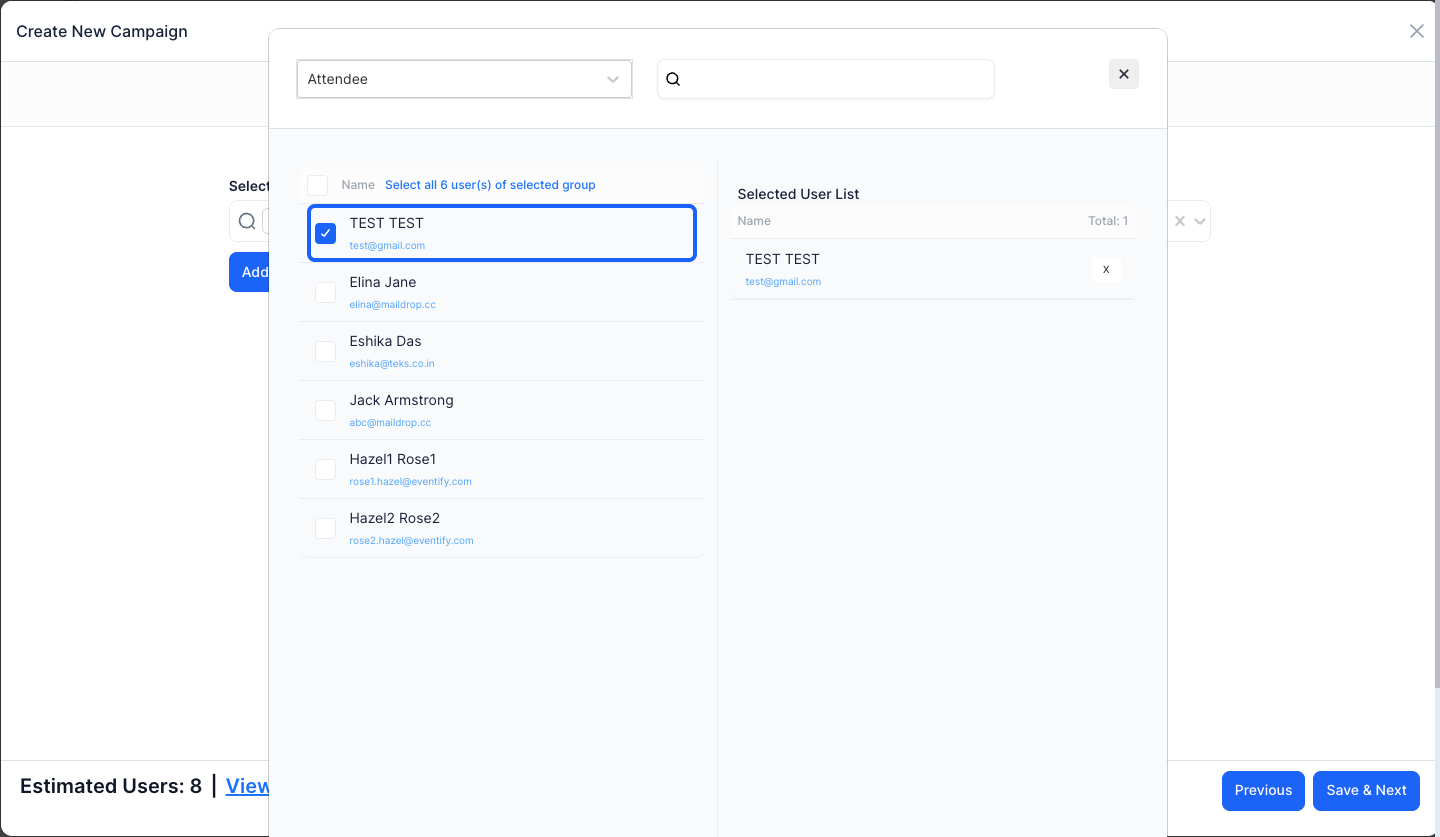
19: Select one or more contacts as required
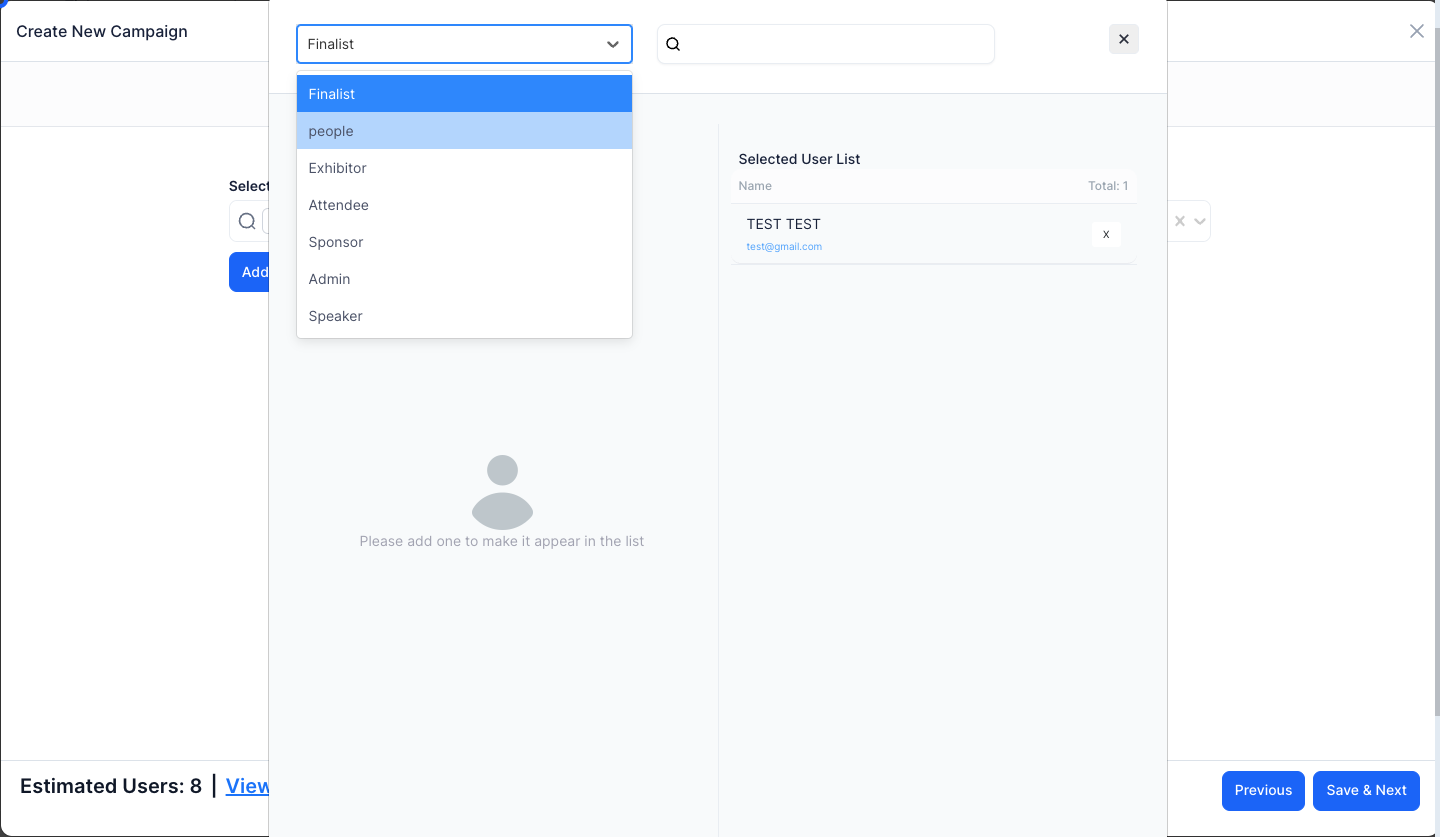
20: You can filter the contacts based on their group
21: You can also search the name or email of the contacts
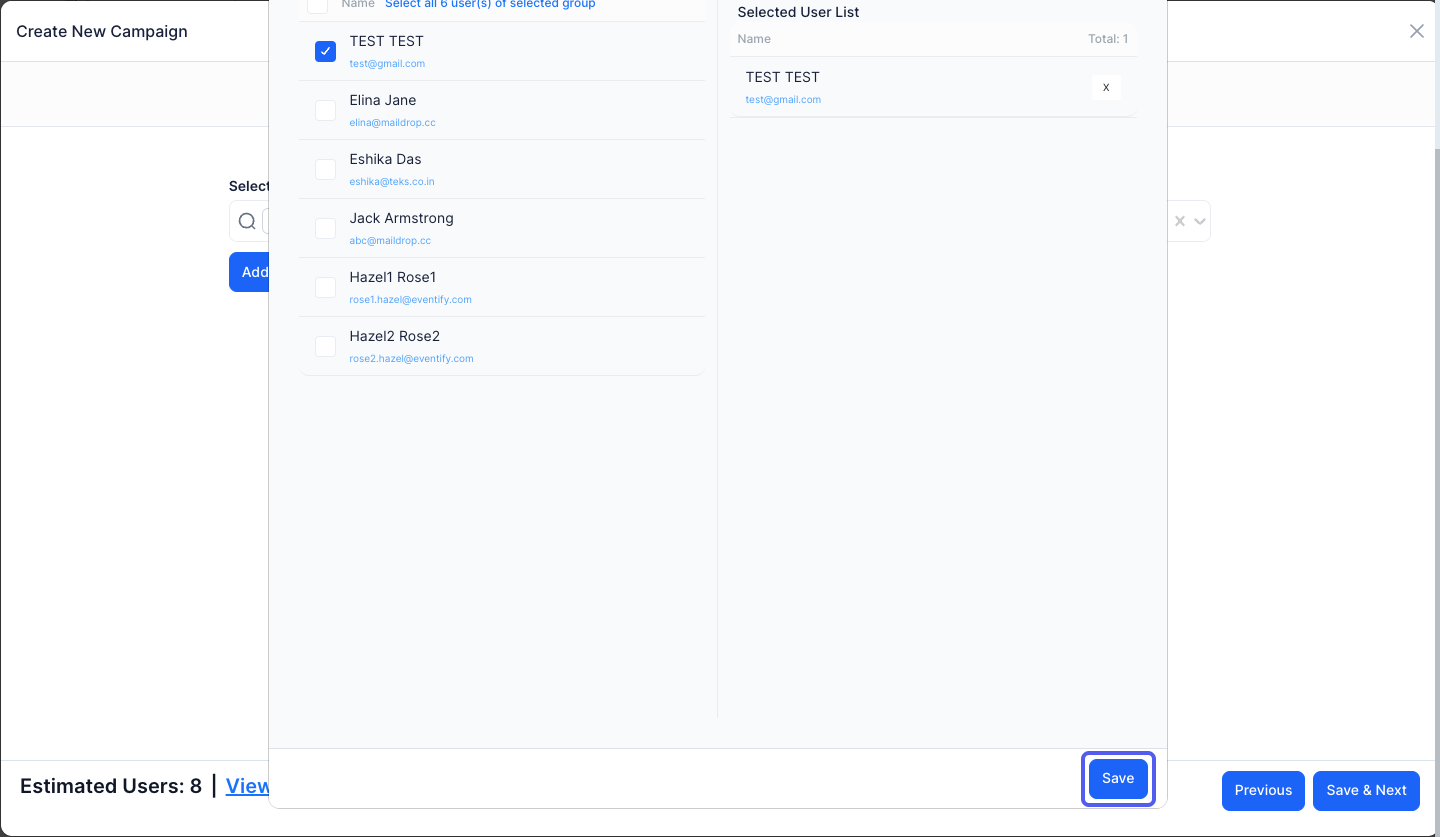
22: Click the “Save” button to save the changes
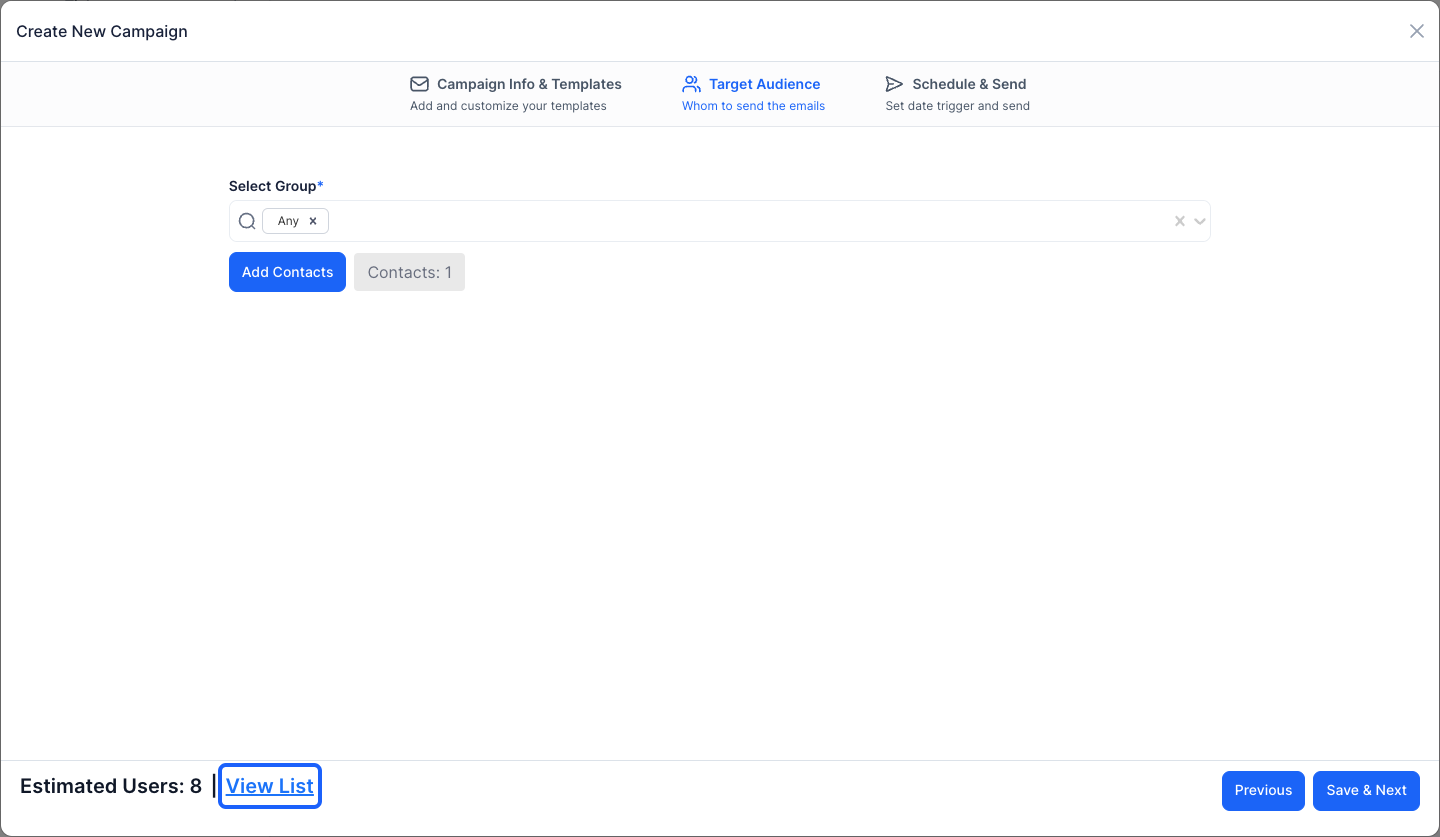
23: Click on "view list" to view the list of contacts selected
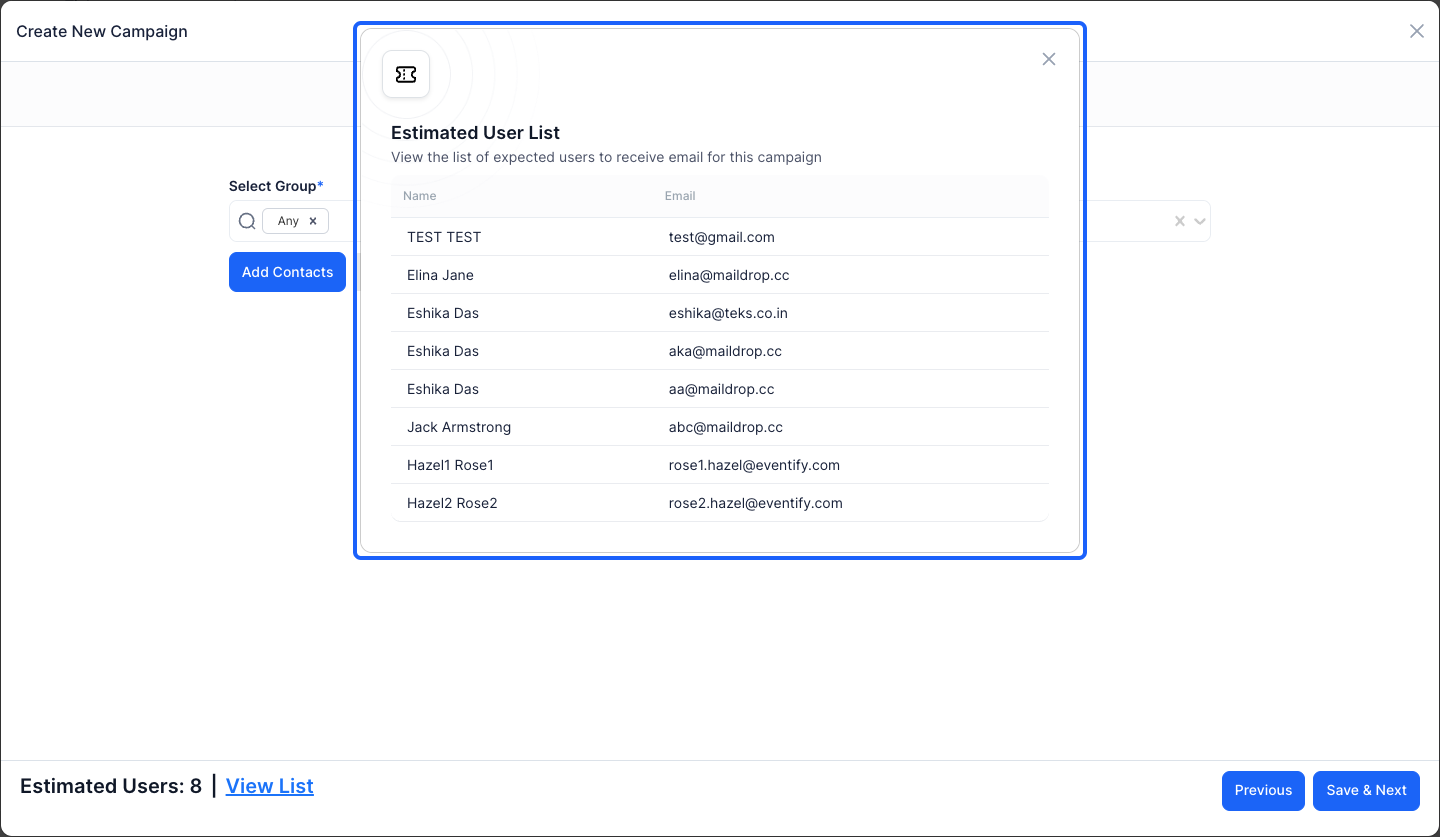
24: You can check the estimated user list from here
25: Click the “Save & Next” button to move to the next step
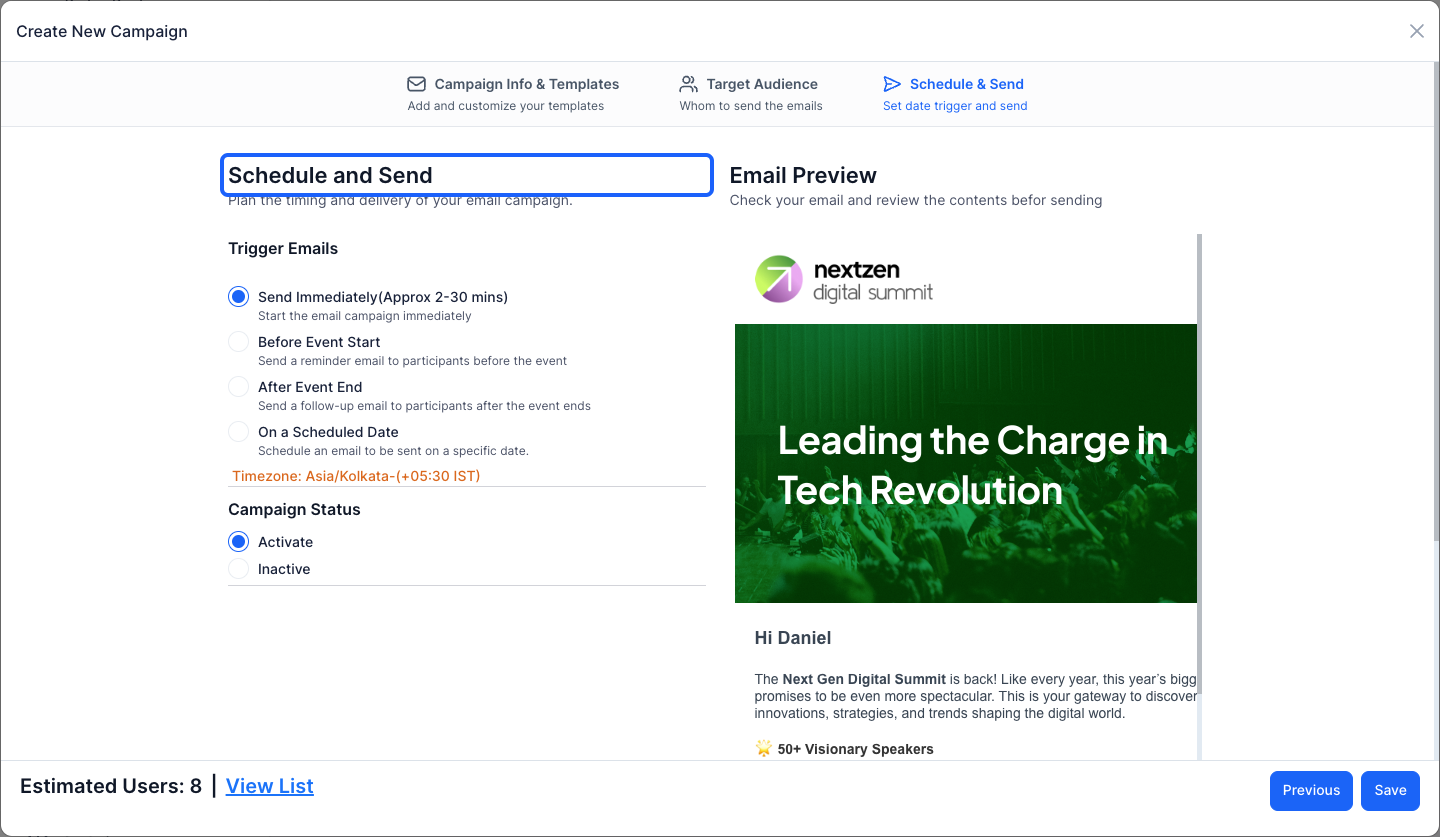
26: You can schedule the time of delivering your email campaigns
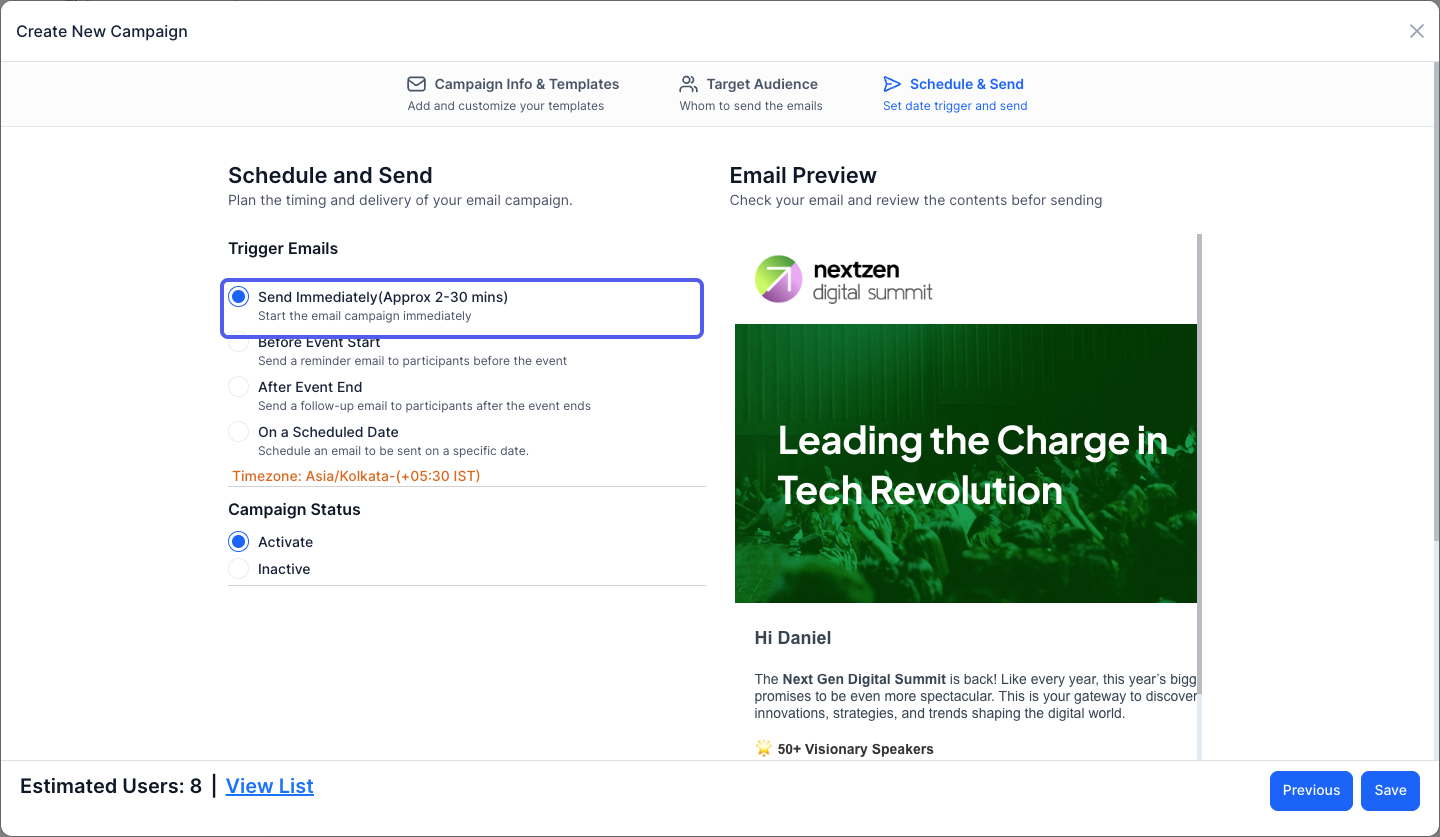
27: You can send the email immediately within 2 to 30 minutes
28: You can send a reminder email before the event starts
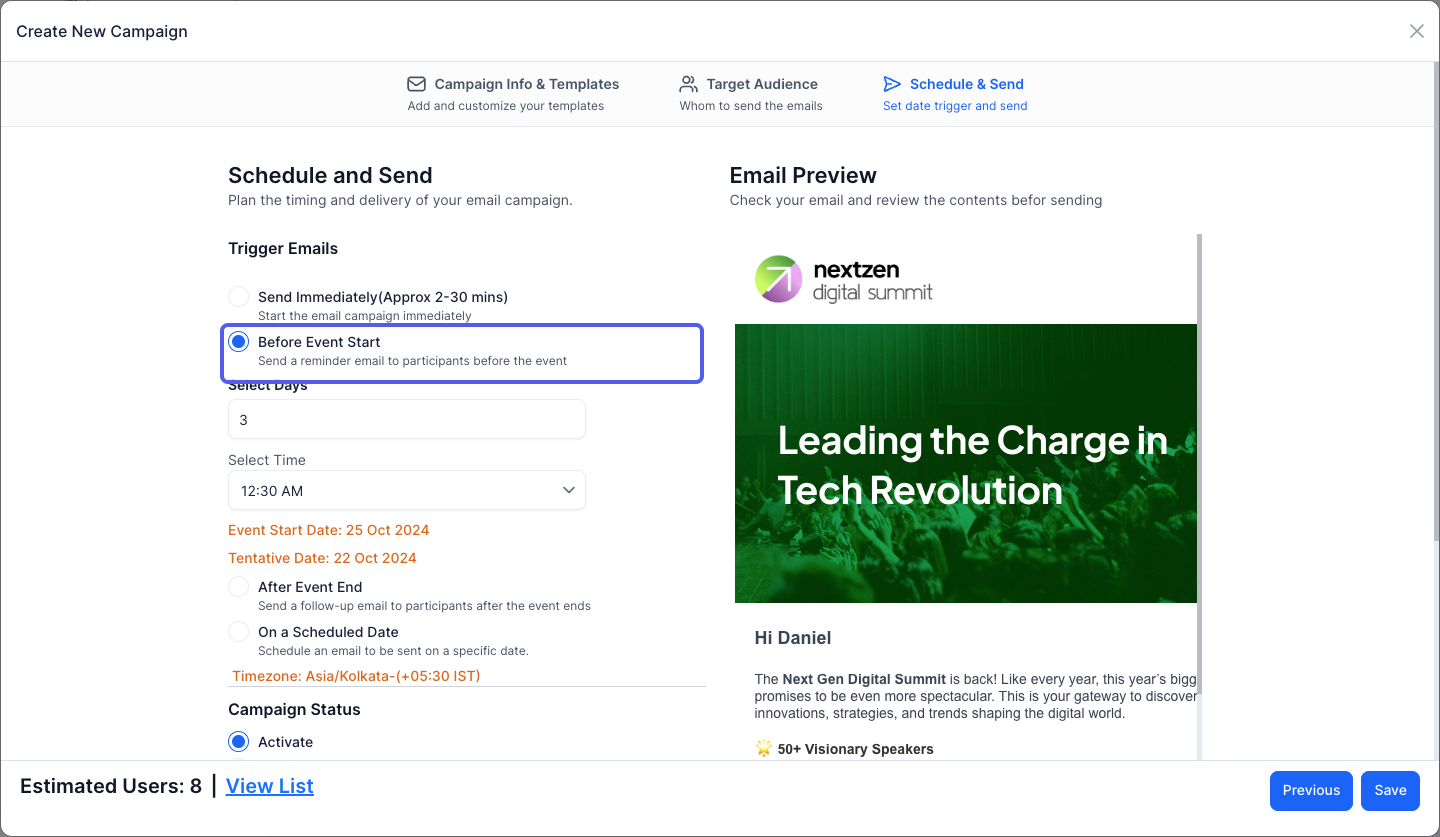
29: Select how many days in advance you want to send the email.
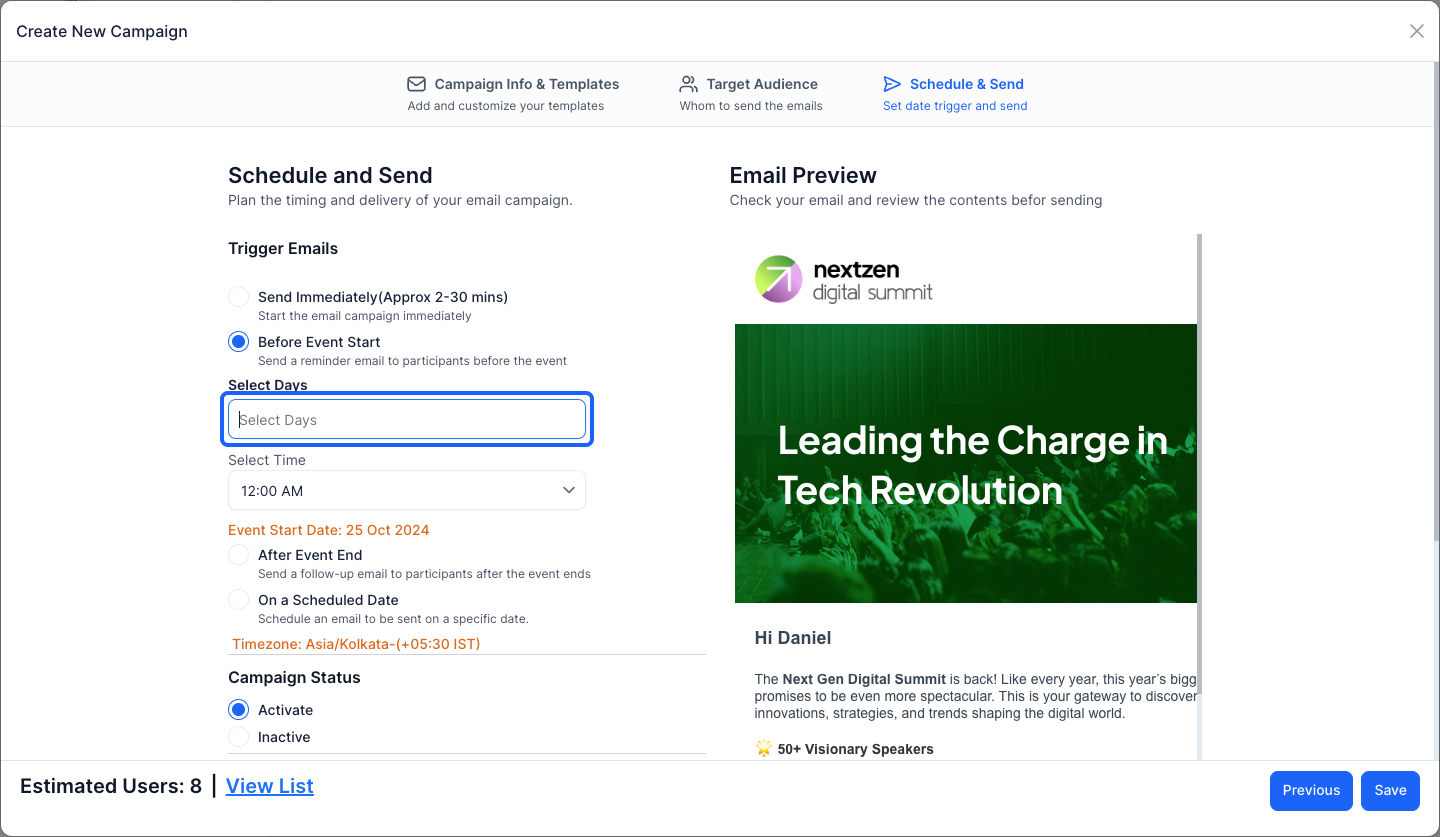
30: Select the time of sending the email to the participants
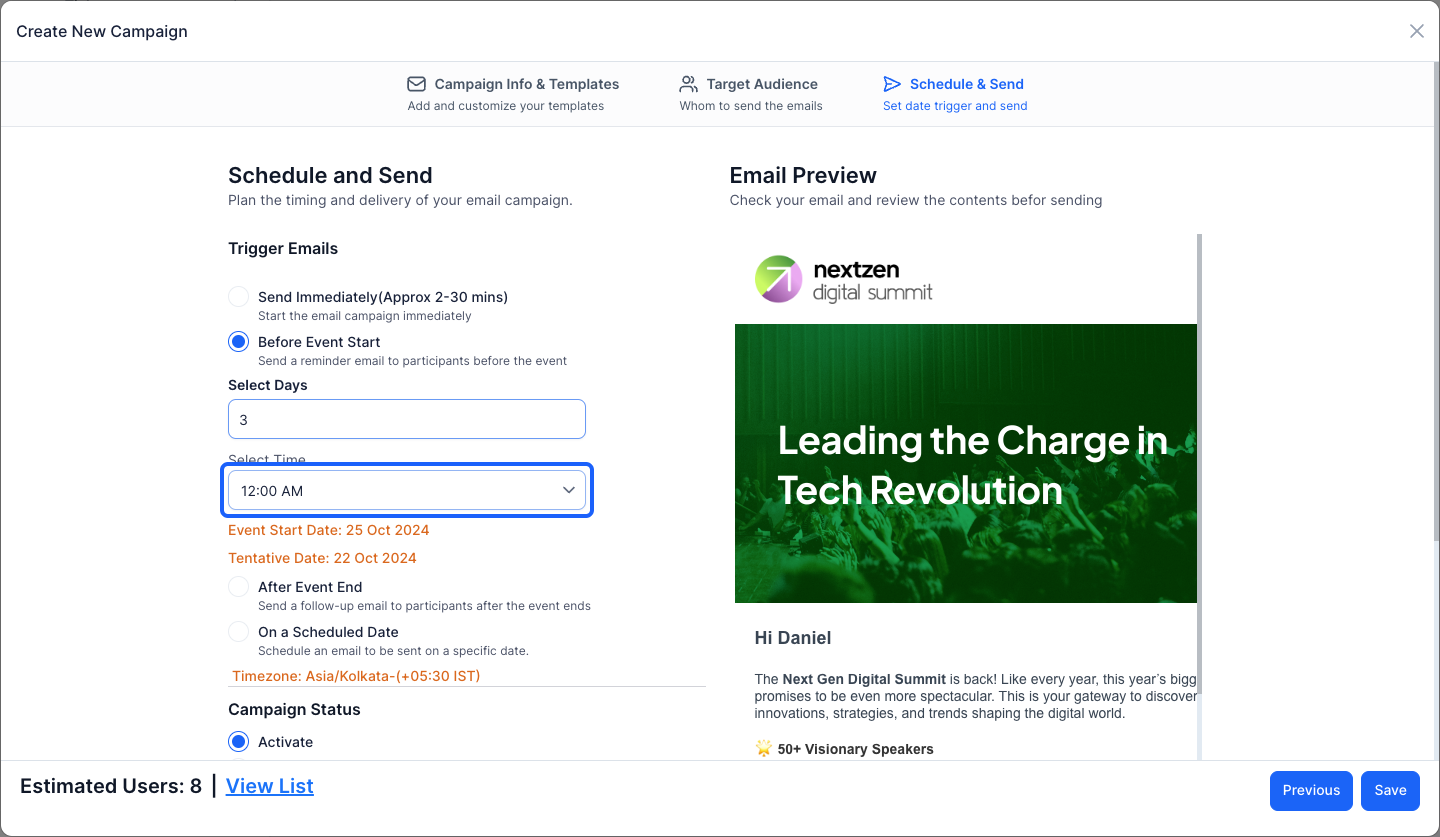
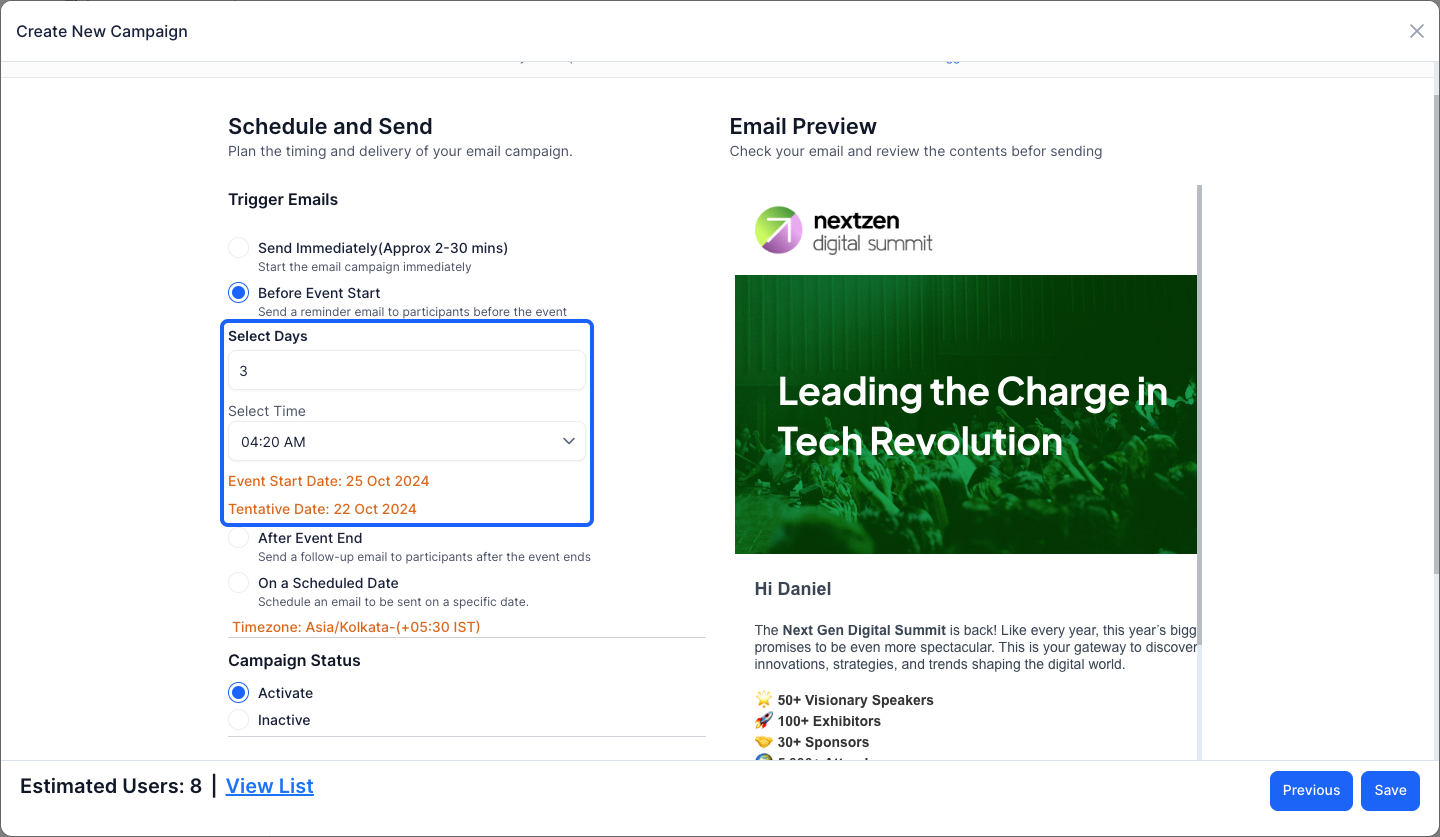
31: You can view the tentative date the email will be sent
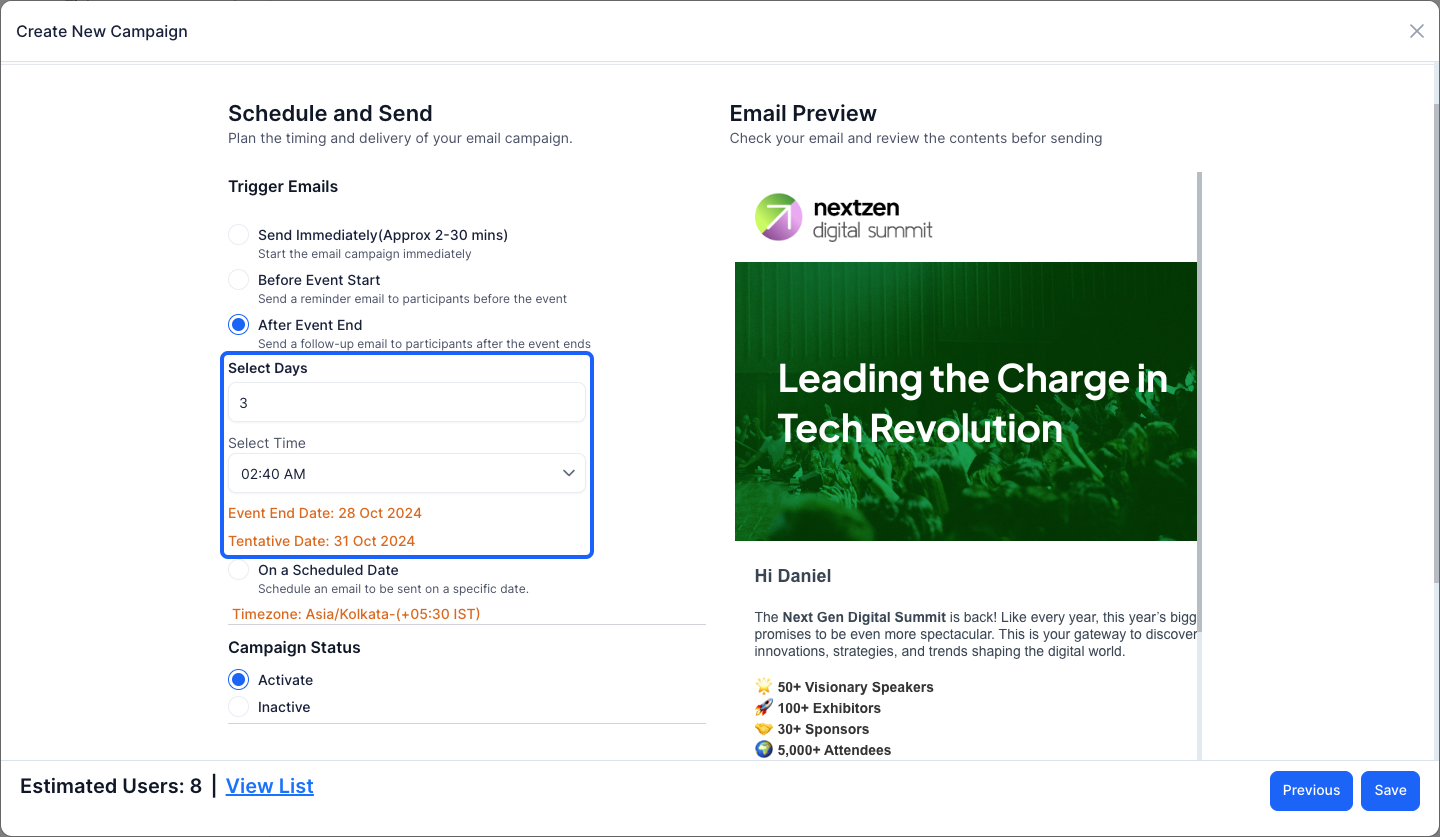
32: You can also send a follow up email, after the event ends
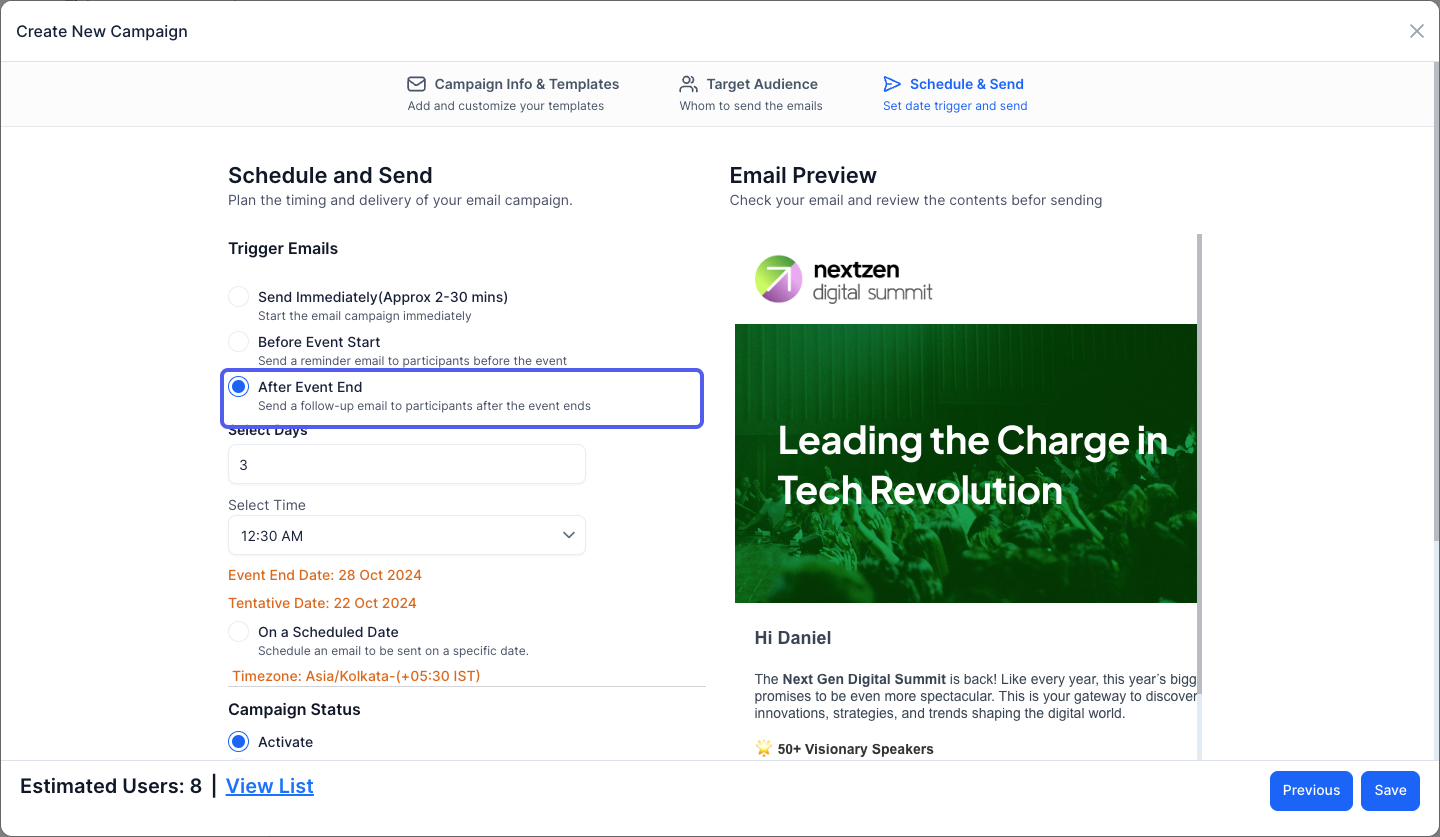
33: Select how many days after the event you want to send the email
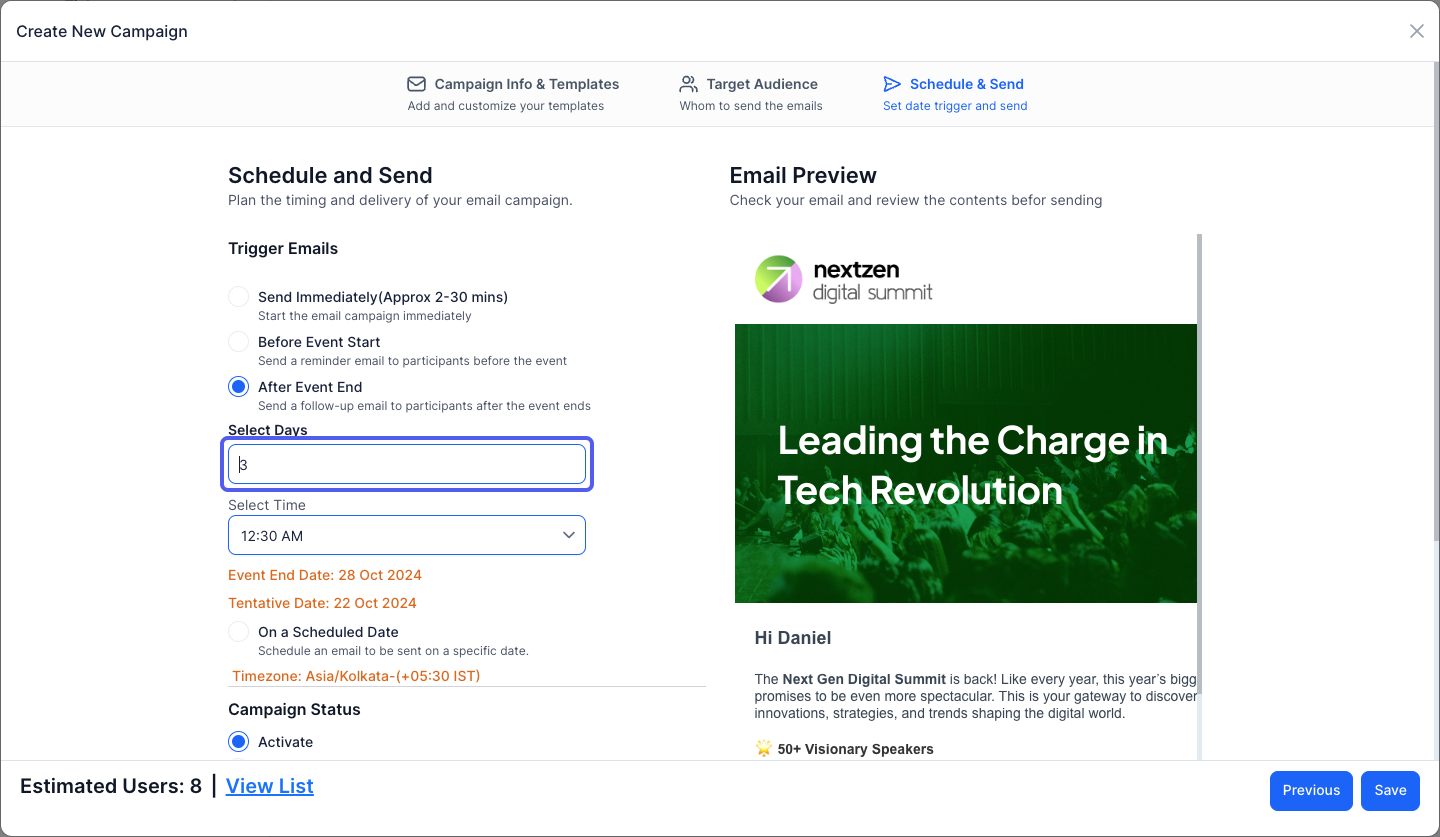
34: Select the time of sending the email
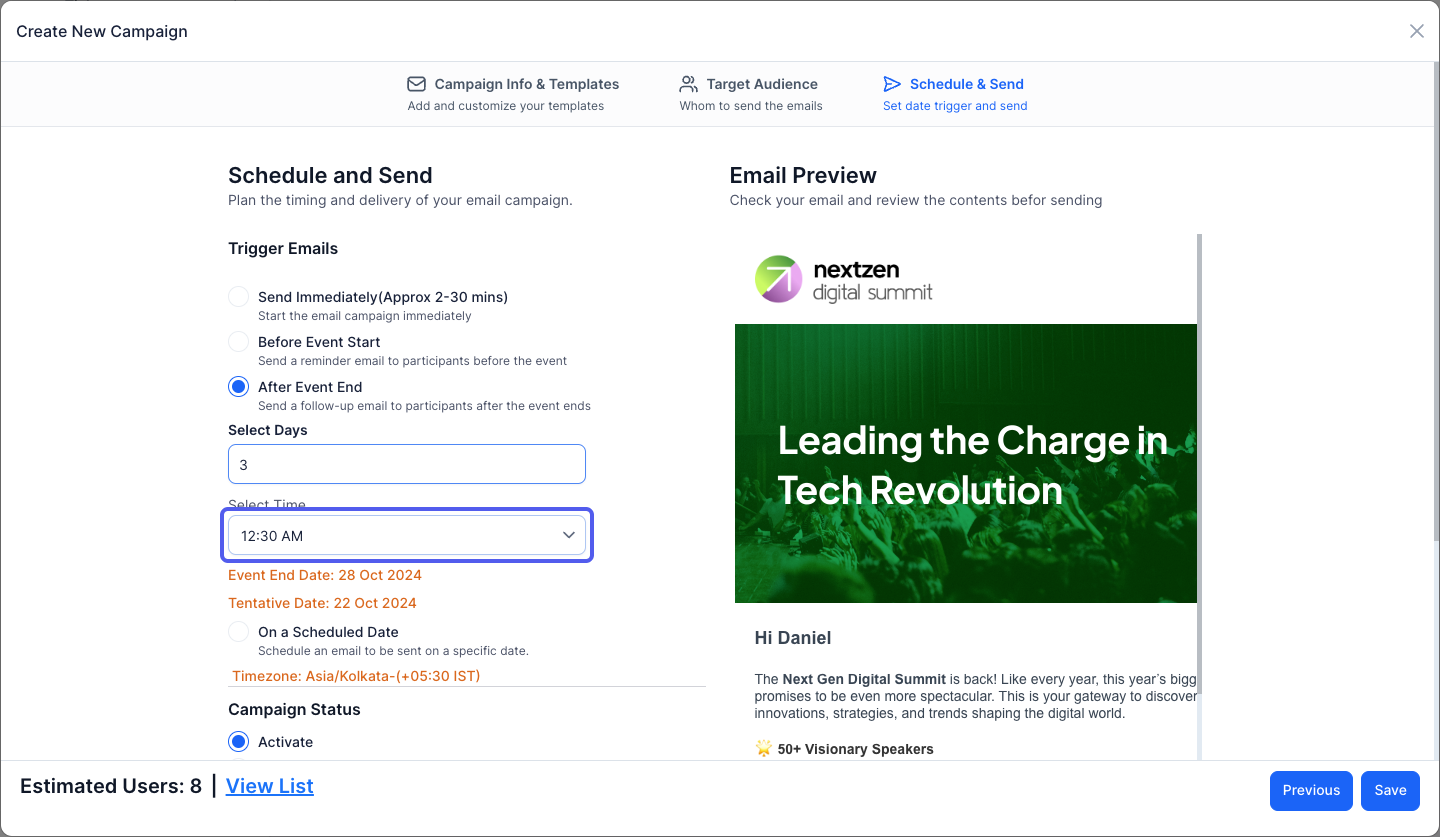
35: You can view the tentative date the email will be sent
36: You can also send the email on a specific date
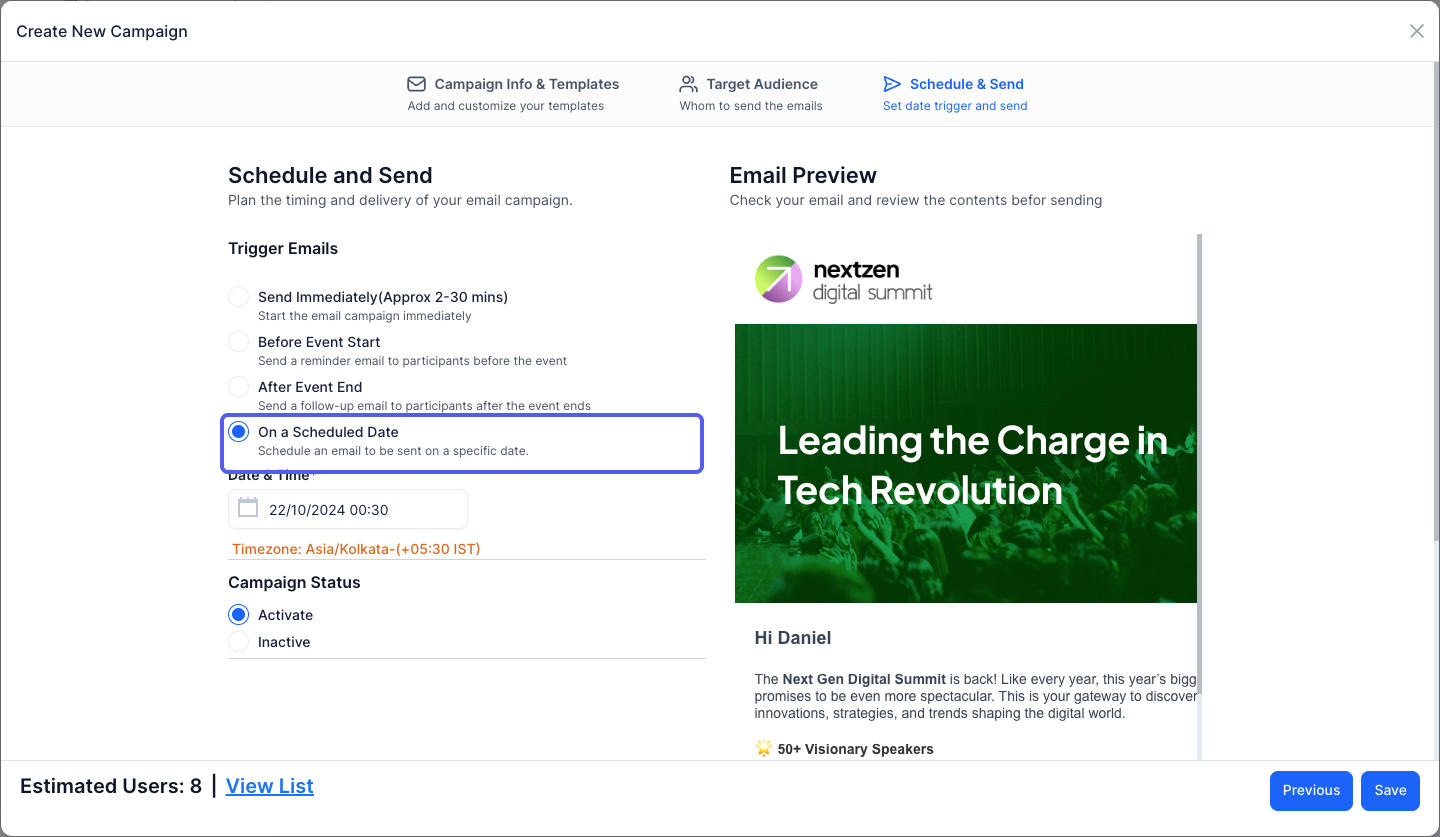
37: Set the date & time
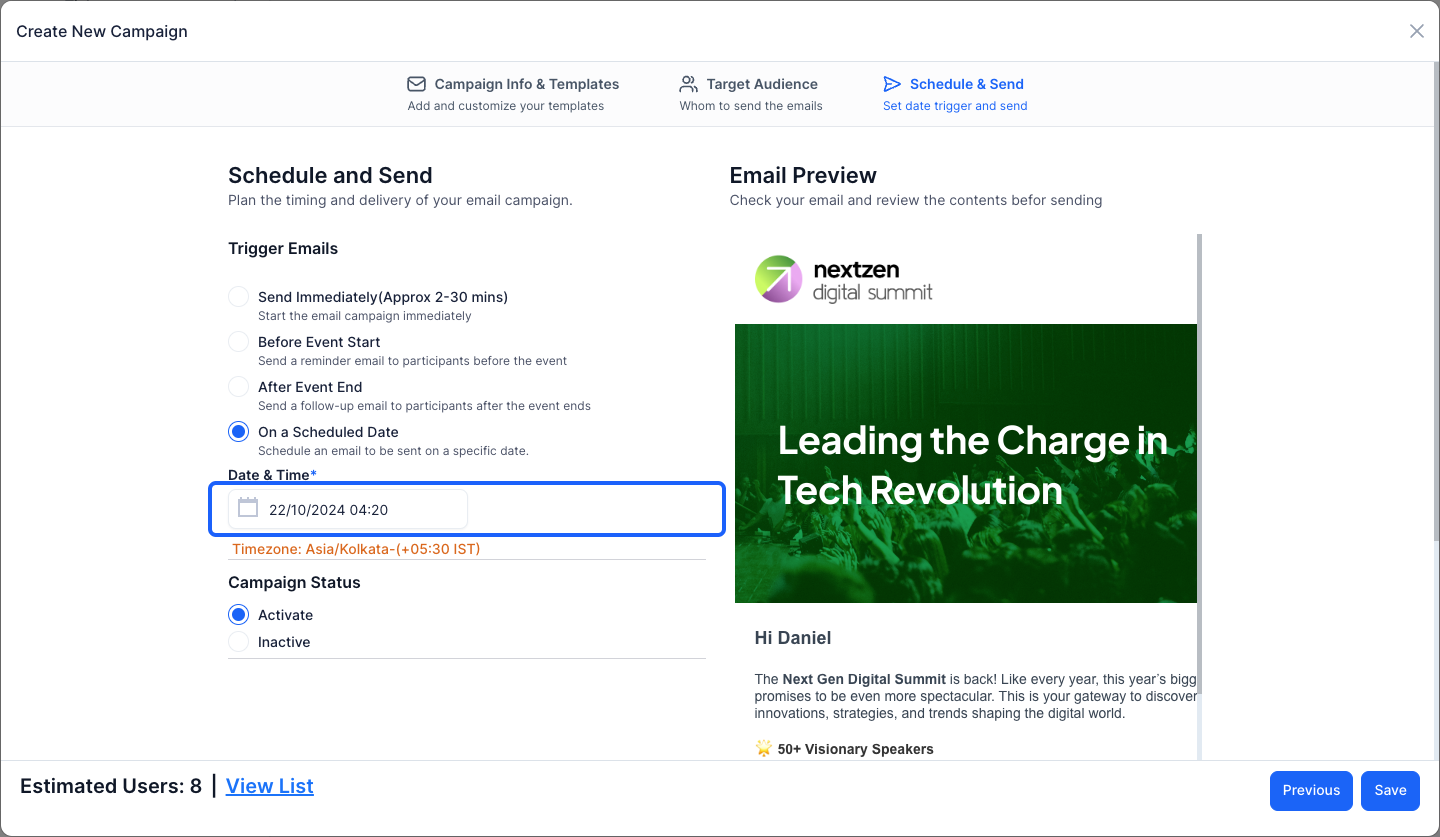
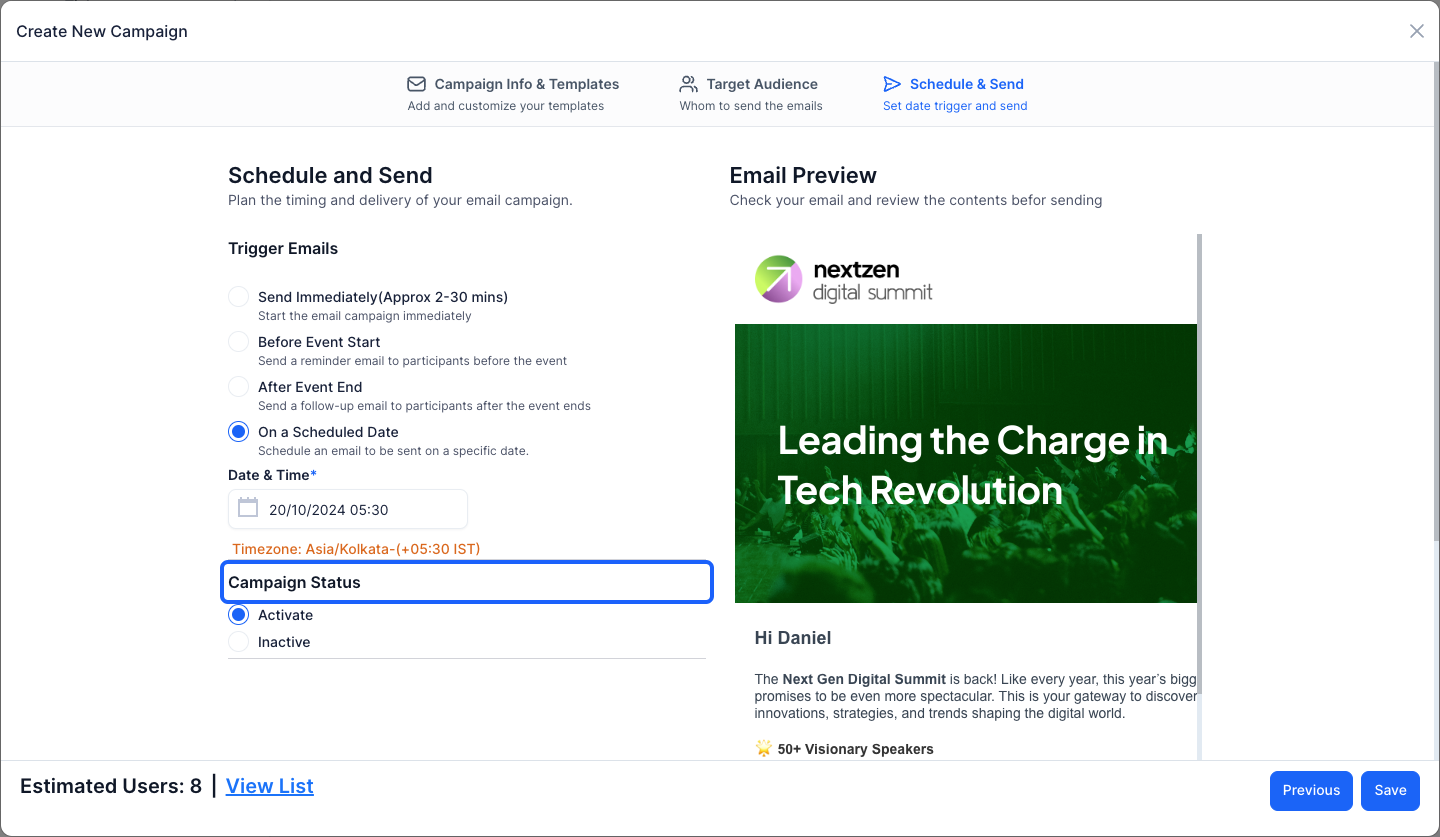
38: You can set the campaign status as Activate or Inactive
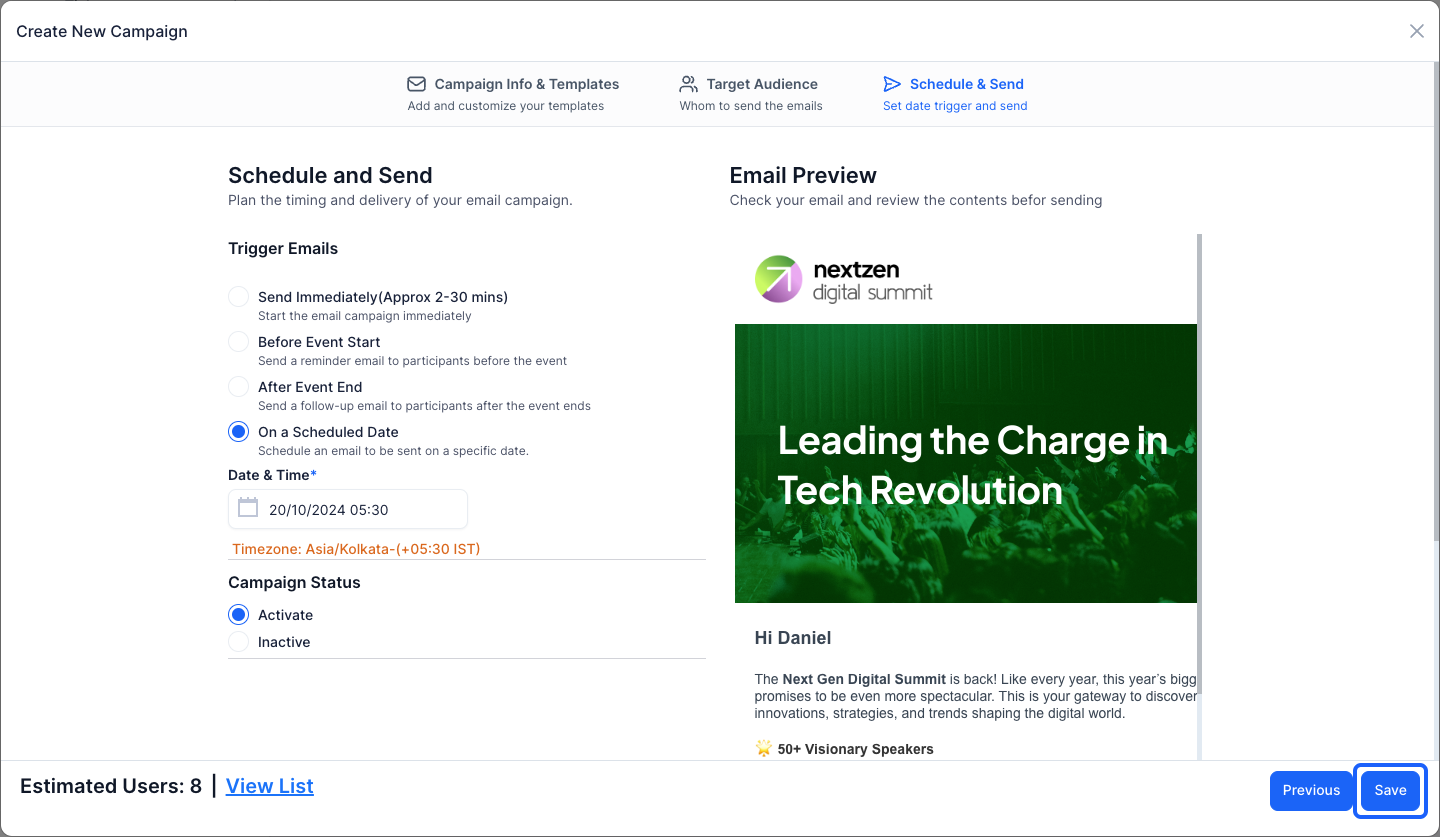
39: Click the “Save” button to create the campaign
Frequently Asked Questions
Can I send a campaign to event attendees instead of contacts?
Yes. Choose the Event Attendees button as your campaign audience. The remaining steps are the same as for contacts.
Can I send a follow-up email after the event ends?
Yes. Choose the after-event option, then select how many days after the event and what time to send. The tentative send date is shown.
How do I choose which event attendees receive the campaign?
For event attendee campaigns, the Target Audience tab uses filters such as group, registration status, app usage and engagement. See How to Target Event Attendees with Audience Filters.
Can I change the audience type later?
No. For contacts or For event attendees is fixed once the campaign is created. Create a new campaign to use the other type.

