


Facial Recognition Check-In At The Event Kiosk
Attendees look at the Eventify facial recognition kiosk and their badge prints. No ticket to dig out, no QR code to scan.
- Matches each face against the attendee's profile photo
- Rejects photos and phone screens held up to the camera
- Keeps working offline when the venue Wi-Fi does not
- Encrypted face vectors, with consent, GDPR and SOC 2 compliant
- No ticket neededNo QR code or name search
- Three setup stepsSwitch on, tick, enable
- Works offlineMatches on the device
- iOS and AndroidEventify app Kiosk Mode
Trusted by 5,000+ event professionals at conferences, expos and summits worldwide


Facial Recognition For Events, Where The Attendee Is The Ticket
Queues at the door are the first impression of your event. Face recognition check-in removes the slowest part of self check-in: hunting for a QR code.
- Look, don't search. The attendee looks at the camera. The kiosk finds their registration, checks them in and prints their badge.
- Built into the app. The face recognition kiosk is part of Kiosk Mode in the Eventify event check-in app on Android and iOS, next to QR scanning and name search.
- Any tablet works. It becomes an event registration kiosk that checks people in by face.
- Same badges, same data. Uses your onsite badge printing templates and writes every arrival to the live list you use for attendee tracking.
- Turn on Face Recognition, tick it as a kiosk check-in method, switch it on per device
- Attendees with a clear profile photo check in by looking at the camera
- Everyone else still uses QR or search
Read the launch announcement or the full setup guide.

How Face Check-In Works For The Attendee
A self check-in kiosk with badge printing, in four steps and no typing.
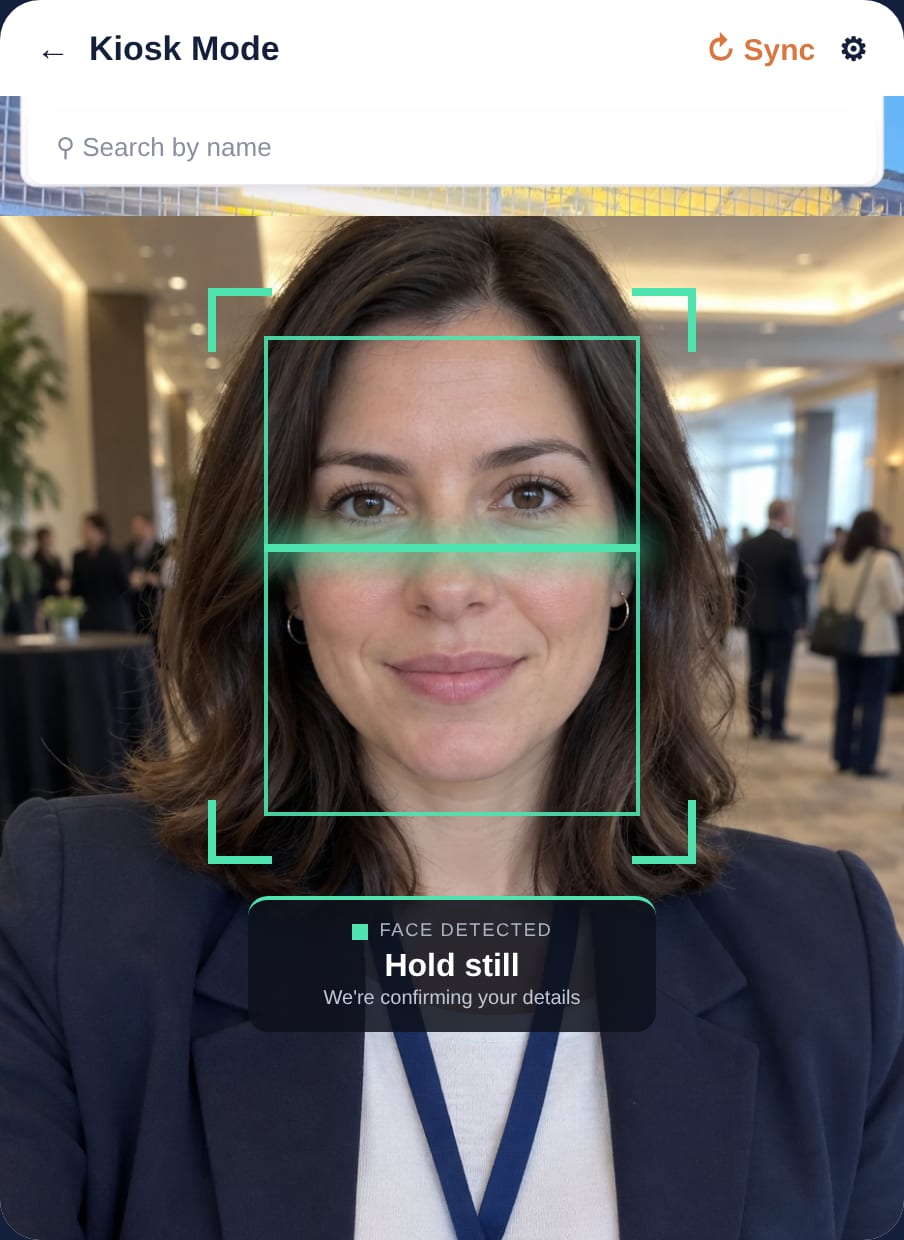
Walk up and look at the screen
- Kiosk shows FACE CHECK-IN
- Prompts like "Move closer" and "Hold still" guide the attendee
- Reads the largest face in view, one person at a time
Face matched, liveness confirmed
- Draws a square around the face
- Matches it to the attendee profile photo
- Liveness check rejects photos and phone screens
Checked in automatically
- Kiosk shows VERIFYING, "Checking you in…"
- The arrival lands on your dashboard
- Recorded exactly like a QR scan
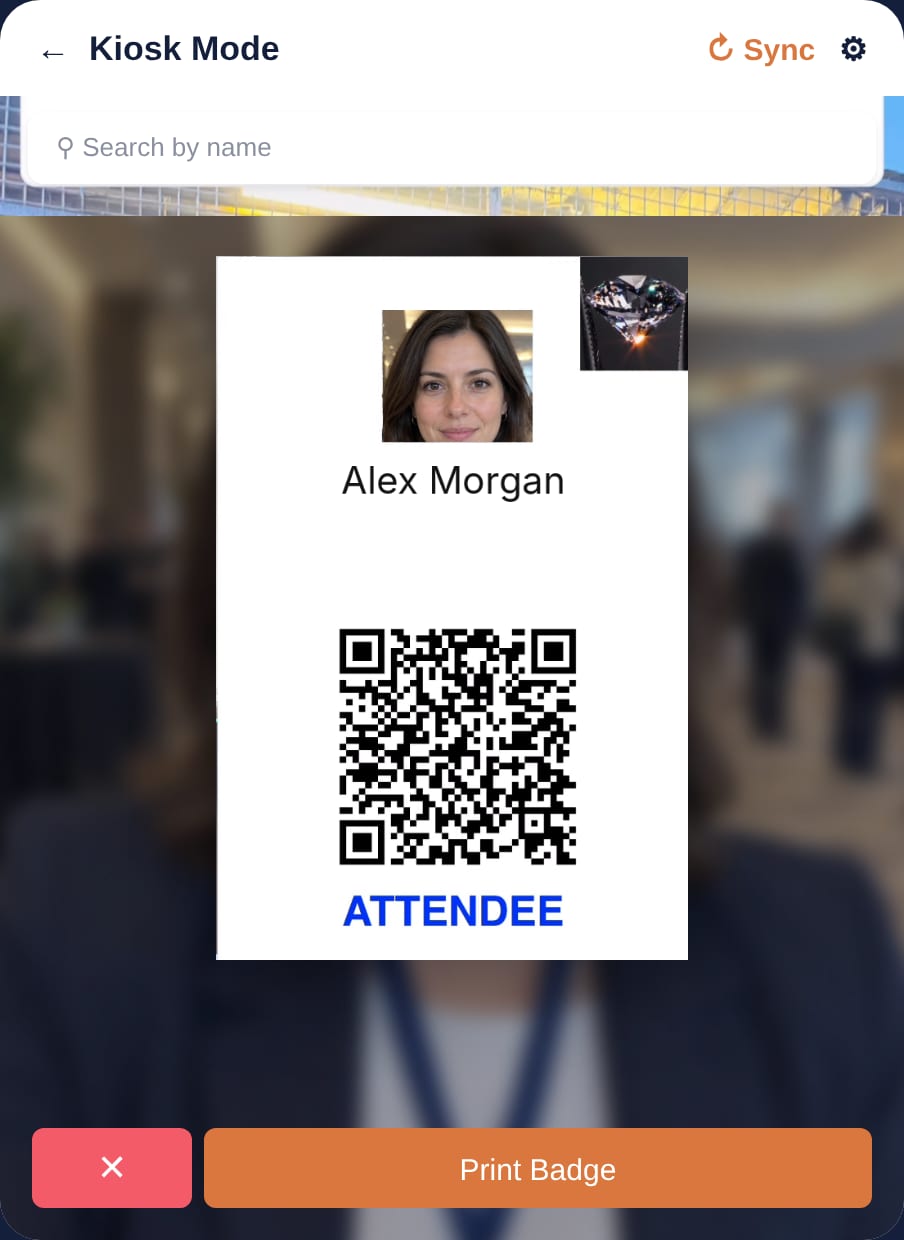
Badge prints
- Kiosk shows BADGE PREPARATION
- Badge prints through your onsite badge printing setup
- Auto Print, Auto Check-in and Allow Check-in Only work as today
Set Up Facial Recognition Check-In In Three Steps
Face recognition check-in runs inside Kiosk Mode of the Eventify event check-in app. Needs app version 3.1.49 or later on the kiosk device. White-label app? Make sure you have the latest build.
Turn on the Face Recognition module
In the admin panel go to Setup, Features. Under Modules, switch on Face Recognition and click Save.
Add it as a kiosk check-in method
In Registration, Badge Printing, Kiosk Setup, tick Facial Recognition under Check-In Methods. Keep QR Scan and Search ticked if you want a fallback.
Enable it on each kiosk device
Open Kiosk Mode in the Eventify app, run a Full Sync, tap Settings and turn on Enable Face Recognition. Pick Local or Server recognition.
Offline Facial Recognition Check-In, Built For The Venue Floor
Patchy Wi-Fi, mixed lighting, attendees without a photo. Face check-in is designed around the real conditions at a registration desk.
Liveness detection on every check-in
Facial recognition check-in with liveness detection: only a real face in front of the camera can check in. A printed photo or a phone screen fails the check and shows "Face verification failed".
Offline facial recognition check-in
In Local mode the kiosk matches faces on the device using the attendee data from its last sync. Check-ins queue and send when the connection returns.
Server mode for large events
Prefer to match in the cloud? Server mode handles very large attendee lists and devices that struggle to match locally. It needs an internet connection.
QR and search fallback
Run Face / QR check-in on one screen. The kiosk accepts whichever the attendee uses first, and asks unrecognised faces to scan their QR code instead.
Face-only kiosks with staff override
Running a face-only lane? Set a kiosk passcode. Staff tap Report an issue, enter it, and QR and search come back for 60 seconds for that attendee.
Per-device control
Every kiosk has its own switch. Put a face kiosk at the main entrance and keep a QR-only kiosk at the side door or the VIP desk.
Onsite badge printing
A face match triggers the same badge templates and printers as a QR scan, so onsite badge printing works unchanged. Auto Print, Auto Check-in and Allow Check-in Only all carry over.
Attendee opt-in
Attendees switch Allow facial recognition on or off in the Eventify app settings. Anyone who opts out checks in with their QR code.
Photo eligibility flags
Manage Attendees marks anyone whose profile photo cannot be used as "Not eligible for Face Recognition", so you can chase updates before doors open.
The Event Check-In Kiosk, Screen By Screen
No dead ends. Every screen tells the attendee what to do next.
Ready
Face and QR both on. The attendee can look at the camera or hold up their code.
Matched
The face matched a registered attendee and passed the liveness check.
Printing
The badge prints and the attendee is checked in, exactly as after a QR scan.
Fallback
No match, often from strong backlight. The attendee scans their QR code or searches by name.
Blocked
A photo or screen was held up to the camera. Nobody checks in on someone else's behalf.
Needs sync
The kiosk has no attendee data yet. Staff run Full Sync and face check-in comes back.
Face, QR Or Search: Picking A Method In Your Event Check-In Software
You do not have to choose one. Most events turn on face check-in with QR as the backup.
| Facial recognition | QR code scan | Name search | |
|---|---|---|---|
| What the attendee needs | Just their face | Ticket on phone or printout | Their name or email |
| What can slow the line | Poor lighting or no profile photo | Finding the ticket email | Typing, similar names |
| Works offline | Yes, in Local mode | Yes | Yes |
| Stops ticket sharing | Yes, face plus liveness check | Partly, a code can be forwarded | No |
| Setup needed | Profile photos, module switched on | None, codes sent automatically | None |
| Best for | Main entrance, repeat arrivals, VIP lanes | Every attendee as the default | Lost tickets, walk-up help |
All three methods share the same attendee list, badge templates and live dashboard in Eventify event check-in software.
Biometric Event Check-In That Attendees Control
- Every match runs facial recognition check-in with liveness detection, so photos and screens are rejected
- Uses only the profile photo the attendee chose to upload
- Face images are converted into encrypted vectors and stored securely
- Attendees can turn facial recognition off any time in the Eventify app and check in with their QR code
- ISO 27001:2022 certified, SOC 2 Type 2 audited and GDPR compliant, with data encrypted in transit and at rest
Get A Fast Face Lane On Day One
What we tell every event team before their first face kiosk goes live.
Ask for photos early
Request a clear, front-facing profile photo in your registration emails: face the camera, good light, no sunglasses. Then chase anyone flagged as not eligible.
Light faces from the front
Avoid placing kiosks with a window behind the attendee. Strong backlight is the most common cause of "Face not recognised".
Mount at face height
Put the tablet camera near eye level. Attendees looking down at a screen from above are harder to match.
One person at a time
The kiosk works on the largest face in view. Mark a spot on the floor so the next attendee waits a step behind.
Full Sync before doors open
The kiosk only recognises attendees it has downloaded. Sync again after late registrations or setting changes.
Test with your staff
Add staff profile photos, turn on Face Recognition Preview and run a few check-ins. Switch the preview off before the event, it slows the kiosk.
Where A Face Kiosk Earns Its Place

Conferences and summits
Clear the morning rush with touchless face lanes beside your staffed desk, and keep QR as the backup for anyone without a photo.
- Faster first-morning arrivals
- Hands-free re-entry on day two and three
- Speaker and VIP lanes

Expos and trade shows
High-volume arrivals where every second at the kiosk counts, and where badges must not be shared between visitors.
- Multiple face kiosks in parallel
- Liveness check against ticket sharing
- Badge feeds straight into lead scanning

Corporate and internal events
Employees already have a photo on file. Import it with the attendee list and most of the room is ready for face check-in.
- Sales kickoffs and town halls
- Training days and offsites
- Branded event app for the day

Associations and member events
Confirm that the person at the kiosk is the registered member, for AGMs, voting sessions and members-only access.
- Identity check at the door
- Audit-ready attendance records
- QR fallback for opted-out members