
Event programmes rarely come together all at once. Speakers confirm late, timings shift, session details get revised right up to the day. Until now, that meant either publishing incomplete sessions or leaving gaps in your schedule. With Eventify's new Session Draft Mode, you can create and save sessions without publishing them to attendees — giving your team the space to build, refine, and finalise your programme behind the scenes.
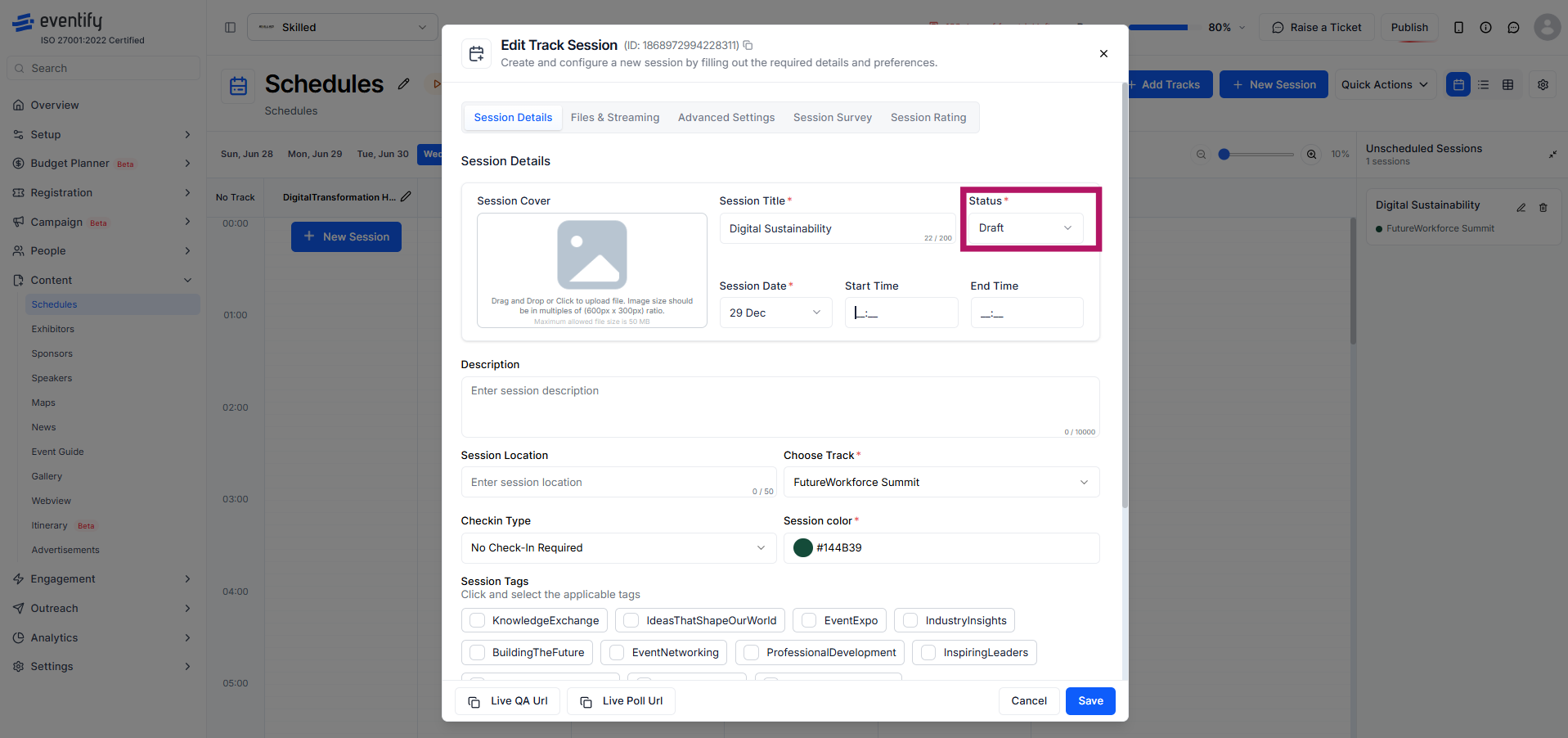
When creating a new session, organisers can now set the status to Draft before saving. Draft sessions are stored in your schedule and fully editable, but remain completely hidden from attendees on the event app. Your programme stays clean and complete-looking to attendees while your team continues working on the details in the background.
This is particularly useful when you're building out a multi-day programme in stages, or when you need to create placeholder sessions before all the information is confirmed.
Unlike published sessions, Draft sessions do not require a start or end time to be saved. This means you can create a session the moment a topic or speaker is confirmed — capturing it in the system straight away — without needing to wait until the time slot is finalised. Fill in the remaining details when you're ready, then publish.
Session status is not a one-way switch. Organisers can move a session from Draft to Published when it's ready to go live, and back to Draft if it needs to be pulled from the attendee view for further edits. This gives your team complete flexibility to manage what attendees see at any point during the event build-up — without deleting or recreating sessions.
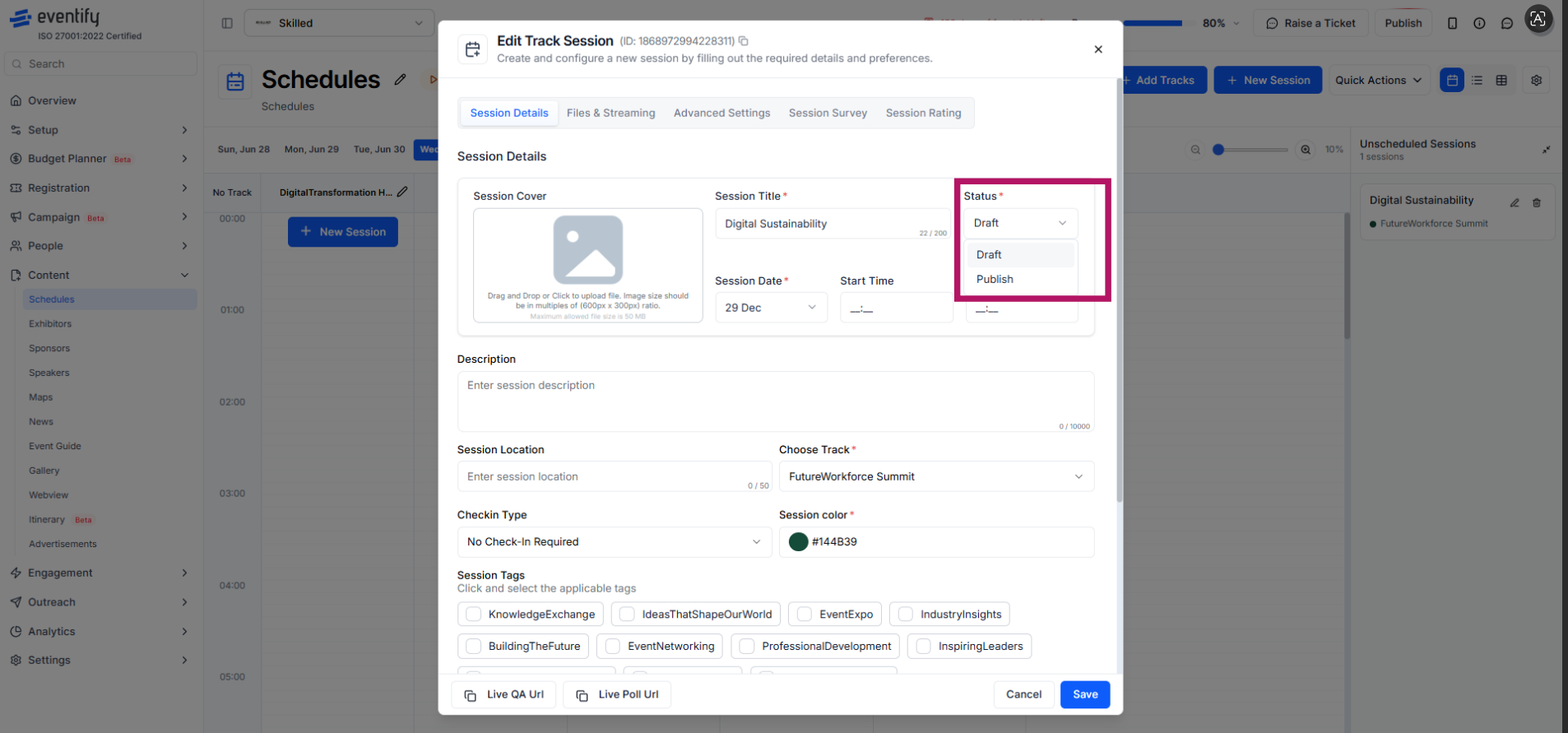
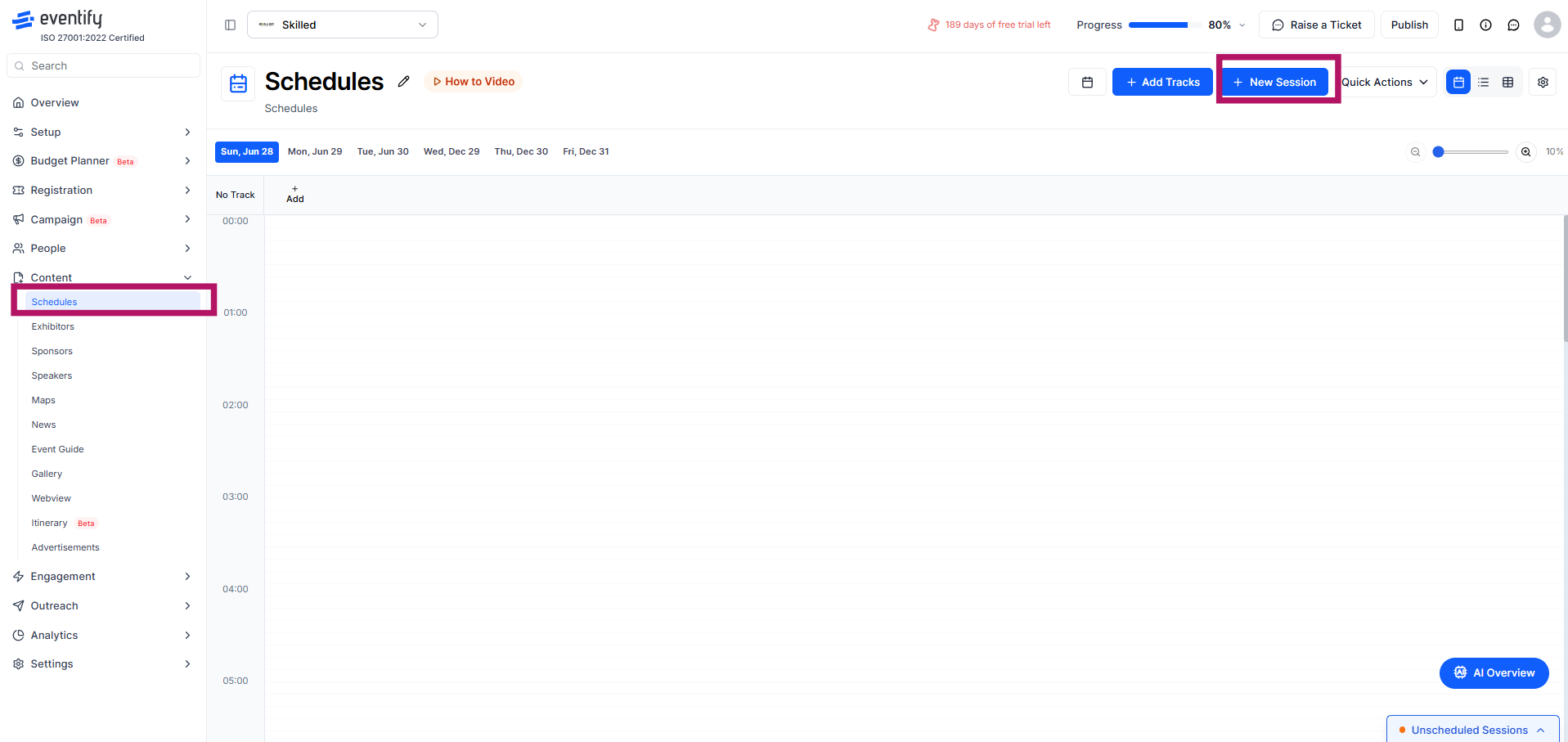
To use this feature, go to Content › Schedules in your admin panel and click the + New Session button. In the Add Track Session panel, fill in the session title and any available details. Locate the Status field in the top-right of the panel — set it to Draft to save the session without publishing it. Click Save.
The session will be stored in your schedule, visible only to admins, until you return and switch the status to Published to make it live for attendees.
Schedule a personalized demo.
See how Eventify can enhance the event experience for your attendees. Discover how mobile innovations are transforming events. Get a free demo tailored to your event objectives.
.png)


