Kiosk Mode — Edit Profile Before Printing

Fix it before you print it — right at the badge station.
June 25, 2026

Badge printing at busy events moves fast, and data errors don't always surface until an attendee is standing at the kiosk. A misspelled name, an outdated job title, a missing company — small mistakes that, until now, required a trip back to the admin panel to fix. With Eventify's latest Kiosk Mode update, admins can edit a user's profile data directly at the kiosk before the badge is printed, keeping the queue moving and every badge accurate.

Edit Profile Data Without Leaving the Kiosk

Admins can now make profile edits — name, designation, company, and other key badge fields — right at the point of print, without stepping away from the kiosk station or logging into the admin panel. The correction is made, the badge reflects it, and the attendee walks away with accurate credentials. No reprints needed, no disruption to the queue behind them.

This is especially valuable at large events where attendee data is imported from multiple sources and inconsistencies are common. The kiosk becomes not just a printing station but a last-mile quality check.

Protected by Passcode Authentication

Profile editing in Kiosk Mode is not open to everyone at the station. The feature is only available when a kiosk passcode has been configured — and editing can only be initiated after the passcode is entered. This ensures that only authorised staff can modify attendee data, keeping the process secure in high-traffic environments where kiosks may be running unattended or managed by volunteers, without adding any friction to the standard print flow for regular attendees.

How to Enable Profile Editing in Kiosk Mode

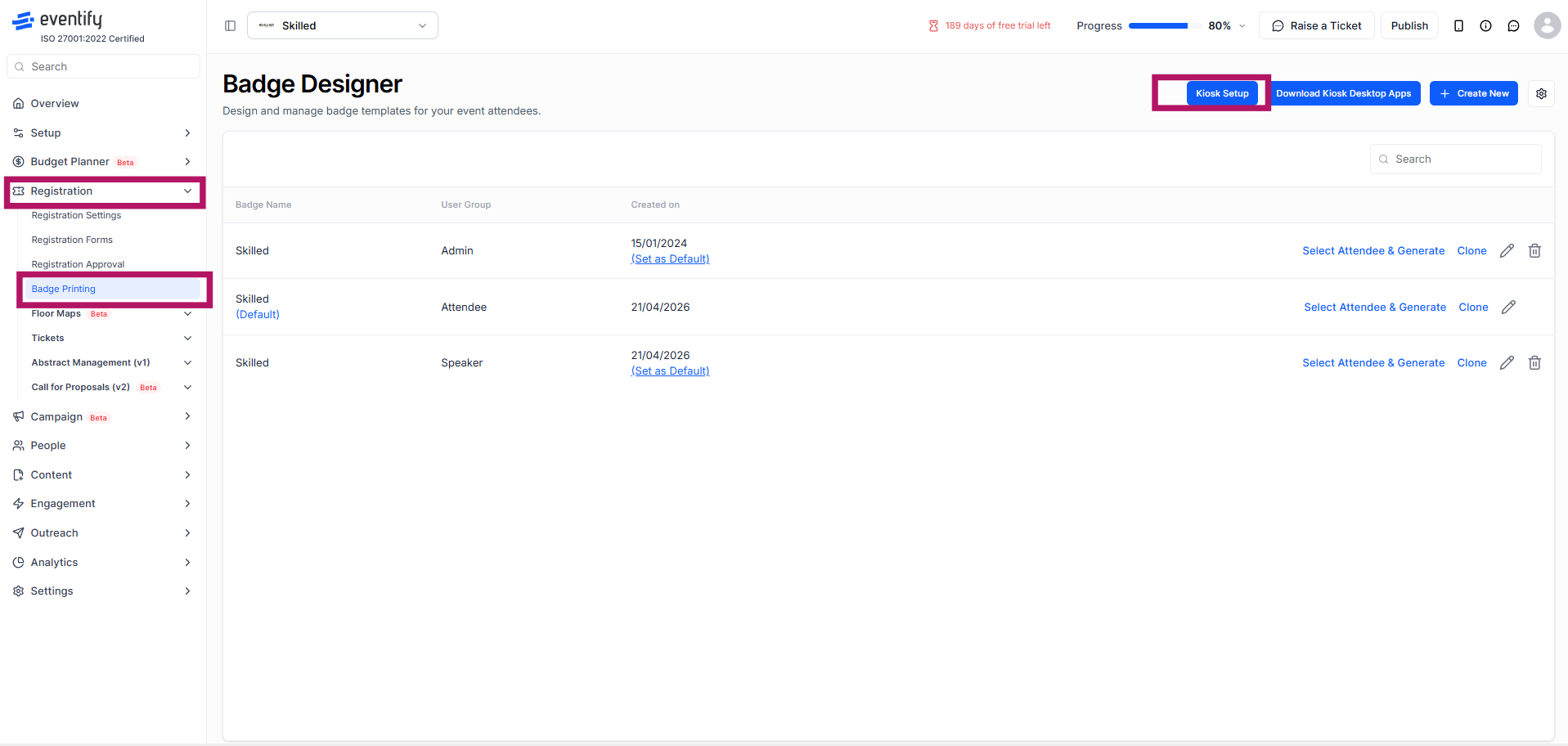
To use this feature, navigate to Registration › Badge Printing in your admin panel. From the Badge Designer screen, click the Kiosk Setup button in the top-right corner.
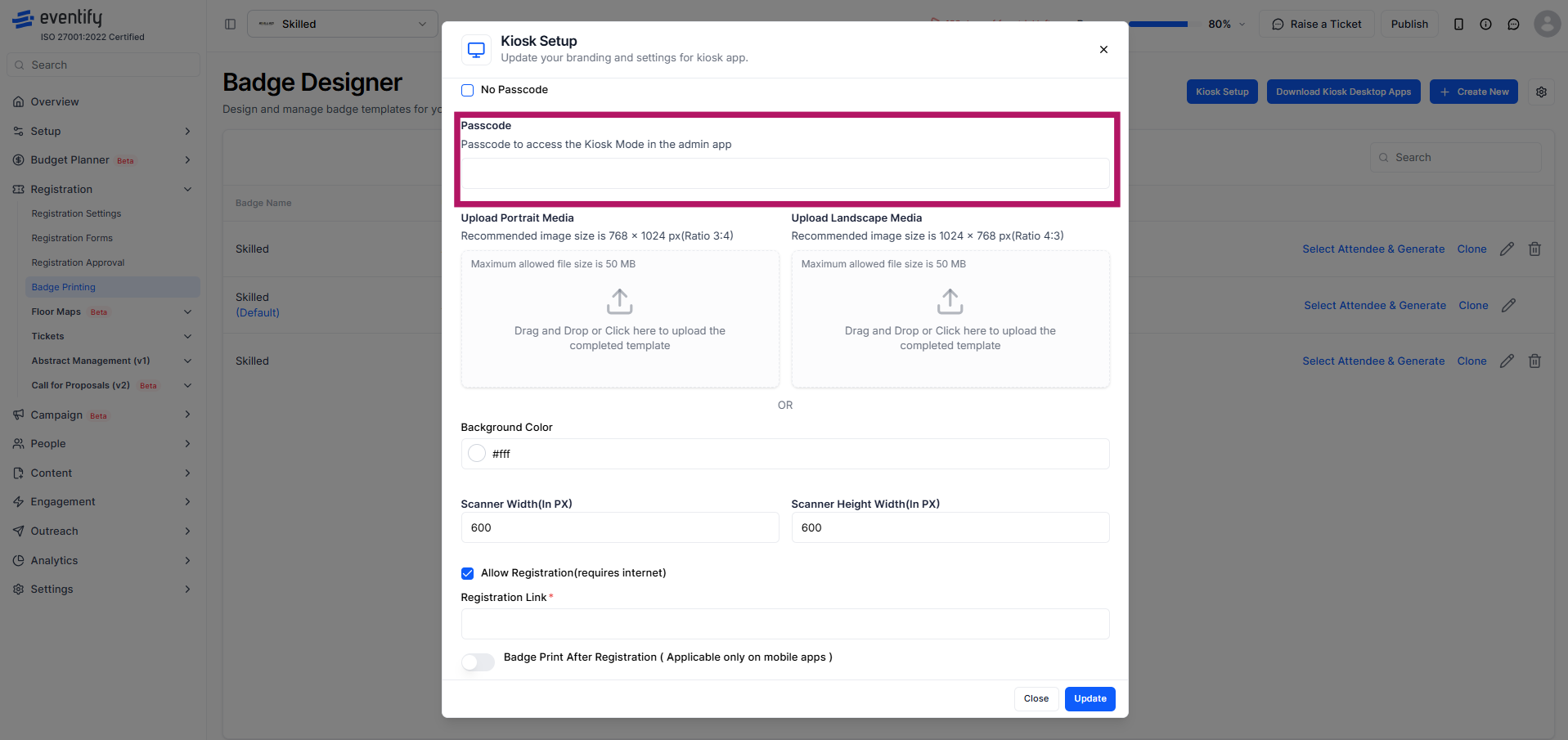
This will open the Kiosk Setup panel. Scroll to the top of the panel and set your Passcode — this is required before the profile editing option can be activated.
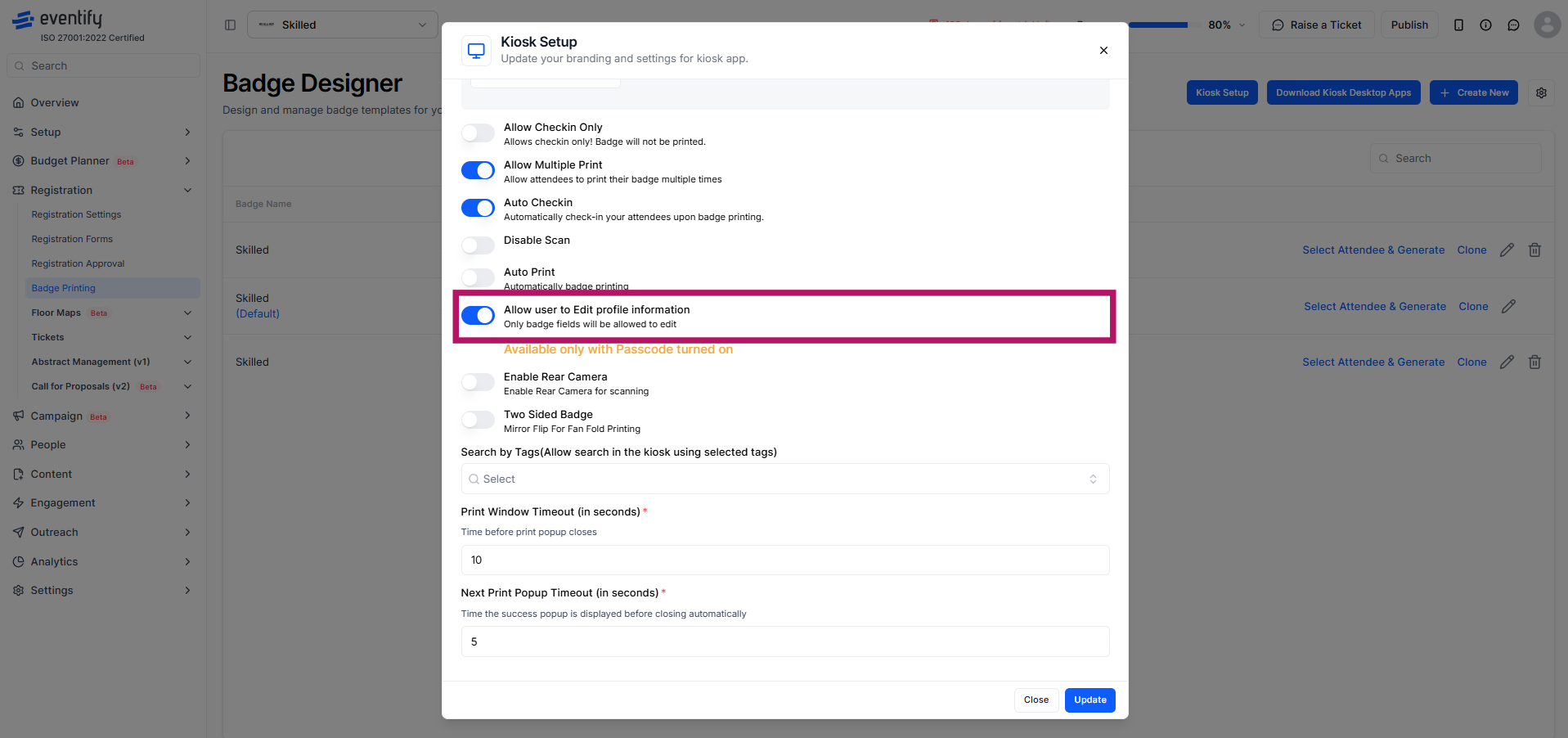
Once your passcode is in place, scroll down through the settings list and locate the Allow user to Edit profile information toggle. Enable it. You will see a note beneath it confirming: "Available only with Passcode turned on." Click Update to save your changes.
From this point, authorised staff at the kiosk can enter the passcode to access profile editing before proceeding to print any attendee's badge.

Schedule a personalized demo.
See how Eventify can enhance the event experience for your attendees. Discover how mobile innovations are transforming events. Get a free demo tailored to your event objectives.

Request Demo

See how Eventify can help you organize a successful event! 

Request a Demo

We'll Convince you!


We're Event People.

Totally Obsessed To Make Your Event Succeed!

Please Fill Out The Form To Request A Demo & Let us Convince You Why You Must Switch To Eventify!

* PS: Nobody can match our pricing :-)
Features

Explore Our Most
Popular Features

Icon representing add or new item button
Learn more
Ticket icon representing event ticketing

Registration & Ticketing

Sell tickets online & manage user registration
Icon representing add or new item button
Learn more
Speech bubble icon representing messaging feature

Chat & Meetings

1-1 messagings and meeting to increase attendee engagement
Icon representing add or new item button
Learn more
Calendar icon representing event schedule

Schedule

Event tracks & sessions as per date and time in one place
Icon representing add or new item button
Learn more
User icon representing registration feature

Matchmaking

All-in-one B2B matchmaking for your attendees
Icon representing add or new item button
Learn more
Share icon representing social sharing feature

Social Feed

Private social network feed for your event
Icon representing add or new item button
Learn more
Multiple people icon representing community section

Community Forum

Forum or group messaging on predefined topics
Icon representing add or new item button
Learn more
Bar chart icon representing analytics dashboard

Poll & Live Q&A

Create interactive polls and QnA on live sessions
Icon representing add or new item button
Learn more
Microphone icon representing speakers feature

Speaker Profile

Speaker’s detailed information for sessions
Icon representing add or new item button
Learn more
Newspaper icon representing news section

Event News

A news section for event related news & announcements
Icon representing add or new item button
Learn more
Info icon representing event guide section

Event Guide

Create your own event help and support guidebook
Icon representing add or new item button
Learn more
Image icon representing photo gallery

Gallery

Event photos gallery by host or attendees
Icon representing add or new item button
Learn more
Storefront icon representing exhibitor booths

Product Showcase

Comprehensive exhibitor and sponsor page
Icon representing add or new item button
Learn more
Crown icon representing sponsors section

Sponsored Ads

Built in ads to promote sponsors & exhibitors
Icon representing add or new item button
Learn more
Checkmark icon representing survey feedback

Lead Scanning

All in one scan and export leads/contacts
Icon representing add or new item button
Learn more
Map icon representing interactive venue maps

Interactive Maps

Tappable interactive booth and floor maps
Icon representing add or new item button
Learn more
Bell icon representing outreach notifications

Push Notification

Send instant push notifications to attendee app
Icon representing add or new item button
Learn more
Trophy icon representing gamification features

Custom Branding

Customize & design your very own branded event app within minutes
Icon representing add or new item button
Learn more
Calendar icon representing event schedule

Session Rating

Get session rating and feedback from attendees
Icon representing add or new item button
Learn more
Bar chart icon representing poll or voting features

Survey

Build your own surveys to get feedback about the event
Icon representing add or new item button
Learn more
Bell icon representing outreach notifications

Email Notifications

Send instant email notifications to your attendees
Icon representing add or new item button
Learn more
Newspaper icon representing news section

Dynamic Form Builder

Drag & drop from builder for checkout form, survey & profile
Icon representing add or new item button
Learn more
Calendar icon representing event schedule

Schedule

Event tracks & sessions as per date and time in one place
Icon representing add or new item button
Learn more
Info icon representing event guide section

Event Guide

Create your own event help and support guidebook
Icon representing add or new item button
Learn more
Checkmark icon representing survey feedback

Email Designer

Drag and Drop custom email template designer
Icon representing add or new item button
Learn more
Bar chart icon representing analytics dashboard

Analytics Dashboard

Get real-time insights on your event on multiple fronts
Icon representing add or new item button
Learn more
Multiple people icon representing community section

Community Forum

Forum or group messaging on predefined topics
Icon representing add or new item button
Learn more
Speech bubble icon representing messaging feature

Chat & Meetings

1-1 messagings and meeting to increase attendee engagement
Icon representing add or new item button
Learn more
Ticket icon representing event ticketing

Registration & Ticketing

Sell tickets online & manage user registration