
How to import a bulk pre-approval list for a registration form
To use this feature, go to Registration > Registration Forms in your admin panel. You will see a list of all registration forms created for your event.
Click the edit (pencil) icon next to the form for which you want to set up pre-approvals. This will open the form in edit mode. Navigate to Form Settings. Enable the "Admin Approval Required" toggle. Once enabled, you will see the option to import your pre-approval list. Upload your file and save your changes.
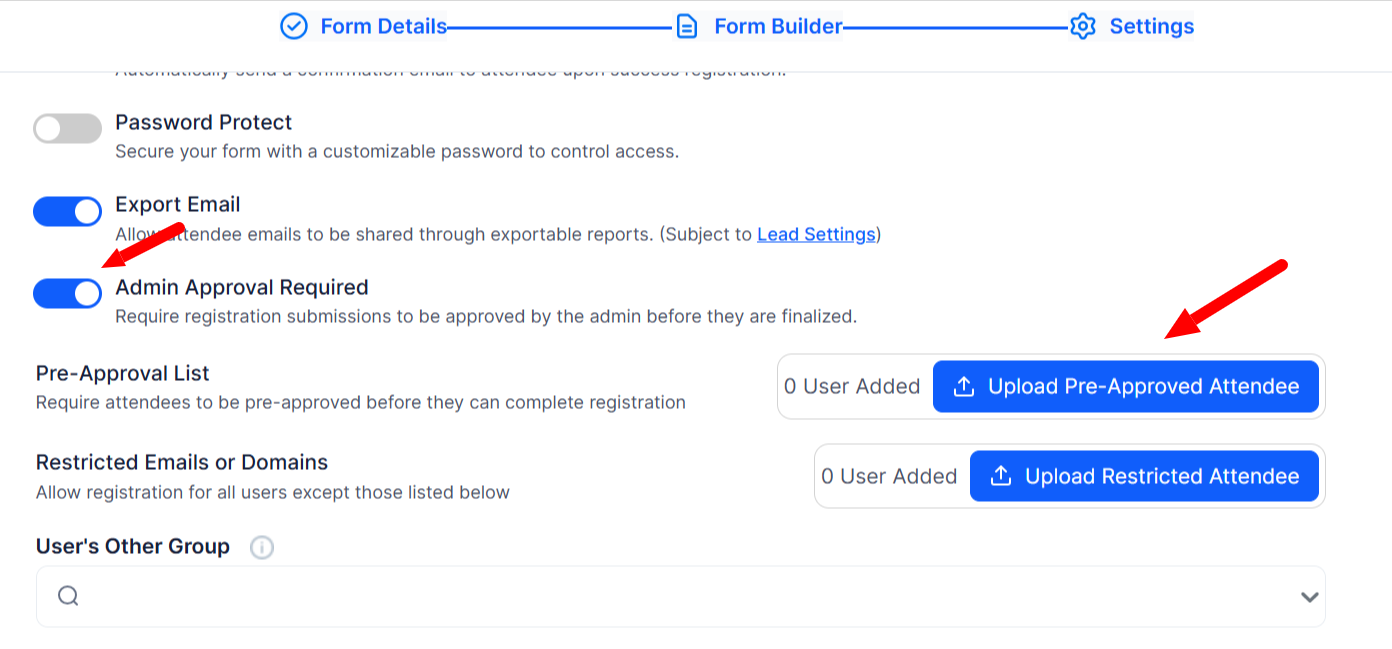
Once imported, only attendees whose details match the pre-approval list will be eligible for approval upon registering through that form. All other registration forms for your event remain unaffected and continue to operate under their own individual settings.
Updating or replacing a pre-approval list
To update the list, go back to Registration > Registration Forms and click the edit pencil icon on the same form. Open Form Settings, and re-upload a new file to replace the existing pre-approval list. Save your changes.
The updated list takes effect immediately. Any previously imported list is replaced entirely by the new one. No other forms or event-level settings are affected by this change.
.png)


